How to Use the Process Audit Window in iDempiere
The Process Audit window in iDempiere records every report, process, and background job executed in the system, including its status, parameters, and output.
It gives store and finance teams a reliable audit trail for troubleshooting failed jobs and confirming report accuracy before decisions are made.
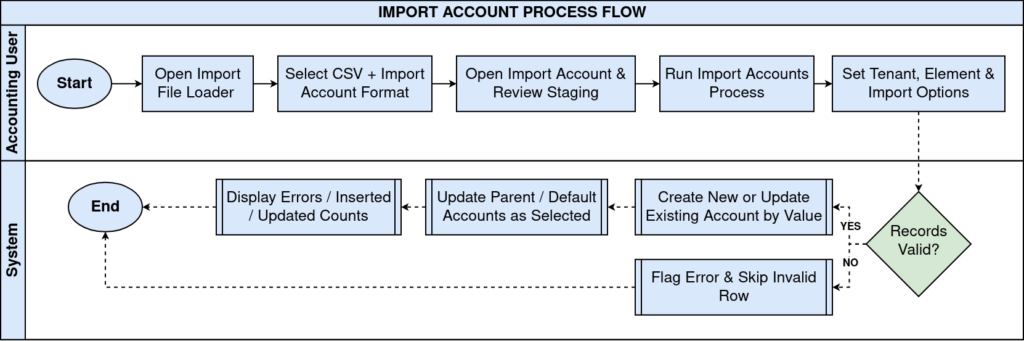
Process Flow
Business Rules
- Every process, report, or job execution is automatically logged in Process Audit.
- Process Audit records are read-only and cannot be created or edited manually.
- Error Msg field shows “OK” with row count or displays failure details.
- Parameter Audit tab stores every input value used for that specific run.
- Records are tied to the Organization context in which the process ran.
- Background jobs run via “Run as Job” are tracked with job status separately.
- Only users with System Administrator or audit access can view these records.
| Note: Process Audit is a monitoring window only — configuration happens in Report and Process, Print Format, and Scheduler windows. |
Prerequisites
- Process or Report already configured under Report and Process window.
- User role granted access to the Process Audit window.
- Process has been executed at least once, manually or on schedule.
- Organization and Tenant context configured for the retail store.
Navigation
Menu → General Rules → Process Audit
Configuration Steps
Step 1: Locate the Process Execution Record
Open Process Audit, use Select Query or navigate records to find the run by Process name, date, or User/Contact. Sort by Created date for the latest run.
| Field | Sample Value | Description |
| Process | Cash Flow Report_CashFlow Report | Name of the report or process executed |
| User/Contact | SuperUser | User who triggered the process |
| Created | 07/23/2026 4:54:24 PM | Timestamp when the process started |

Step 2: Review the Execution Result
Check the Error Msg field for “OK Rows=<n>” or an error description. Review the Result field for the numeric completion code.
| Field | Sample Value | Description |
| Error Msg | OK Rows=70 | Execution status and record count returned |
| Result | 1 | Process completion status code |
Step 3: Review the Printing Configuration Used
Scroll to the Printing section and confirm Report Type, Print Format, and Language ID match store reporting standards.
| Field | Sample Value | Description |
| Report Type | HTML | Output format generated for the report |
| Print Format | Cash Flow Report | Print Format layout applied to the run |
| Language ID | English (USA) | Language used for the report output |
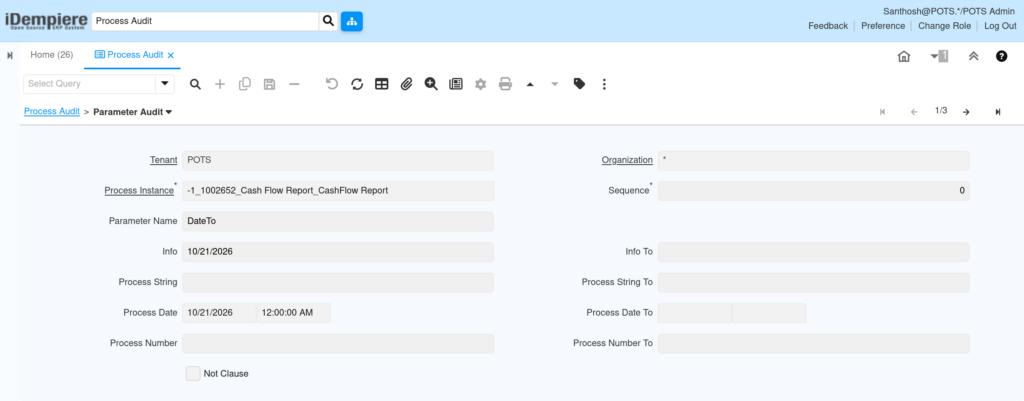
Step 4: Inspect the Parameter Audit Detail
Open the Parameter Audit detail tab. Review each Parameter Name with its Info value used for that run.
| Field | Sample Value | Description |
| Parameter Name | DateTo | Name of the input parameter used in the process |
| Info | 10/21/2026 | Value entered for the parameter |
| Process Date | 10/21/2026 12:00:00 AM | Date value applied during process execution |
Step 5: Track Background Job Status
Check the Background Job section for Run as Job and Notification Type to confirm the job was scheduled versus run interactively.
| Field | Sample Value | Description |
| Run as Job | Unchecked | Indicates if the process executed as a background job |
| Notification Type | (blank) | Notification method configured for job completion |

Common Issues and Resolutions
| Issue | Cause | Resolution |
| Error Msg shows “OK Rows=0” | Parameter date range excludes available data | Verify Process Date and DateTo parameters match store transaction dates |
| Expected process record not found | Process ran under a different Organization | Change the Organization filter to “*” or the correct store org |
| JSON Data field is empty | Process class does not return a JSON payload | Confirm the process supports JSON output before relying on it |
| Background job not visible immediately | Run as Job executes asynchronously | Refresh Process Audit after the scheduler interval completes |
| Duplicate audit entries for one report | Users re-ran the process manually multiple times | Confirm completion before re-triggering; train store staff |
| Print Format looks incorrect | Wrong default Print Format linked to the process | Update the Print Format in Report and Process window |
| Cannot see parameter values used | Parameter Audit detail tab not expanded | Expand Detail record and open the Parameter Audit tab |
| Large reports slow to audit | Wide date range or missing filters | Narrow the Process Date/DateTo range and filter by Organization |
Next Steps
- Configure the Report and Process window for new retail reports.
- Set up Print Format for store-specific report layouts.
- Configure Scheduler for recurring background jobs.