How to Use the Order Batch Process in iDempiere
The Order Batch Process window in iDempiere lets staff select many Sales or Purchase Orders using filter criteria and apply one Document Action to all of them at once.
Because each order is processed and committed independently, the window keeps order status, delivery, invoicing, and reporting accurate even when part of a batch fails.
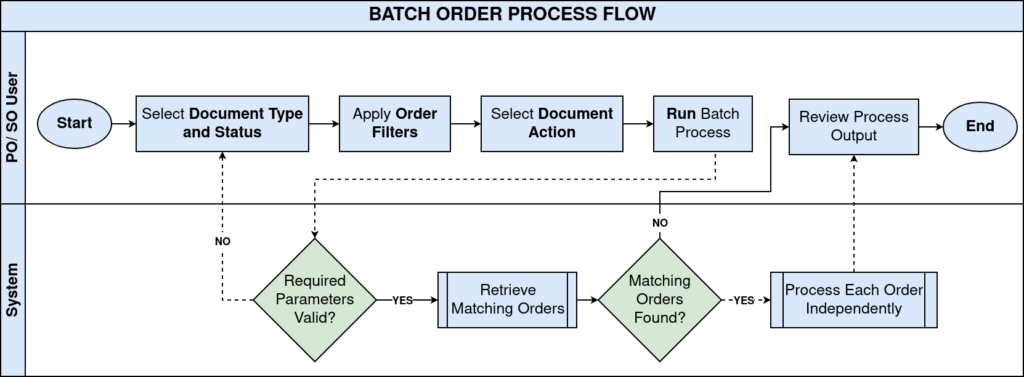
Process Flow
Business Rules
- Target Document Type and Document Status are mandatory before the process can run.
- A valid Document Action must be selected; it must fit the current document lifecycle.
- Only orders matching the selected Document Type and Document Status are retrieved.
- Business Partner filter restricts the batch to one customer or vendor.
- Self-Service filter separates web or kiosk orders from counter or normal orders.
- Date Ordered From/To restricts the batch to orders placed within a specific period.
- The process reports the total number of successfully updated and failed orders.
Prerequisites
- Document Type configured for the order category (e.g., Standard Order).
- Sales or Purchase Orders already created and saved in the relevant status.
- Business Partner configured, if filtering by a specific customer or vendor.
- Document workflow and validation rules configured for the selected Document Action.
- User role has process permission for the Sales Order or Purchase Order window.
Navigation
Menu Path: Quote-to-Invoice (Sales) → Sales Orders → Order Batch Process

Configuration Steps
Step 1: Select the Target Document Type
Open Order Batch Process. In Target Document Type, select the order type to process, for example Standard Order.
Step 2: Set the Document Status Filter
Set Document Status to the current state of the orders you want to process, for example Drafted or Completed.
Step 3: Filter by Business Partner (Optional)
Leave blank to include all partners, or select one customer/vendor to narrow the batch.
Step 4: Apply Self-Service Filter (Optional)
Set Self-Service to Yes or No to isolate web/kiosk orders, or leave blank to include both.
Step 5: Set Delivered and Invoiced Filters (Optional)
Set Delivered and Invoiced to Yes to include only fully completed lines, or No to catch pending orders.
Step 6: Set the Date Ordered Range (Optional)
Enter a From date, a To date, or both to limit orders to the required period.
Step 7: Select the Document Action
Choose the Document Action to apply, for example Complete, and confirm it fits the selected Document Status.
Step 8: Run the Batch
Optionally check Run as Job for large batches, then click OK. Review the process log for updated and error counts.
Field Reference Table
| Field | Sample Value | Description |
| Target Document Type | Standard Order | Order category the batch will search |
| Document Status | Completed | Current status orders must be in to qualify |
| Business Partner | ABC Retail Customer | Restricts batch to one customer or vendor |
| Self-Service | Blank | Filters self-service (web/kiosk) or normal orders |
| Delivered | Yes | Filters by fully delivered order lines |
| Invoiced | Yes | Filters by fully invoiced order lines |
| Date Ordered (From/To) | 07/01/2026 – 07/07/2026 | Restricts batch to a date range |
| Document Action | Complete | Action performed on every selected order |
| Run as Job | Unchecked | Runs the batch in the background for large volumes |
| Note: For large retail catalogs or period-end runs with many orders, enable Run as Job so the batch executes in the background without tying up the user session. |
Common Issues and Resolutions
| Issue | Cause | Resolution |
| Document Type Not Found error | Target Document Type left blank | Select a valid Target Document Type before running |
| No orders are processed | Document Status does not match actual order status | Verify the current status of target orders matches the filter |
| Order fails with ‘Order has no lines’ | Selected order has no order lines | Add order lines or exclude the order from the batch |
| Expected orders missing from Delivered batch | Delivered filter checks line quantities, not header flag | Confirm every line has QtyDelivered equal to QtyOrdered |
| Document Action fails to apply | Action not valid for current document status | Choose a Document Action that fits the order’s current status |
| Batch runs slowly on large volumes | Large order set processed in foreground | Enable Run as Job for large batch runs |
Next Steps
- Review the Sales Order window to inspect individual orders after the batch run.
- Check the Document Type window to confirm workflow and action rules.
- Set up Business Partner records if filtering batches by customer or vendor.
- Review the Process Log to audit successful and failed order counts.