How to Configure Import Loader Format in iDempiere
The Import Format window defines how columns in an external file map to iDempiere table fields during data loads.
Retail businesses use it to bring in chart of accounts, financial statement structures, fixed asset registers, and payroll movement data from legacy or third-party systems.
Accurate format definitions keep imported records consistent, reducing manual re-entry and posting errors across accounting and HR data.
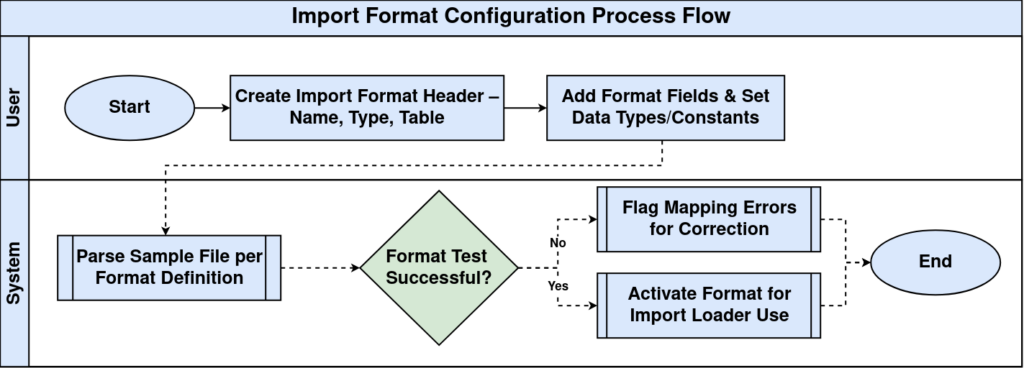
Process Flow
Business Rules
- Each Import Format is reusable across every import run that references it.
- Format Type (Fixed Width, CSV, or XML) determines how the source file is parsed.
- The Table field defines the staging table records are loaded into.
- Format Field Sequence controls the column parsing order within the source file.
- Inactive Import Formats do not appear in Import Loader selection lists.
- Constant Value on a Format Field supplies a default when the source file has no matching column.
Prerequisites
- Target staging table identified (e.g., Account, GL Journal, Asset, Payroll Movement).
- Sample source file available to confirm column order and headers.
- System Administrator role access to General Rules > Data Import.
- Data Type of each source column confirmed (String, Number, Date).
Navigation
System Admin → General Rules → Data Import → Import Format
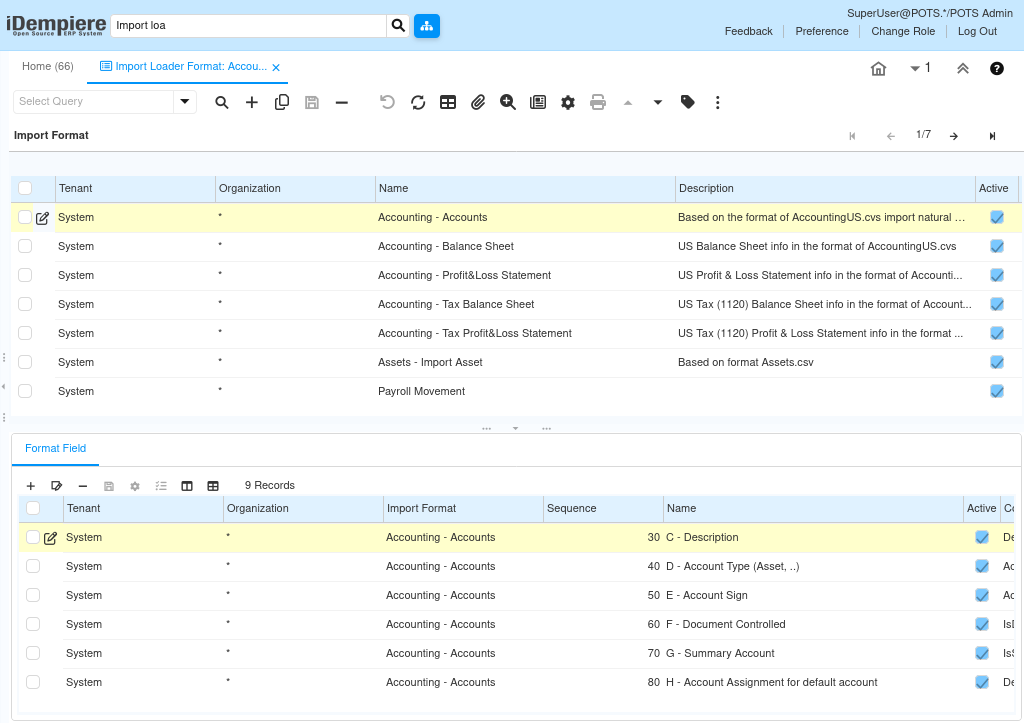
Opens the Import Format header tab listing existing formats (Name, Description, Active), with the Format Field tab below for column-level mapping of the selected format.
Configuration Steps
Step 1: Create the Import Format Header
This step establishes the reusable definition that Import Loader windows call during a data load.
Instructions: Enter a Name and Description, choose the Format Type, and select the target Table the records will load into.
| Field | Sample Value | Description |
| Name | Accounting – Accounts | Identifies the format definition |
| Format Type | CSV | Defines how the source file is structured |
| Table | Account | Target staging table for imported records |
Step 2: Add Format Fields for Each Source Column
Format Fields map every source column to the correct target field so values load into the right place.
Instructions: Add a Format Field row per column with Sequence, Name, and the mapped Column; set Start/End position for Fixed Width files.
| Field | Sample | Purpose |
| Sequence | 30 | Sets the column parse order |
| Name | C – Description | Descriptive label for the field |
| Column | Description | Target column the value loads into |
Step 3: Set Data Type and Constant Values
Correct Data Types and Constant Values prevent numeric, date, and default fields from failing validation on import.
Instructions: Set Data Type per field (String, Number, Date); use Constant Value for fields with no source column, such as a fixed Account Sign or Document Controlled flag.
| Field | Sample Value | Purpose |
| Data Type | String | Defines the expected value format |
| Column | Account Type (Asset, ..) | Maps account classification |
| Constant Value | Y | Default value when no source column exists |
Step 4: Activate and Test the Format
Testing confirms the format parses a real sample file correctly before it is used in production.
Instructions: Set the Import Format to Active, then run a sample file through the matching Import Loader window and review the staging results.
Common Issues and Resolutions
| Issue | Cause | Resolution |
| Import fails with column not found | Format Field Column name does not match the source file header | Verify exact column spelling against the sample file |
| Numeric fields import as text | Data Type set to String instead of Number | Correct the Data Type on the Format Field |
| Fixed Width import misaligns fields | Start/End positions overlap or leave a gap | Recalculate positions against the source file layout |
| Format missing from Import Loader list | Import Format record marked Inactive | Activate the Import Format header record |
| Constant Value is ignored | A source column is also mapped to the same field | Remove the conflicting column mapping |
| Date fields fail validation | Source date format does not match the expected pattern | Adjust the source file date format before import |
| Duplicate records after import | No unique key field mapped for matching | Map a unique identifier field for record matching |
Next Steps
- Configure the matching Import Loader window (Import Account Value, Import GL Journal, Import Asset, Import Payroll Movement).
- Review Format Field mappings for the Balance Sheet, Profit & Loss, and Tax Statement formats used in reporting.
- Check imported staging records before final validation and posting.