How to Use Import Processor in iDempiere
Learn how the Import Processor window in iDempiere schedules and executes replication imports using File or JMS based processor types.
Introduction
The Import Processor window in iDempiere receives replicated data into the destination system. Unlike the event-driven Export Processor, it runs on a configured schedule and delegates the import to the Java class defined in its Import Processor Type.
It is used within standard iDempiere replication setups, typically by Distribution and multi-branch organizations that periodically synchronize records such as Orders between source and destination systems.
It directly affects operations by determining whether replicated transactions are reliably retrieved and loaded into the destination database on time.
Business Rules
- Import Processor must be Active to execute on schedule.
- Every Import Processor must reference one Import Processor Type.
- Import execution follows the configured Frequency Type and Frequency values.
- Date Last Run and Date Next Run are managed automatically by the system.
- Required runtime parameters depend on the selected Import Processor Type.
- The HDD Import Processor requires the fileName parameter and optionally uses folder.
- The JMS Topic Import Processor validates mandatory parameters before starting the listener.
- The Import Processor delegates actual import logic to its Java processor implementation.
Prerequisites
- An Import Processor Type must be created and linked to a valid Java processor class.
- The source system must already be generating replicated XML data (via the Export Processor).
- The destination folder or JMS broker connection details must be available and accessible.
- The Replication Processor Server must be running to execute scheduled imports.
- Required runtime parameters for the selected Import Processor Type must be known in advance.
Configuration Steps
Step 1: Create an Import Processor Type
This step registers the Java class responsible for importing replicated data. Without a processor type, no Import Processor can be created.
Navigate to Replication → Import Processor Type and create a new record. Provide a Search Key, Name, and the Java Class that implements the import logic, then save the record.
| Field | Sample Value | Description |
| Tenant | GardenWorld | Tenant that owns the Import Processor Type |
| Organization | * | Organization scope of the record |
| Search Key | HDD Import Processor Type | Unique identifier for the processor type |
| Name | Human Readable name for HDD Import Processor Type | Display name of the processor type |
| Description | Adempiere HDD Import Processor Type | Optional descriptive text |
| Active | Checked | Enables the processor type for selection |
| Java Class | org.adempiere.server.rpl.imp.FileImportProcessor | Java class that executes the import |

Step 2: Create an Import Processor
This step creates the scheduled import definition. It links the processor type to a named configuration that defines how often the import should run.
Navigate to Replication → Import Processor and create a new record. Enter a Search Key and Name, select the Import Processor Type from Step 1, then configure the Frequency Type, Frequency, and Days to keep Log. Save the record.
| Field | Sample Value | Description |
| Tenant | GardenWorld | Tenant that owns the Import Processor |
| Organization | * | Organization scope of the record |
| Search Key | HDD Import Processor | Unique identifier for the processor |
| Name | HDD Import Processor | Display name of the processor |
| Import Processor Type | HDD Import Processor Type | Determines the Java implementation used |
| Frequency Type | Minute | Unit of measure for the execution schedule |
| Frequency | 10 | Execution interval based on the Frequency Type |
| Days to keep Log | 7 | Number of log days retained |
| Date Last Run | (auto-populated) | Automatically updated after execution |
| Date Next Run | (auto-calculated) | Automatically calculated based on schedule |
| Host | www.example.com | Remote server or broker information |
| Port | 61,616 | Communication port |
| Account | exampleAccount | Authentication account |
| Password Info | (hidden) | Authentication password |
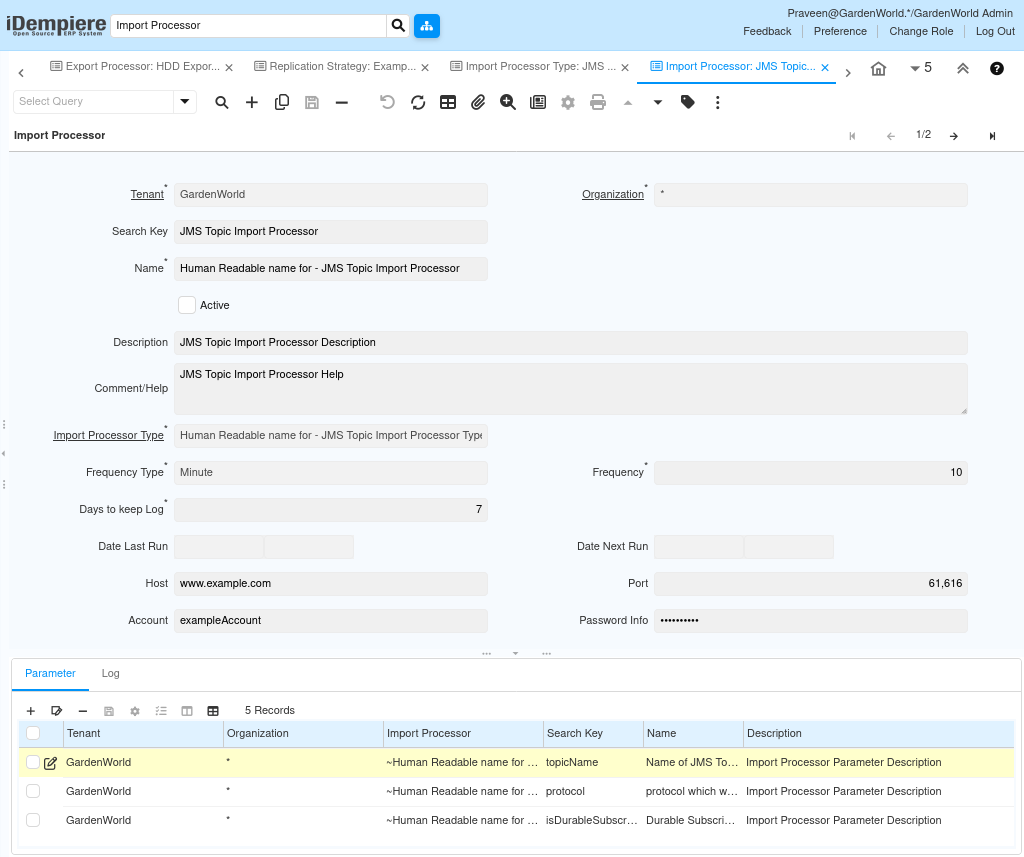
Step 3: Configure Processor Parameters
This step provides the processor-specific runtime values that the selected Import Processor Type needs to locate and import the replicated data. Required parameters differ by processor type.
In the Parameter tab, add a row for each required parameter. For the HDD Import Processor, enter fileName and folder. For the JMS Topic Import Processor, enter topicName, protocol, isDurableSubscription, subscriptionName, and clientID. Save the record.
HDD Example
| Field | Sample Value | Description |
| Search Key | fileName | XML file name expected by the HDD processor |
| Search Key | folder | Folder containing the XML file |
| Parameter Value | C_Order | Sample file name value |
| Parameter Value | /home/idempiere/import/ | Sample folder path value |
JMS Example
| Field | Sample Value | Description |
| Search Key | topicName | JMS topic to subscribe to |
| Search Key | protocol | Communication protocol used to connect |
| Search Key | isDurableSubscription | Flag indicating a durable subscription |
| Search Key | subscriptionName | Durable subscription name |
| Search Key | clientID | JMS client identifier |
| Parameter Value | ExampleTopic / tcp / true / exampleSubName / ImpClientID | Sample values for the parameters above |
The HDD processor combines the folder and fileName values to locate the XML file. If fileName is missing, the process stops with an error before import can occur. For JMS, if any mandatory parameter is missing, processing stops before the listener starts.
Common Issues and Resolutions
| Issue | Cause | Resolution |
| Import Processor never executes | Processor is not Active or the schedule is misconfigured | Verify the processor is Active and the schedule is configured correctly |
| File import fails | fileName parameter is missing or the folder path is incorrect | Verify the fileName parameter exists and the folder path is correct |
| XML file cannot be found | Configured folder and file name do not match the exported XML location | Confirm the configured folder and file name match the exported XML location |
| JMS processor fails to start | Mandatory JMS parameters are missing or incorrect | Verify topicName, protocol, subscriptionName (when durable), and clientID are configured |
| Connection errors | Host, Port, Account, or Password are incorrect | Verify Host, Port, Account, and Password for the selected processor type |
| No data imported | Exported XML does not exist or is not readable | Verify the exported XML exists and is readable by the server process |
Next Steps
- Verify that the corresponding Import Processor Type is correctly configured.
- Confirm that the Export Processor is generating XML (or JMS messages) for import.
- Start the Replication Processor service so scheduled imports can run.
- Perform an end-to-end replication test to validate successful data import.