How to Delete Import Data in iDempiere
The Delete Import Data window in iDempiere clears staging records from an Import Table (I_*) for the current client. It supports retail data loads such as product catalogs, business partners, sales orders, and GL journals brought in through CSV or Excel imports.
Because the process only touches I_* staging tables, it has no impact on live Products, Business Partners, or Orders, keeping transactional and reporting data safe during cleanup.
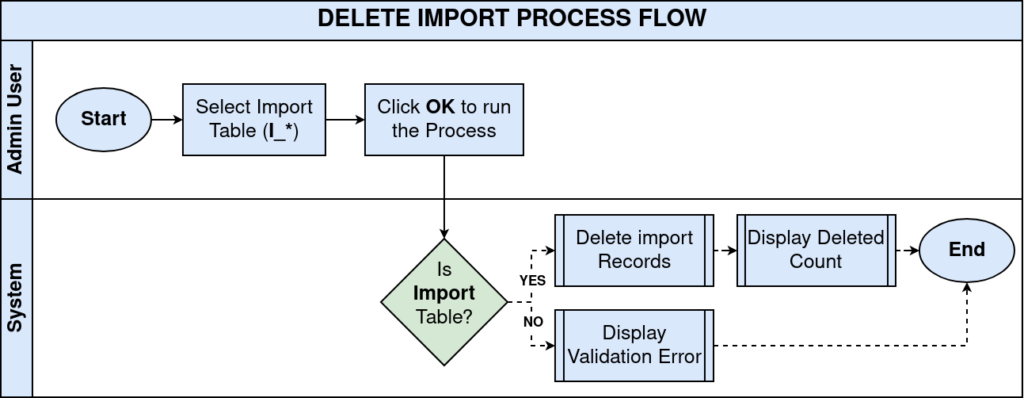
Process Flow
Business Rules
- Only tables whose name starts with I_ can be selected for deletion.
- Deletion applies only to records belonging to the current client.
- Master and transaction tables such as M_Product or C_Order cannot be targeted.
- The process permanently deletes staging rows; there is no undo.
- A success message reports the exact number of rows deleted.
- Running the process on an empty import table returns a zero-row result, not an error.
Prerequisites
- Import Table (I_*) populated through a completed or failed import run.
- User has access rights to the System Admin or General Rules menu.
- Correct Client and Organization context selected in the login window.
- Source file errors identified before re-importing corrected data.
Navigation
Menu → Data → Data Management → Delete Import Data
Configuration Steps
Step 1: Identify the Import Table to Clear
Open the source import window (e.g., Import Product) and note the table name shown in the window title or tab, such as I_Product.

Step 2: Open Delete Import Data and Select the Table
Navigate to Delete Import Data, click the Table field, and choose the matching import table from the list, for example I_Product.
| Field | Sample Value | Description |
| Table | I_Product | Import staging table to be cleared for the current client. |
Step 3: Verify Client Context Before Running
Check the client shown in the top toolbar (e.g., GardenWorld) matches the client that owns the import batch before starting the process.
Step 4: Run the Process and Review the Result
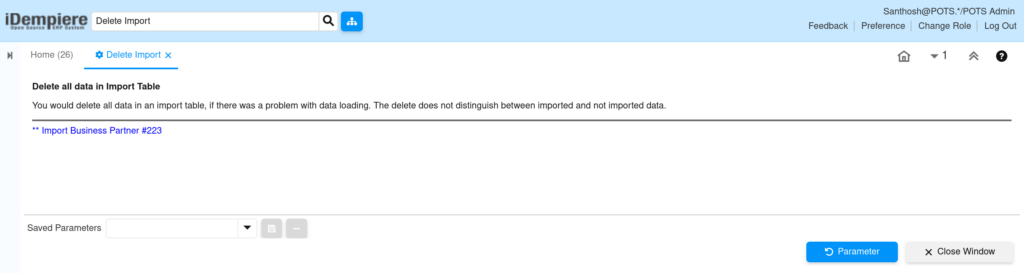
Click Start (OK). Review the result message, e.g., Import Product #542, confirming 542 rows were deleted before re-importing corrected data.
Common Issues and Resolutions
| Issue | Cause | Resolution |
| “Not an import table” error | Selected table does not start with I_ (e.g., C_Order) | Choose the correct I_* staging table from the dropdown. |
| “No AD_Table_ID” error | Table parameter left blank or invalid table reference | Reselect a valid Import Table before running the process. |
| Rows still appear after deletion | Records belong to a different client or organization | Confirm the active client matches the one that owns the import batch. |
| Deleted rows reappear after re-import | Old import file re-uploaded instead of the corrected file | Verify the corrected source file before running the import again. |
| Zero rows deleted | Import table was already empty or previously cleared | No action needed; proceed with a fresh import. |
| Process runs but re-import still fails | Errors exist in source data, not in the staging table | Fix Product Category, UOM, or duplicate Value issues in the file first. |
| Cannot find Delete Import Data in menu | User role lacks access to System Admin menu | Request access to General Rules → Data menu from the system administrator. |
Next Steps
- Re-run the relevant Import window (Import Product, Import Business Partner, Import Order, etc.).
- Review Import Format definitions if recurring column mapping errors occur.
- Check Product, Business Partner, or Order windows to confirm the corrected data loaded correctly.