How Workflow to Tenant Process Works in iDempiere
Workflow to Tenant is a system process in iDempiere that moves workflow customizations made at the System level down to a specific Tenant.
It is used whenever a business modifies a standard workflow, such as an approval flow or setup sequence, and needs those changes to apply only to their own company.
This process ensures tenant-specific approval steps and business rules work correctly during daily transactions, without affecting other tenants sharing the same installation.
Process Flow

Business Rules
- Only workflow elements created at the System level can be moved to a Tenant.
- Tenant and Workflow selection are mandatory before running the process.
- Standard iDempiere and Dictionary workflow elements are excluded from the move.
- The process can run immediately or be queued as a background job.
- A confirmation message shows the total number of workflow elements updated.
- Once moved, the workflow becomes exclusive to the selected Tenant.
Prerequisites
- Tenant (Organization) already configured in the system.
- Workflow created and customized at the System level.
- Login access with System Administrator role.
- Workflow nodes and transitions completed before moving.
Navigation
Menu → System Admin → General Rules → Workflow → Workflow to Tenant
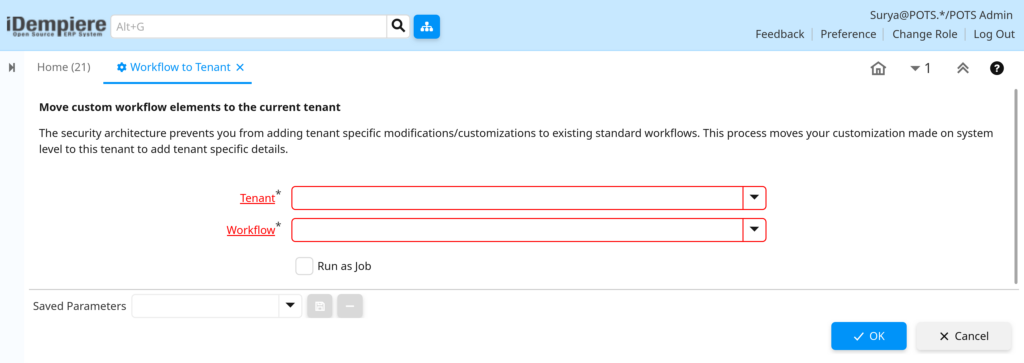
After opening the window, the user sees a simple parameter screen with Tenant, Workflow, and Run as Job fields, along with OK and Cancel buttons.
Configuration Steps
Step 1: Select the Tenant
This step identifies which company should receive the customized workflow.
Instructions
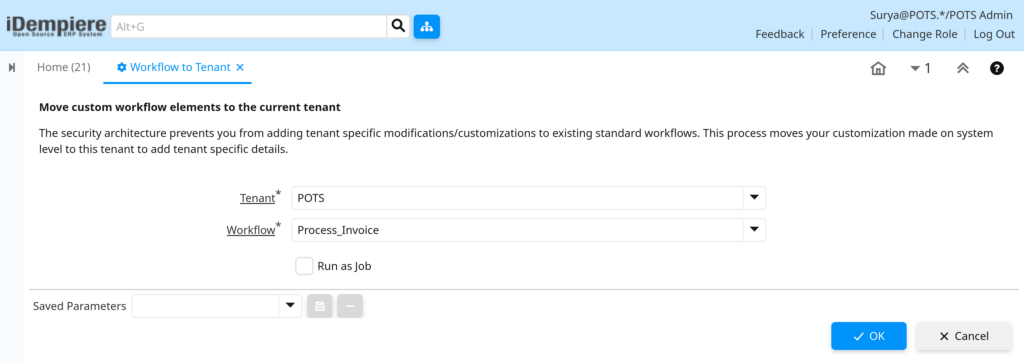
Click the Tenant field and choose the tenant from the list. This field is required and determines who owns the copied workflow.
Field Reference
| Field | Sample Value | Description |
| Tenant | POTS | Tenant that will receive the customized workflow elements |
Step 2: Select the Workflow
This step defines which workflow needs to be moved to the tenant.
Instructions
Click the Workflow field and select the workflow that contains system-level changes to move to the tenant.
Field Reference
| Field | Sample Value | Description |
| Workflow | Business Partner Setup | Workflow to be moved from System level to Tenant level |
Step 3: Choose the Run Mode
This step lets the user decide whether to run the process immediately or in the background.
Instructions
Tick Run as Job to process large workflows in the background, or leave it unchecked to run the process immediately.
Field Reference
| Field | Sample Value | Description |
| Run as Job | Unchecked | Runs the process immediately instead of queuing it as a scheduled job |
Step 4: Execute the Process
This step triggers the process that moves all workflow elements to the selected tenant.
Instructions
Click OK to start the move. A confirmation message displays the number of workflow elements updated for the tenant.
Note: Running this process again for a workflow already moved to the tenant will not create duplicate elements; it reports zero updates.
Common Issues and Resolutions
| Issue | Cause | Resolution |
| Workflow list is empty | No workflow customizations exist at the System level | Verify the workflow was created or modified while logged in at System level |
| “Mandatory field” error on OK | Tenant or Workflow field left blank | Select both required fields before clicking OK |
| Zero elements updated after running | Workflow already belongs to the tenant, or is a standard workflow | Confirm the workflow ownership and type before repeating the process |
| Access denied when opening the window | User role does not have System Administrator rights | Log in with a System Administrator role to access this process |
| Workflow nodes missing after the move | Related node conditions were created under a different workflow | Review and move dependent workflow elements separately |
| Moved workflow not visible at tenant level | Menu or window cache not refreshed | Log out and log back in, or refresh the workflow window |
| Process appears to run twice with no new changes | Process executed more than once for the same workflow | Check the existing tenant workflow before rerunning the process |
Next Steps
- Review the moved workflow under the Workflow window.
- Assign the tenant workflow to the relevant Document Type.
- Test the workflow with a sample transaction for the tenant.
- Set up workflow responsible users and notifications.