How to Use Archive Viewer Form in iDempiere
Introduction
The Archive Viewer window in iDempiere helps users find and open documents that the system has already saved for future reference, such as invoices, orders, and printed reports.
It is used across service, sales, and finance areas whenever someone needs to look back at a document that was completed and stored earlier, without redoing the original work.
This window does not create or change any document. It only helps users quickly locate saved copies linked to a business partner, keeping past records easy to find during reviews or follow-ups.
Process Flow
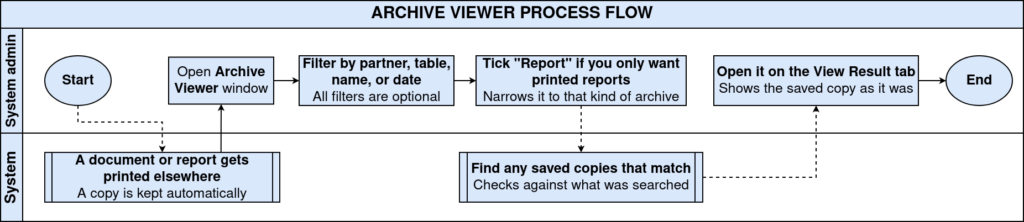
Business Rules
- Only documents already saved (archived) by the system appear in search results.
- Selecting a Business Partner narrows results to documents linked to that partner only.
- The Table field limits the search to one specific type of document or window.
- Name and Description fields help locate saved documents using matching titles or notes.
- Created By and Created date fields help find documents by who saved them and when.
- The Report checkbox filters results to show only saved reports, not other saved documents.
- Matching results appear only after the user switches to the View Result tab.
Prerequisites
- Business Partner details must already be set up in the system.
- A document or report must have been saved (archived) at least once before it can appear here.
- The user must have permission to open the Archive Viewer window.
Navigation
Menu → System Admin → General Rules → Security → Archive Viewer
Opening this window shows the Enter Query tab first, with all search fields empty. After entering search details and confirming, matching saved documents appear under the View Result tab.

Configuration Steps

Step 1: Open the Archive Viewer Window
This step gives access to the search screen where saved documents can be located.
Instructions
Go to the menu path shown above. The Enter Query tab opens automatically with all fields blank, ready for search details to be entered.
Step 2: Enter Search Details
Narrowing the search helps find the exact saved document quickly instead of scrolling through many results.
Instructions
Fill in one or more fields such as Business Partner, Table, Name, Description, or Created By. More detail entered means fewer, more accurate results.
| Field | Sample Value | Purpose |
| Report | Checked | Shows only saved reports when selected |
| Business Partner | (blank) | Finds documents linked to this partner |
| Table | Storage Detail | Limits search to one type of document |
| Name | (blank) | Matches documents saved with this title |
| Description | (blank) | Matches documents saved with this note |
| Help | (blank) | Matches extra notes saved with the document |
| Created By | Surya | Finds documents saved by this user |
| Created (From/To) | 01-07-2026 to 23-07-2026 | Finds documents saved within this date range |
Step 3: Apply the Report Filter (Optional)
This step is useful when only printed reports are needed, not other saved document types.
Instructions
Select the Report checkbox before running the search if only saved reports should be shown.
Step 4: Run the Search and Review Results
This step displays the saved documents that match the search details entered.
Instructions
Confirm the search using the tick button. Switch to the View Result tab to see and open the matching saved documents.

Common Issues and Resolutions
| Issue | Cause | Resolution |
| No results found | No document has been saved yet for the entered details | Confirm the document was saved earlier, then widen the search details |
| Wrong Business Partner shown | An incorrect partner was selected in the field | Clear the field and reselect the correct Business Partner |
| Unsure which Table to pick | User does not know the related document type | Check the original document window to confirm the correct type |
| Needed reports missing from results | Report checkbox was left unchecked | Select the Report checkbox and run the search again |
| Too few or no matches with date filter | Created date range is too narrow | Widen the From and To dates and search again |
| Document created by another user not found | Created By field limits results to one user | Leave Created By blank to search across all users |
| Results not visible after searching | User stayed on the Enter Query tab | Click the View Result tab after confirming the search |
Next Steps
- Open the Business Partner window to confirm partner details linked to a document.
- Go to the original document window if further action is needed after review.
- Ask an administrator to review access rights if the Archive Viewer window cannot be opened.