How to Import Bank Statements in iDempiere
The Import Bank Statement window in iDempiere loads bank transaction files into the Import File Loader and converts them into usable Bank Statement records. Once imported, the lines feed reconciliation, payment matching, and cash accounting, so store finance teams can close the bank account faster and with fewer manual entry errors.
Process Flow
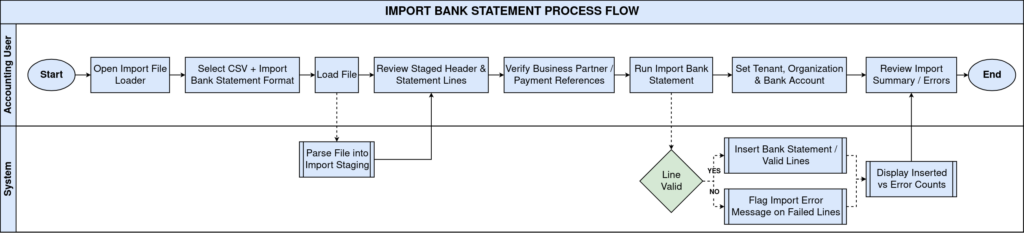
Business Rules
- Only records with a supported Import Format are parsed into staging tables.
- Each import line must reference an active Organization and Bank Account.
- Statement amount and transaction amount are validated before final commit.
- Unmatched Business Partner Key values are imported but flagged for review.
- Charge amounts and interest amounts post separately from the transaction amount.
- Reference No must be unique per statement line for accurate reconciliation.
- Processed lines cannot be re-imported unless old imported records are deleted first.
Prerequisites
- Bank Account configured under the correct Organization.
- Import Format “Import Bank Statement” defined and active.
- Business Partner records configured for expected counterparties.
- Currency (ISO Currency Code) configured and matching the bank file.
- Charge record configured for recurring bank fees, e.g., Bank Charge.
Navigation
Menu → Data → Data Import → Import Bank Statement
Configuration Steps
Step 1: Prepare the Bank Statement Import File
Export or prepare a CSV with header and line fields (bank name, routing/account, statement date, line reference, amounts, business partner key). Save as UTF-8.

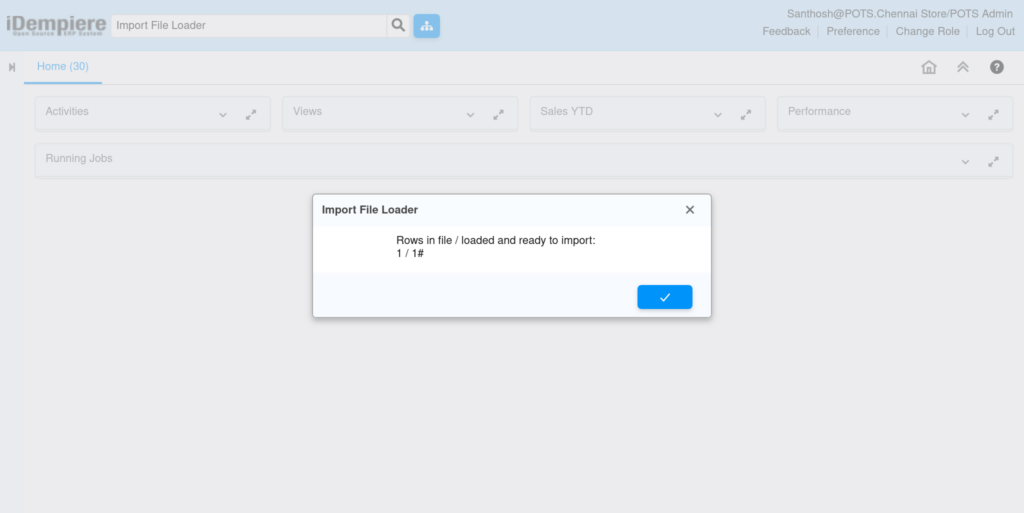
Step 2: Load the File in Import File Loader
Open Import File Loader, choose the CSV file, set encoding to UTF-8, select Import Format “Import Bank Statement”, then confirm the record count shown.
| Field | Sample Value | Description |
| Import Format | Import Bank Statement | Column mapping used to parse the file |
| Encoding | UTF-8 | Character set of the source CSV |
| Records | 1 | Number of rows detected in the file |
| Organization | 0 | Raw org value from the file before mapping |
| Name | Chase Business Checking | Bank account name on the statement |
| Routing No | 021000021 | Bank routing number |
| Account No | 987654321 | Bank account number |
| IBAN | GB29NWBK60161331926819 | International bank account number |
| Statement Date | 2025-12-28 | Date of the bank statement |
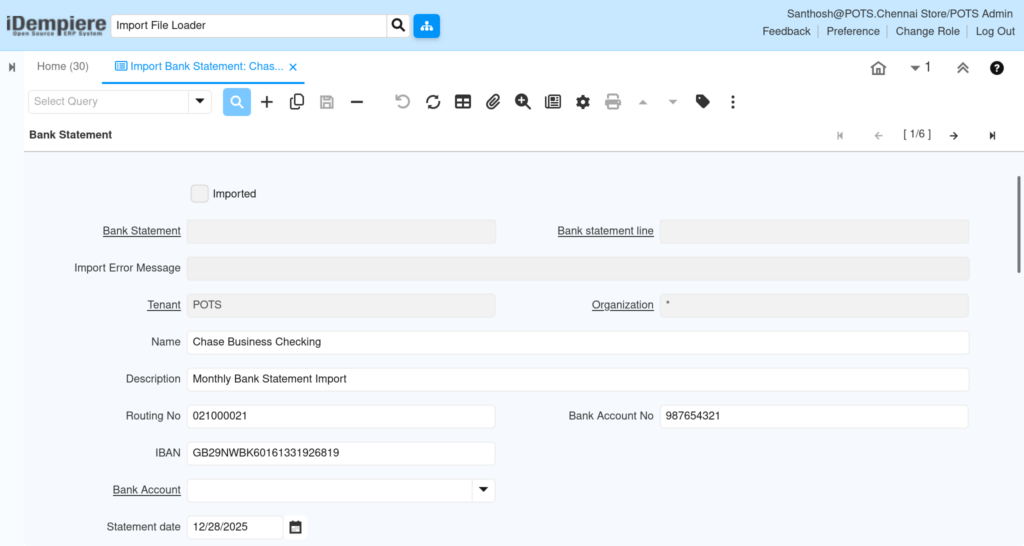
Step 3: Review the Staged Bank Statement Header
Open the Import Bank Statement tab, verify Tenant, Organization, Name, Description, Routing No, Bank Account No, IBAN, and Statement date are correct.
| Field | Sample | Purpose |
| Tenant | POTS | Client/tenant the statement belongs to |
| Organization | * | Org scope before mapping to a specific store |
| Name | Chase Business Checking | Identifies the bank account on file |
| Description | Monthly Bank Statement Import | Notes the purpose of the batch |
| Statement date | 12/28/2025 | Date used for the bank statement header |
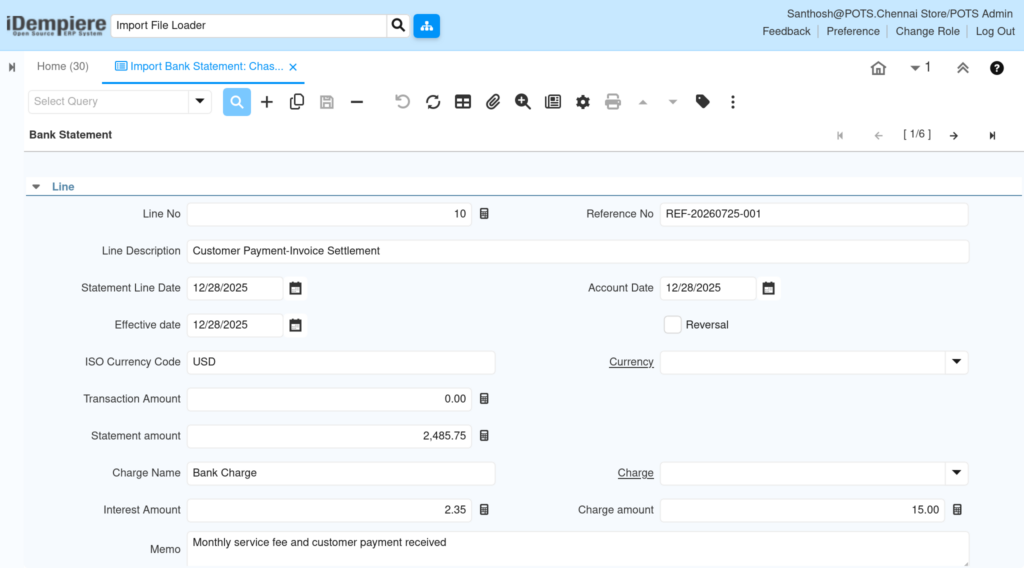
Step 4: Review Statement Line Details
Check Line No, Reference No, Line Description, dates, ISO Currency Code, Statement amount, Charge Name, Interest Amount, and Charge amount for each row.
| Field | Sample | Purpose |
| Line No | 10 | Sequence of the line within the statement |
| Reference No | REF-20260725-001 | Bank reference for the transaction |
| Line Description | Customer Payment-Invoice Settlement | Describes the transaction purpose |
| ISO Currency Code | USD | Currency of the transaction |
| Statement amount | 2,485.75 | Net amount recorded on the bank statement |
| Charge Name | Bank Charge | Type of bank fee applied to the line |
| Interest Amount | 2.35 | Interest posted on the line |
| Charge amount | 15.00 | Bank fee amount for the line |
| Memo | Monthly service fee and customer payment received | Free-text note carried from the bank file |
Step 5: Link Business Partner and Payment References
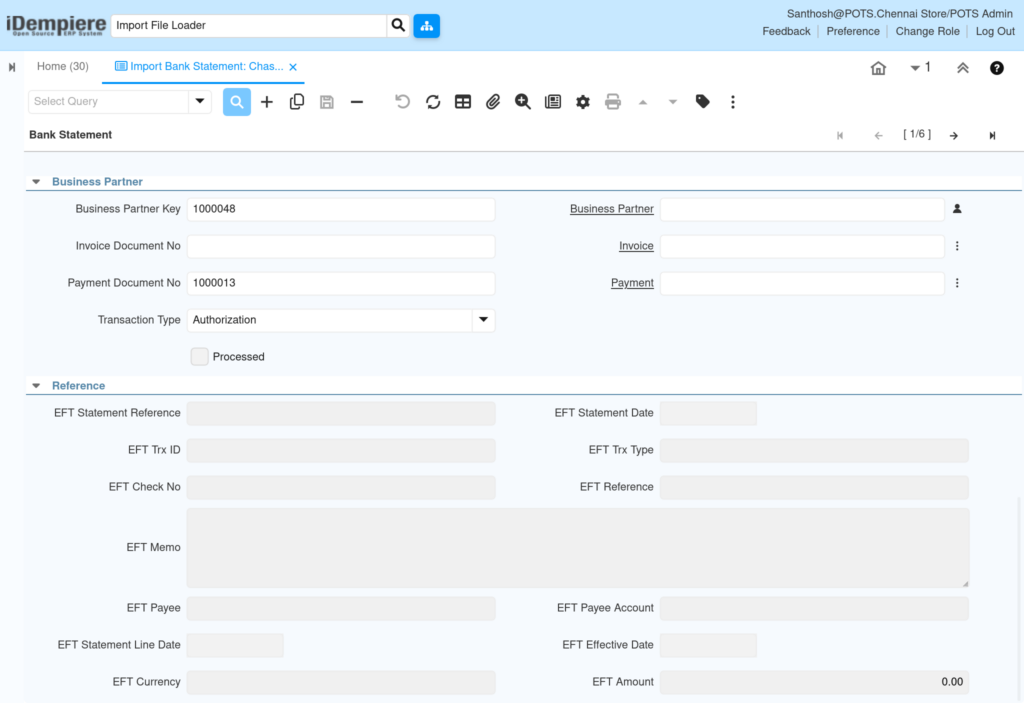
Enter or verify Business Partner Key, Payment Document No, and Transaction Type. Leave Invoice fields blank if the line settles a payment rather than an invoice directly.
| Field | Sample | Purpose |
| Business Partner Key | 1000048 | Identifies the customer or vendor on the line |
| Payment Document No | 1000013 | Existing payment document to match against |
| Transaction Type | Authorization | Bank transaction classification |
| Processed | Unchecked | Indicates the line has not yet been posted |
Step 6: Run the Import Bank Statement Process
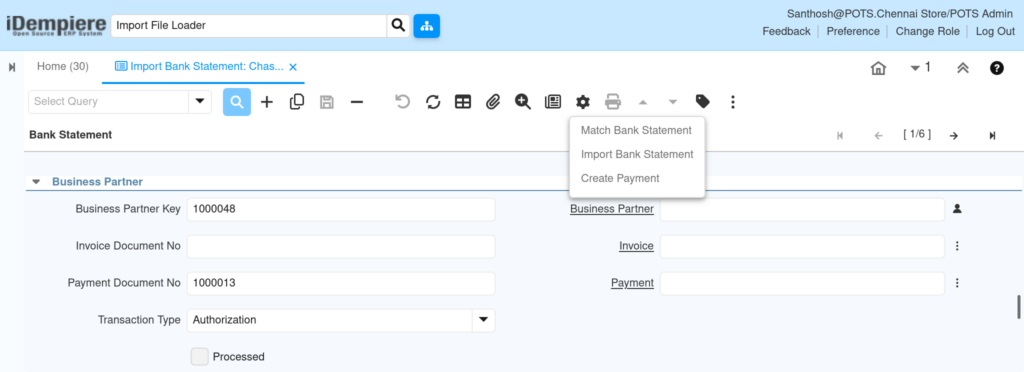
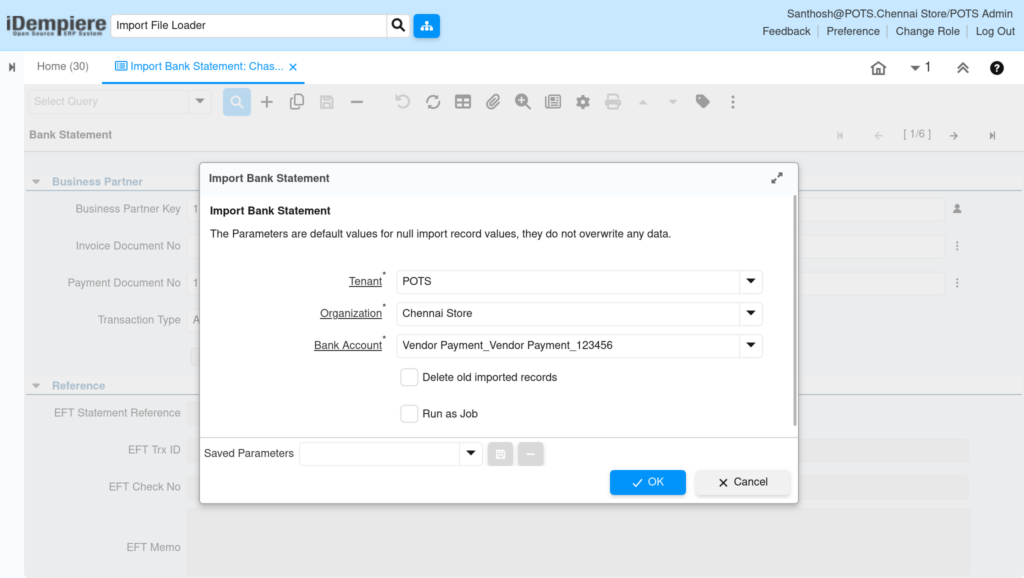
From the toolbar menu, select Import Bank Statement. Set Tenant, Organization, and Bank Account. Enable “Delete old imported records” only when re-running a corrected file.
| Field | Sample | Purpose |
| Tenant | POTS | Client scope for the import run |
| Organization | Chennai Store | Store the bank statement posts to |
| Bank Account | Vendor Payment_Vendor Payment_123456 | Target account for the statement |
| Delete old imported records | Unchecked | Clears prior staged rows before reloading |
| Run as Job | Unchecked | Runs the process in the background |
Step 7: Review Import Results and Resolve Errors
Read the summary (Inserted vs Errors). Open the Import Error Message field on failed rows, correct the source data, and re-run the import.

Common Issues and Resolutions
| Issue | Cause | Resolution |
| Import shows 0 Bank Statement Line: Inserted | Bank Account not selected or line data invalid | Select a valid Bank Account and re-check line amounts |
| Business Partner not linked | Business Partner Key does not exist in iDempiere | Create or correct the Business Partner record, then re-import |
| Payment Document No not found | Payment number typed incorrectly in file | Verify the Payment document number in the source system |
| Statement date mismatch | CSV date format differs from iDempiere setting | Reformat dates in the CSV to match the tenant’s date pattern |
| Duplicate statement lines on re-import | Old imported records not cleared | Enable “Delete old imported records” before re-running |
| Currency errors during posting | ISO Currency Code not configured for tenant | Add the missing currency in System Admin, then re-import |
| Process reports errors but statement still inserted | Only some lines failed validation | Open Import Error Message per line to isolate failed rows |
| Charge amount not posting | Charge record not mapped to Charge Name text | Create a matching Charge record with the same name |
Next Steps
- Configure Match Bank Statement to reconcile lines against existing payments.
- Set up Create Payment for lines without an existing payment record.
- Review Bank Statement window for manual adjustments after import.
- Confirm Bank Account reconciliation reports tie to the general ledger.