How Support Users vs Roles Info Window Works in iDempiere
Introduction
Support Users vs Roles is a read only Info Window in iDempiere. It lists every active support user together with the self service roles assigned to that user.
The window is used during Service Request setup, so administrators can confirm that support staff are correctly linked to the self service roles used on the customer portal.
It does not create or change any record. It helps confirm user and role setup before support staff start handling service requests raised by customers.
Process Flow

Business Rules
- Only active users are shown in the result grid.
- Only users with the Support User checkbox enabled appear in the results.
- Only roles with Role Type set to System Support appear in the results.
- Roles marked as a Master Role are excluded from the results.
- System level users with an internal ID of 100 or below are excluded.
- A support user can appear more than once if linked to several System Support roles.
- The All/Any checkbox controls whether entered filters must all match or any match.
- Results are sorted by user name first, then by role name.
Prerequisites
- User record created in the User window.
- Support User checkbox enabled on the user record.
- Role record created with Role Type set to System Support.
- System Support role assigned to the support user in the User Roles tab.
- Tenant and Organization configured for the support user.
Navigation
Menu → System Admin → General Rules → Security → Support Users vs Roles
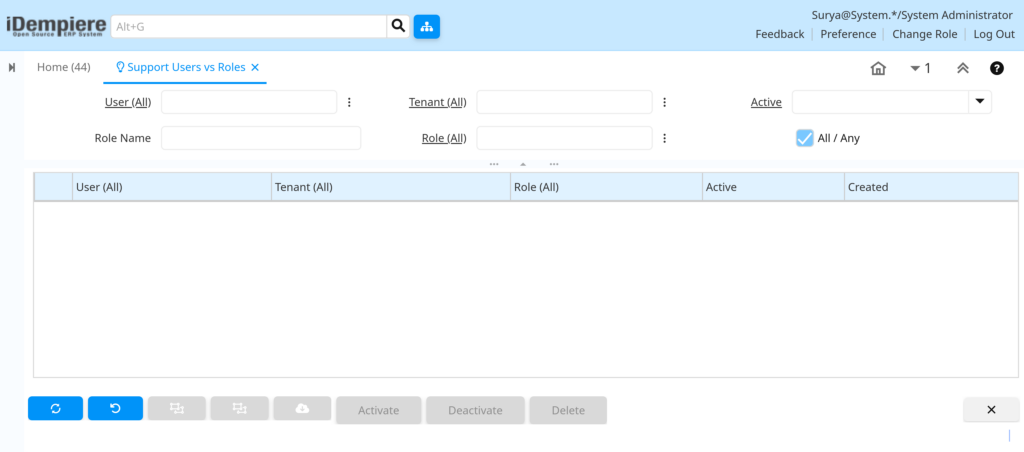
Users can also reach the window by typing its name in the global search field at the top of the screen. On open, the window shows a blank search area with User, Tenant, Role, Active, Role Name and All/Any fields. The result grid stays empty until a search is run.
Configuration Steps
Step 1: Open the Support Users vs Roles Window
This step confirms which support users are currently linked to system support roles before service requests go live on the portal.
Instructions
Open the window from the menu or the global search bar. Leave all fields blank for a full list, or enter values to narrow the search.
| Field | Sample Value | Description |
| User (All) | Support% | Filters the list by support user name |
| Tenant (All) | GardenWorld | Filters the list by the user’s tenant |
| Role (All) | Self Service Support | Filters the list by role name |
| Active | Yes | Shows active, inactive, or all records |
| Role Name | Support% | Filters roles by name, % is a wildcard |
| All/Any | Checked | Switches filter logic between match all and match any |
Step 2: Run the Search
Running the search retrieves the matching support user and system support role combinations from the system.
Instructions
Click the search icon or press Enter. The row count at the bottom of the window shows how many combinations were found.
Step 3: Review the Result Grid
Reviewing the grid confirms which support users are correctly linked to system support roles, and highlights any that are missing.
Instructions
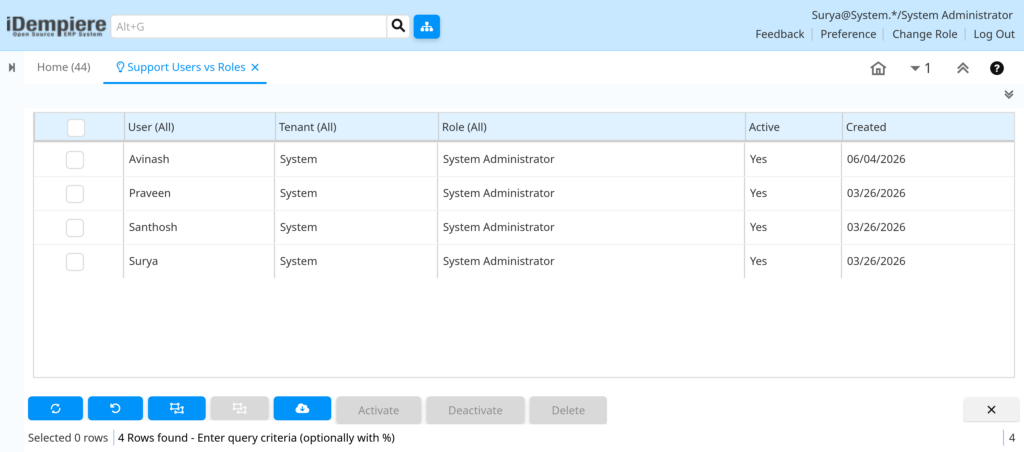
Check the User, Tenant, Role, Active and Created columns for each row. Look for any expected support user or role that does not appear.
| Field | Sample | Purpose |
| User (All) | John Support | Support user shown in the result |
| Tenant (All) | GardenWorld | Tenant the support user belongs to |
| Role (All) | Self Service Support | Self service role linked to the user |
| Active | Y | Shows whether the record is active |
| Created | 20-07-26 | Date the user and role link was created |
Step 4: Correct Missing or Incorrect Setup
Since this window is read only, corrections are made in the User or Role window, not here.
Instructions
If a support user is missing, enable Support User in the User window, or set Role Type to System Support in the Role window, then assign the role under User Roles.
Common Issues and Resolutions
| Issue | Cause | Resolution |
| No rows found | Support User checkbox not enabled on the user record | Enable Support User in the User window and save |
| Expected role missing from list | Role Type is not set to system support | Set Role Type to system support in the Role window |
| User listed without expected role | Role not assigned to the user in User Roles tab | Add the role under the User Roles tab for that user |
| A known user does not appear | User ID is 100 or below and is treated as a system user | Confirm the support user is a regular tenant user |
| Active role not shown | Role is marked as a Master Role | Assign a non master self service role instead |
| Too many unrelated rows returned | All/Any left unchecked with several filters entered | Check All/Any to match all entered filters together |
| Inactive record still appears | Active filter set to All instead of Yes | Set the Active filter to Yes to view active records only |
| Cannot edit a row from this window | Support Users vs Roles is a read only info window | Open the User or Role window to make changes, then search again |
Next Steps
- User window, to enable the Support User checkbox on a user record.
- Role window, to set Role Type to system support.
- User Roles tab, to assign system support roles to support users.
- Request Type window, to configure service request categories.
- Request window, to review and process service requests submitted by customers.