How to Process a Dunning Run in iDempiere
The Dunning Run process evaluates outstanding invoices and payments against a configured Dunning Level and builds Dunning Run Entries and Lines for qualifying business partners.
It is run periodically to identify overdue customer balances and organize them for the next step, printing reminder letters, without sending anything itself.
The process only prepares collection data; it does not modify invoices, create payments, or change any document status.
Process Flow

Business Rules
- The Dunning Run header defines Organization, Dunning Date, Dunning Definition, and Dunning Level as one processing batch.
- Creating the Dunning Run deletes any existing entries for that run before generating new ones.
- Organization, Sales Representative, and Currency are mandatory process parameters.
- Only Completed or Closed invoices that are unpaid with a nonzero open amount are considered.
- An invoice is skipped if its Dunning Grace date is later than the Dunning Run date.
- An invoice is skipped when Days Due is below the level’s Days After Due, unless Show All Due is enabled.
- Disputed invoices are excluded unless Include Disputed is enabled.
- Sequential Dunning Levels require earlier levels to be satisfied before an invoice reaches a higher level.
- Days Between Dunning prevents an invoice from being dunned again before the waiting period elapses.
- Invoices are grouped into one Dunning Run Entry per Business Partner, Currency, Sales Representative, and Dunning Level.
- AP invoice amounts appear as negative values on the Dunning Run Line.
Prerequisites
- Dunning Definition and Levels configured.
- Business Partner assigned to the same Dunning Definition as the selected level.
- Sales Representative and Currency available for the process parameters.
- Invoices completed with an open, unpaid balance.
Configuration Steps
Step 1: Create the Dunning Run Header
Create a new Dunning Run, select the Organization, Dunning Date, Dunning Definition, and Dunning Level, then save.
| Field | Sample Value | Description |
| Organization | CDC | Organization this dunning batch applies to |
| Dunning Date | 10/08/2026 | Date used to calculate Days Due for every invoice |
| Dunning | Standard Customer Dunning | Dunning Definition this run evaluates against |
| Dunning Level | Friendly Reminder | Specific escalation level being processed |

Step 2: Execute Create Dunning Run
Running the process is what actually scans invoices and payments against the configured rules; the header alone has no effect until executed.
Click Create Dunning Run, enter the process parameters, then click OK. Sales Representative and Currency are mandatory and stop the process if missing.
| Field | Sample Value | Description |
| Organization | CDC | Filters invoices to this organization |
| Include Disputed | No | Excludes disputed invoices from this run |
| Only Sales Invoices | No | Allows both AR and AP documents to qualify |
| Default Sales Representative | Aravind Kumar | Required parameter; process stops with No SalesRep if blank |
| Dunning Currency | USD | Required parameter; process stops with No Currency if blank |
| Include All Currencies | No | Restricts the run to the selected Dunning Currency |
| Business Partner | NextGen ERP Consulting LLC | Optional filter to run for one business partner only |
| Note: Before creating new records, the process deletes any existing Dunning Run Entries for this run, preventing duplicate processing. | ||

Step 3: Review the Dunning Run Entry
One entry is created per unique Business Partner, Currency, Sales Representative, and Dunning Level combination, giving a quick summary before drilling into individual invoices.
Open the Dunning Run and review each generated Dunning Run Entry.
| Field | Sample Value | Description |
| Business Partner | NextGen ERP Consulting LLC | Partner this entry summarizes |
| Currency | USD | Currency of the grouped invoices |
| Total | -59,000 | Combined open amount for this entry |

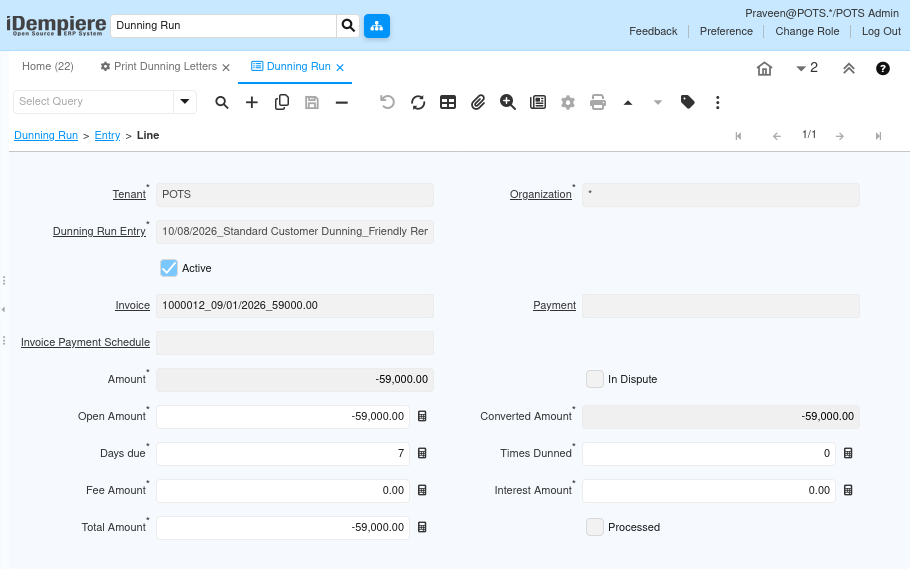
Step 4: Review the Dunning Run Line
Each qualifying invoice or payment becomes its own line, carrying the detail needed to print an accurate reminder.
Open a Dunning Run Entry and review its Dunning Run Lines for Invoice, Open Amount, Days Due, and Fee Amount.
| Field | Sample Value | Description |
| Invoice | 1000012 | Invoice this line was generated from |
| Amount | -59,000 | Original invoice amount; negative because this is an AP invoice |
| Open Amount | -59,000 | Unpaid balance carried onto the line |
| Days Due | 7 | Days between the Invoice Due Date and the Dunning Date |
| Times Dunned | 0 | Number of previous Dunning Runs that already included this invoice |
| Fee Amount | 0 | Fee added if the Dunning Level charges one |
| Interest | 0 | Interest amount added, if configured |
| Note: AP invoice amounts appear as negative values on the Dunning Run Line; this is standard behavior, not an error. | ||
Common Issues and Resolutions
| Issue | Cause | Resolution |
| No Dunning Entries created | No qualifying overdue invoices | Confirm eligible invoices exist for the selected level and date |
| Invoice not selected | Invoice is paid or has zero open amount | Verify the invoice is unpaid with a nonzero open balance |
| Invoice excluded | Days Due is below the configured threshold | Wait until the invoice reaches the level’s Days After Due, or enable Show All Due |
| Invoice excluded | Dunning Grace period is active | Wait until the Grace Date has passed, or clear the Grace Date |
| Invoice excluded | A different Dunning Definition is assigned | Confirm the Business Partner uses the same Dunning Definition as the selected level |
| Invoice excluded | Currency or Organization mismatch | Adjust the run filters or verify the invoice’s currency and organization |
| Process error: No SalesRep | Sales Representative not supplied | Enter a Default Sales Representative before running the process |
| Process error: No Currency | Currency not supplied | Enter a Dunning Currency before running the process |
Next Steps
- Review all generated Dunning Run Entries and Lines.
- Execute the Print Dunning Letters process to generate customer reminder letters.
- Distribute the printed or emailed reminders to customers.
- Track payment and escalate to the next Dunning Level as needed.