How the Invoice Requests Process works in iDempiere
Introduction
Invoice Requests is a process window in iDempiere used to convert completed customer service requests into billable invoices. It applies to businesses that track paid support, repair, or service work through the Request feature and need to bill customers once that work is finished.
It is commonly used by service desks, repair centers, and support teams that log time or material usage against a customer request and later charge the customer for the work performed. The process pulls closed requests together and turns them into invoices without manual data entry.
Running this process directly affects billing accuracy and revenue recognition, since it determines which requests get invoiced, to which customer, and for what products or services. It also reduces the risk of unbilled or duplicate billed service work.
Process Flow

Business Rules
- Only requests with a Closed status are picked up for invoicing.
- Only requests flagged as Invoiced are eligible to be billed.
- The selected Request Type must allow invoicing, or the process stops with an error.
- One invoice is created per Business Partner for the matching requests.
- Request updates with a Quantity to Invoice greater than zero become invoice lines.
- If a request update has no product entered, the default Product parameter is used instead.
- An invoice with no billable lines is automatically discarded, not saved as blank.
- Successfully created invoices are automatically moved forward for further processing.
Prerequisites
- Request Type configured with invoicing enabled.
- Service requests logged and marked Closed.
- Request Updates recorded with a Quantity to Invoice.
- Business Partner assigned to each request.
- Product and Price List configured for billing.
- Request Group and Category set up, if filtering by them.
Navigation
Menu → Partner Relations → Request → Invoice Requests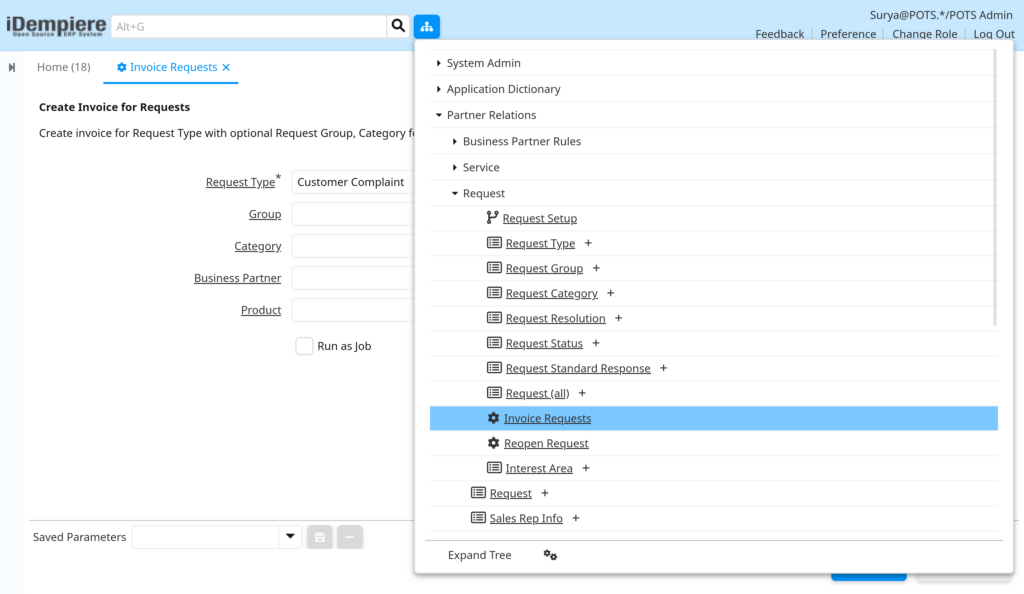
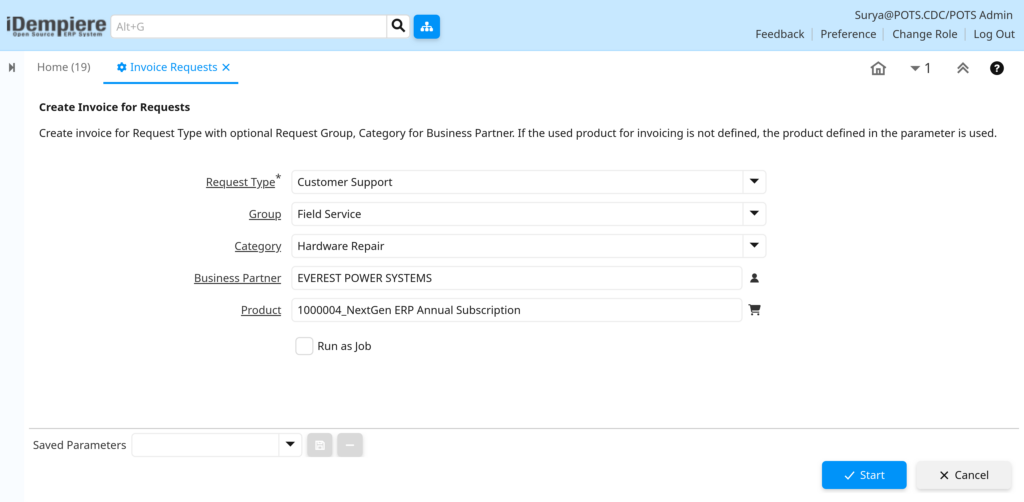
Opening the window displays the Create Invoice for Requests form. Users see fields for Request Type, Group, Category, Business Partner, and Product, along with a Run as Job option and OK/Cancel buttons to start the process.

Configuration Steps
Step 1: Select the Request Type
This is required because the process only invoices requests that belong to the chosen Request Type, and that type must already allow invoicing.
Instructions
Open the Request Type dropdown and choose the type of service request to bill, such as Customer Support or Repair Service.
| Field | Sample Value | Description |
| Request Type | Customer Support | Mandatory filter; only requests of this type are considered for invoicing. |
Step 2: Narrow Results by Group (Optional)
Group narrows the requests to a specific grouping, useful when the same Request Type is shared across departments or projects.
Instructions
Select a Group only if requests need to be limited to a particular grouping; otherwise leave it blank to include all groups.
| Field | Sample Value | Description |
| Group | Field Service | Optional filter that limits invoicing to requests tied to this group. |
Step 3: Narrow Results by Category (Optional)
Category further narrows requests within a Request Type, such as separating hardware issues from software issues.
Instructions
Select a Category to invoice only requests logged under it, or leave blank to include every category.
| Field | Sample Value | Description |
| Category | Hardware Repair | Optional filter that limits invoicing to requests logged under this category. |
Step 4: Filter by Business Partner (Optional)
Use this when invoicing needs to be run for a single customer instead of all customers with closed requests.
Instructions
Select a Business Partner to bill only that customer’s closed requests, or leave blank to invoice all eligible customers.
| Field | Sample Value | Description |
| Business Partner | Global Retail Traders | Optional filter restricting invoicing to one customer’s requests. |
Step 5: Set the Default Product
This product is used as a fallback whenever a request update does not already specify what was used or performed.
Instructions
Select a Product to cover requests where no product was recorded during service; this keeps every invoice line filled with a billable item.
| Field | Sample Value | Description |
| Product | Standard Service Charge | Default product applied to invoice lines when none is set on the request update. |
Step 6: Choose Whether to Run as a Background Job
Running as a job is useful when many requests are being invoiced at once and the user does not want to wait on screen.
Instructions
Check Run as Job to process invoicing in the background, or leave it unchecked to run immediately and see the result right away.
| Field | Sample Value | Description |
| Run as Job | Unchecked | Controls whether the process runs immediately or in the background. |
Step 7: Run the Process
This starts the invoicing process based on all the filters and defaults entered above.
Instructions
Click OK to generate invoices for all matching closed requests, or Cancel to exit without making changes.

Common Issues and Resolutions
| Issue | Cause | Resolution |
| No invoice appears after running the process | No requests match the filters, or none are Closed and marked Invoiced | Confirm the requests are Closed and the Invoiced flag is set before running the process |
| Process stops with a Request Type error | The chosen Request Type does not allow invoicing | Enable invoicing on the Request Type record and rerun the process |
| Invoice seems to disappear after running | An invoice with no billable lines is removed automatically | Check that request updates have a Quantity to Invoice greater than zero |
| Unexpected product appears on an invoice line | The request update had no product, so the default Product parameter was used | Review request updates and set the correct product, or update the default Product |
| One customer receives more than one invoice | Requests for that customer were not grouped together in the results | Rerun invoicing for that Business Partner alone to consolidate the requests |
| A request line is missing from the invoice | Its Quantity to Invoice is zero or blank | Enter a valid Quantity to Invoice on the request update and rerun |
| Invoice is not visible right after clicking OK | Run as Job was selected, so processing happens in the background | Check process status or notifications, then open the Invoice window once complete |
| A request appears to be billed twice | The process was run again on requests still marked as eligible for invoicing | Verify request invoicing status before rerunning to avoid duplicate billing |
Next Steps
- Review and complete the generated invoice in the Invoice window.
- Confirm Quantity to Invoice on Request Updates before running the process again.
- Set up or review Request Type invoicing settings if a type cannot be billed.
- Verify Product and Price List records used for billing service requests.