How to Configure Bank/Cash Statement in iDempiere
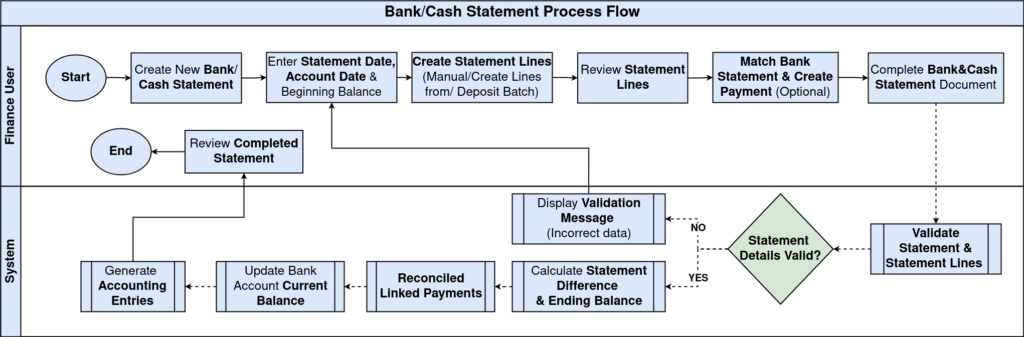
The Bank/Cash Statement window reconciles transactions recorded in iDempiere against the actual bank or cash account statement. It is the final checkpoint in the payment reconciliation cycle.
Finance teams use it to confirm store collections, vendor payments, and cash deposits match the bank record before closing a period.
Completing a statement updates the bank account balance, marks linked payments as reconciled, and creates an auditable reconciliation trail.
Process Flow
Business Rules
- A Bank Account must be selected before creating a statement.
- Each statement belongs to a single Organization and Bank Account.
- A statement can contain multiple Statement Lines.
- Statement Lines can be created manually, from Payments, or from Deposit Batches.
- At least one Statement Line must exist before completion.
- The accounting period must be open for the statement to complete.
- Statement Difference and Ending Balance are calculated automatically.
- Completing the statement marks linked Payments as Reconciled.
- The Bank Account Current Balance updates only after completion.
- A completed statement becomes read-only and is marked Processed.
Configuration Steps
Step 1: Create the Statement Header
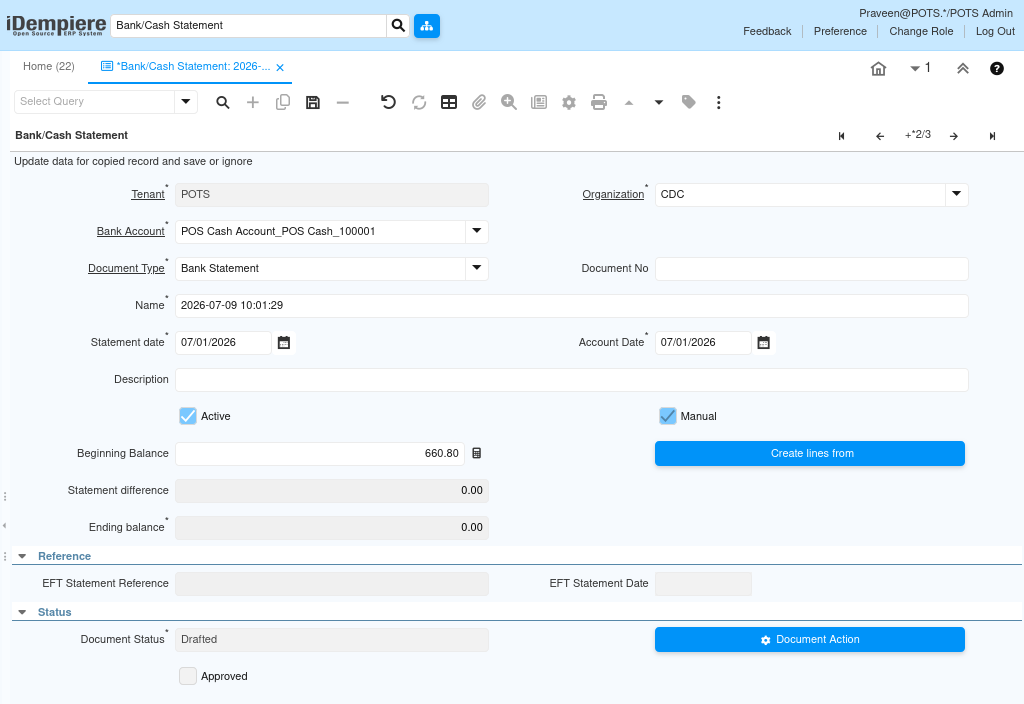
The header identifies which bank account and period the statement covers, and captures the opening balance carried from the previous reconciliation.
- Open a new Bank/Cash Statement record.
- Select the Bank Account and Document Type, set the Statement Date and Account Date, and enter the Beginning Balance before adding lines.
| Field | Sample Value | Description |
| Organization | CDC | Store or business unit the statement belongs to |
| Bank Account | POS Cash Account_POS Cash_100001 | Bank or cash account being reconciled |
| Document Type | Bank Statement | Document type controlling numbering and workflow |
| Statement Date | 07/01/2026 | Date the bank statement was issued |
| Account Date | 07/01/2026 | Accounting date used for posting |
| Beginning Balance | 1,000.00 | Opening balance carried from the prior statement |
| Ending Balance | 1,660.80 | Calculated automatically after lines are added |
Step 2: Add Statement Lines
Click Create lines from, filter by Bank Account, Tender Type, Business Partner, or Transaction Date, select the matching payments, and confirm to generate the lines.
| Field | Sample Value | Description |
| Bank Account | POS Cash Account_POS Ca… | Filters payments belonging to this account |
| Transaction Date | 07/01/2026 | Upper bound for payments to include |
| Create Line Per Payment | Unchecked | Groups or separates lines per payment |
| Payment | 1000001 | Completed payment selected for the line |
| Amount | 660.80 | Payment amount pulled into the statement line |
| Business Partner | ALPHA RETAIL SOLUTIONS | Customer or vendor tied to the payment |

Step 3: Review Statement Line Details
Each generated line should be checked for accuracy before the statement is completed, since amounts and references feed directly into the reconciliation.
- Open each Statement Line and confirm the Statement Amount, Transaction Amount, Currency, Payment, and Business Partner match the bank record.
- Adjust Charge or Interest Amount if the bank applied fees.
| Field | Sample Value | Description |
| Statement Line Date | 06/22/2026 | Date the transaction appears on the bank statement |
| Statement Amount | 660.80 | Amount as shown on the bank statement |
| Transaction Amount | 660.80 | Amount recorded in the linked payment |
| Charge Amount | 0.00 | Bank charge deducted for this transaction |
| Interest Amount | 0.00 | Interest applied to this transaction |
| Currency | INR | Currency of the statement line |
| Payment | 1000001_06/22/2026_660.80_-1 | Payment matched to this line |
| Invoice | 150000_06/22/2026_660.80 | Invoice associated with the payment |
| Business Partner | ALPHA RETAIL SOLUTIONS | Customer or vendor for this transaction |

Step 4: Match Bank Statement (Optional)
Use this when payments were imported from a bank feed and are not yet linked to invoices or business partners in iDempiere.
- From the header, select Match Bank Statement and run the process.
- iDempiere searches for matching Payments, Invoices, and Business Partners and links them to the statement lines automatically.

Step 5: Create Payment (Optional)
Bank charges, interest, or miscellaneous deposits often appear on the statement without a corresponding payment already in iDempiere.
- Select the unmatched Statement Line, click Create Payment, and confirm.
- A new Payment is generated and linked automatically to that line.

Step 6: Complete the Statement
Completing the statement finalizes the reconciliation and updates the store’s bank account balance for reporting.
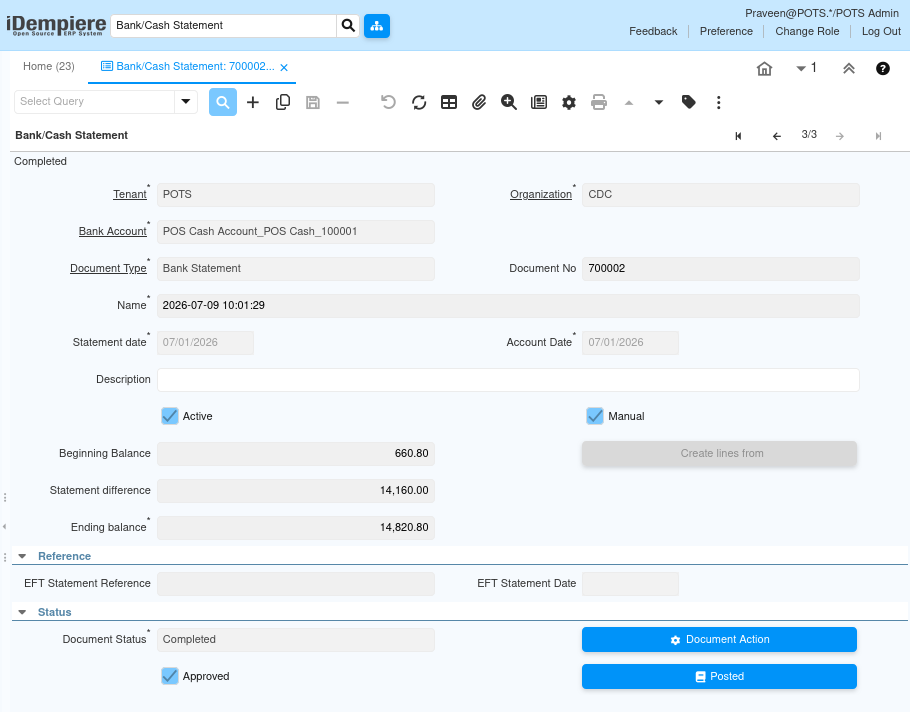
From Document Action, select Complete. iDempiere recalculates the Statement Difference and Ending Balance, reconciles linked payments, and updates the Bank Account balance.
| Field | Sample Value | Description |
| Document Action | Complete | Finalizes the statement and locks it for editing |
| Document Status | Completed | Status after successful completion |
| Statement Difference | 660.80 | Difference between beginning and ending balance |
| Ending Balance | 1,660.80 | Final reconciled balance for the account |
| Approved | Checked | Automatically set true on completion |
Common Issues and Resolutions
| Issue | Cause | Resolution |
| No Statement Lines available | No completed Payments exist for the selected Bank Account | Complete the source Payments first or add lines manually |
| Unable to complete the statement | No Statement Lines exist or the accounting period is closed | Add at least one line and confirm the period is open |
| Statement becomes read-only | Statement was already completed and processed | This is expected; void and re-create if changes are needed |
| Payment missing in Create Lines From | Payment is not completed or belongs to a different Bank Account | Complete the payment and confirm the Bank Account matches |
| Statement Difference is incorrect | A Statement Line amount does not match the actual bank record | Review and correct the affected line before completing |
| Bank Account balance not updated | Statement was not completed, only saved as Drafted | Run Document Action → Complete to trigger the balance update |
| Duplicate statement lines created | Create Lines From was run more than once for the same payments | Delete the duplicate lines before completing the statement |
Next Steps
- Review the reconciled Statement Lines for accuracy.
- Verify the updated Bank Account balance in Cash Management.
- Review generated accounting entries in General Ledger.
- Proceed to the next Bank/Cash Statement cycle when a new statement arrives.