How to Convert Passwords to Hashes in iDempiere
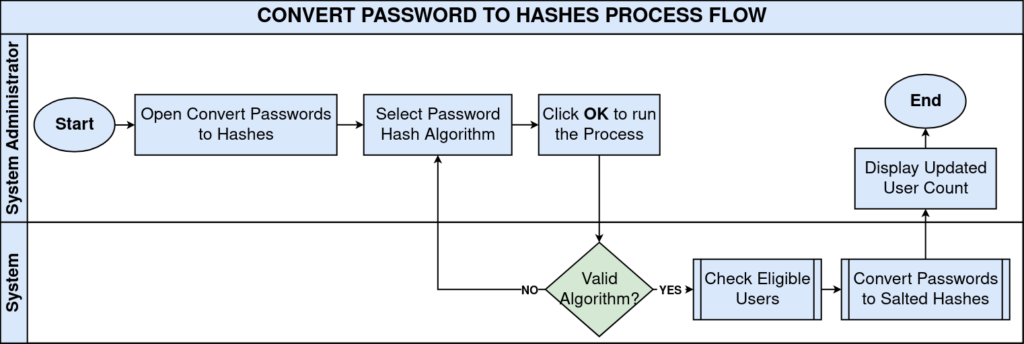
The Convert Passwords to Hashes process in iDempiere converts plain text or encrypted user passwords into one-way salted hashes. This ensures stored passwords cannot be recovered, protecting transaction and customer data.
Business Rules
- Passwords already hashed cannot be re-hashed; the process blocks if hashing is already enabled.
- Only user records with a password and no salt value are updated by the process.
- Password Hash Algorithm is a mandatory field before the process can run.
- Only supported algorithms — Argon2, PBKDF2, SHA-512 — can be selected.
- Encrypted passwords remain encrypted after the hash is applied on top.
Process Flow
Prerequisites
- System Administrator role access to the client.
- Existing AD_User records with passwords already configured.
- Full database backup completed before running the process.
- Approved password hash algorithm identified (Argon2, PBKDF2, or SHA-512).
Navigation
Menu → General Rules → Security → Convert Passwords to Hashes
Configuration Steps
Step 1: Select Password Hash Algorithm
Open the Password Hash Algorithm field and choose Argon2, PBKDF2, or SHA-512 based on your organization’s security policy.
| Field | Sample Value | Description |
| Password Hash Algorithm | SHA-512 | Algorithm used to hash existing user passwords |

Step 2: Run the Process
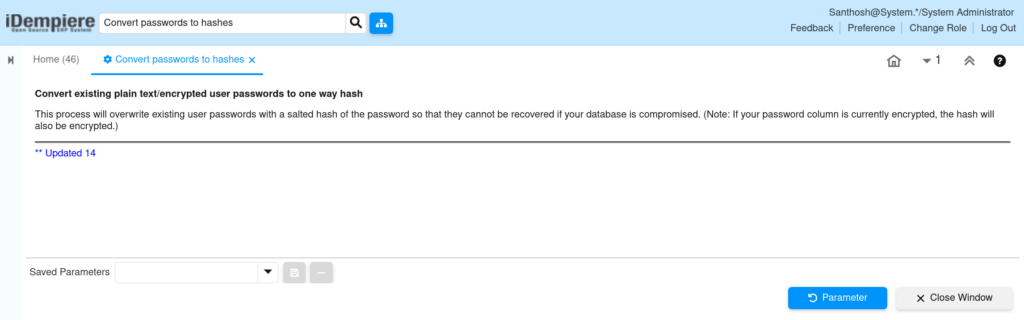
Click OK to execute the process. Confirm the dialog to begin converting eligible user passwords to the selected hash format.
Step 3: Verify Migration Results
Review the returned message showing the count of updated users. Investigate a zero-count result or any error before treating staff accounts as secured.
Common Issues and Resolutions
| Issue | Cause | Resolution |
| Process fails to start | Password Hash Algorithm field left blank | Select a valid algorithm before clicking OK |
| “Unsupported hash algorithm” error | Invalid or unsupported algorithm value used | Choose only Argon2, PBKDF2, or SHA-512 from the list |
| Zero users updated | All users already have a Salt value set | Confirm via AD_User; re-running is not required |
Next Steps
- Configure the User (AD_User) window for retail store staff accounts.
- Review Role and Client security settings used by POS terminals.
- Set up System Configurator entries to enforce password policy.
- Audit user login history for suspicious activity after migration.
Note: Run this process only once per client. Re-running after passwords are already hashed will raise an error by design.