How to use Standard Cost Update process in iDempiere
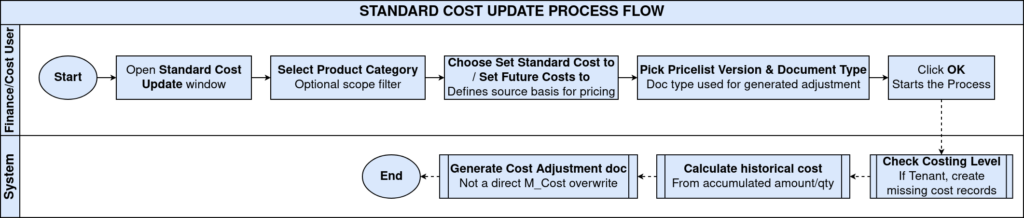
The Standard Cost Update process in iDempiere recalculates the standard and future cost price of products, grouped by Product Category, for the Cost Type defined in the Accounting Schema.
It is used in Material Management and Costing operations whenever a business revises product costs, such as after a purchase cycle, a costing method migration, or a periodic cost revaluation.
Running this process updates the M_Cost records used for inventory valuation, cost of goods sold, and margin reporting, and can generate an Inventory Cost Adjustment document to post the cost variance to the General Ledger.
Process Flow Diagram
Business Rules
- Standard Cost Update recalculates cost only for the Cost Type of the active Accounting Schema.
- Document Type is mandatory whenever Set Standard Cost to has a value.
- Pricelist Version is mandatory only if Price List Limit is chosen as the cost source.
- If Costing Level is set to Tenant (Client), missing M_Cost records are created automatically.
- Historical cost options calculate cost from the accumulated amount and quantity of that method.
- Standard cost changes generate an Inventory Cost Adjustment document instead of a direct update.
- Product Category filter limits the process to products in that category; blank processes all products.
- A zero-value calculated cost does not overwrite the existing cost record.
- Run as Job allows the process to execute in the background without blocking the user session.
Prerequisites
- Accounting Schema configured with a valid Costing Method and Cost Type.
- Cost Element defined for Standard Costing on the Material Cost Element type.
- Products assigned to the Product Category to be processed (if filtering by category).
- Document Type configured for Inventory Cost Adjustment (required for standard cost changes).
- Price List Version configured, if Price List Limit is used as a cost source.
- Existing cost basis available (Average Invoice, Average PO, FIFO, LIFO, or Last Price) for the chosen source method.
Navigation
Menu → Performance Analysis and Accounting → Costing → Standard Cost Update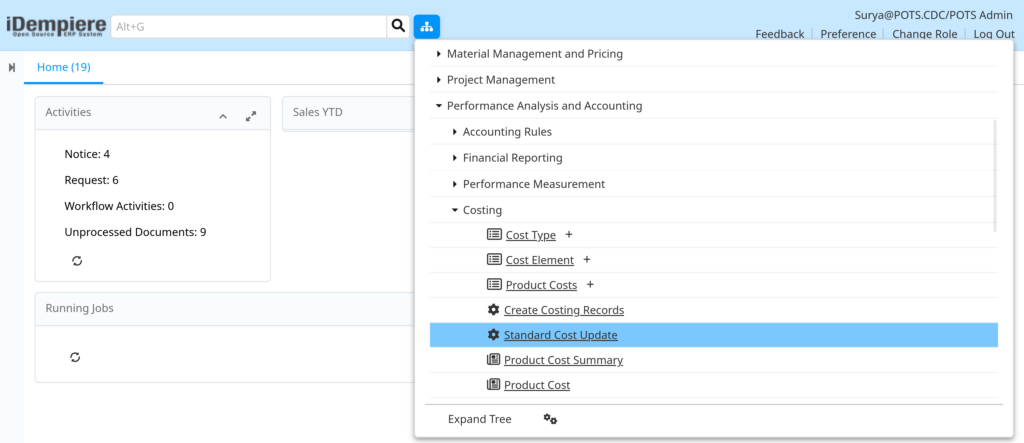
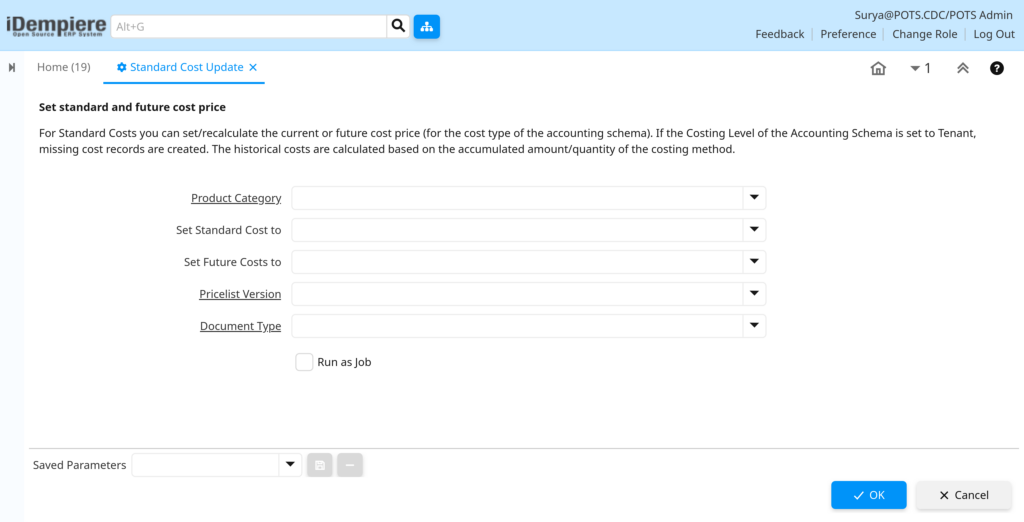
The window can also be reached directly through the global Search bar by typing “Standard Cost Update”. It opens as a process parameter screen with fields for Product Category, Set Standard Cost to, Set Future Costs to, Pricelist Version, Document Type, and a Run as Job checkbox, followed by OK and Cancel actions.
Configuration Steps
Step 1: Select the Product Category
Limits the recalculation to products in a single category, avoiding an unnecessary full-catalog update.
Instructions
Open the Product Category field and select a category, such as Finished Goods. Leave blank to process every product in the tenant.
| Field | Sample Value | Description |
| Product Category | Finished Goods | Filters the products included in the cost update. |
Step 2: Define Set Standard Cost to
Determines the source used to calculate the new Standard Cost price for the selected products.
Instructions
Select a costing source, for example Average Invoice or Average PO History. Leave blank if only the Future Cost is being updated.
| Field | Sample Value | Description |
| Set Standard Cost to | Average PO History | Source used to compute the new standard cost. |
Step 3: Define Set Future Costs to
Sets a planned future cost price, typically used for budgeting the next cost cycle without changing the current standard cost.
Instructions
Select a source such as Last PO Price or Price List Limit. This field can be used independently of Set Standard Cost to.
| Field | Sample Value | Description |
| Set Future Costs to | Last PO Price | Source used to compute the future cost price. |
Step 4: Select the Pricelist Version
Required only when Price List Limit is chosen as a cost source, since the cost is read from the price list limit price.
Instructions
Choose the applicable Pricelist Version. Skip this field if neither cost source uses Price List Limit.
| Field | Sample Value | Description |
| Pricelist Version | Standard 2026 Purchase | Price list version used to read the price limit. |
Step 5: Select the Document Type
Required whenever Set Standard Cost to is populated, because the process posts the cost change through an Inventory Cost Adjustment document.
Instructions
Select the Document Type configured for Inventory Cost Adjustment. This document is created and completed automatically by the process.
| Field | Sample Value | Description |
| Document Type | Inventory Cost Adjustment | Document type used to post the standard cost change. |
Step 6: Enable Run as Job (Optional)
Runs the recalculation as a background job, useful when processing a large product category without holding the user session.
Instructions
Check Run as Job to queue the process in the background, or leave unchecked to run and view results immediately.
Step 7: Execute the Process
Runs the cost recalculation and, where applicable, posts the Inventory Cost Adjustment document.
Instructions
Review the selected parameters and click OK. The process log shows the count of cost records updated and any document created.

Common Issues and Resolutions
| Issue | Cause | Resolution |
| “Fill Mandatory C_DocType_ID” error on OK | Document Type left blank while Set Standard Cost to has a value. | Select a Document Type configured for Inventory Cost Adjustment. |
| “Fill Mandatory M_PriceList_Version_ID” error | Price List Limit chosen as a source without a Pricelist Version. | Select the Pricelist Version before running the process. |
| “CostElement not found” error | The chosen costing method has no Cost Element defined for the tenant. | Create the missing Cost Element under Costing setup, then rerun. |
| Process completes but shows #0 updated | No M_Cost records matched the Product Category or Cost Type filter. | Verify the category filter and confirm products have existing cost records. |
| Standard cost value unchanged after running | Calculated cost equals zero, so the existing cost record is not overwritten. | Check that the source method (e.g. Average Invoice) has a valid non-zero cost. |
| Inventory Cost Adjustment fails to complete | Accounting period is closed or Document Type sequence is misconfigured. | Open the relevant period and verify the Document Type setup, then rerun. |
| New products missing cost records after update | Costing Level on the Accounting Schema is not set to Tenant (Client). | Set Costing Level to Client if tenant-wide cost records are required. |
| Process runs but no cost adjustment document appears | Only Set Future Costs to was used, which does not require a document. | This is expected; future cost updates do not post accounting entries. |
Next Steps
- Review updated values in the Product Costs window.
- Verify posted entries in the Cost Adjustment window, if a document was created.
- Confirm Cost Element and Costing Method setup under the Accounting Schema.
- Check the Pricelist Version if Price List Limit is used as a recurring cost source.