How to Configure Test Import Model in iDempiere
Introduction
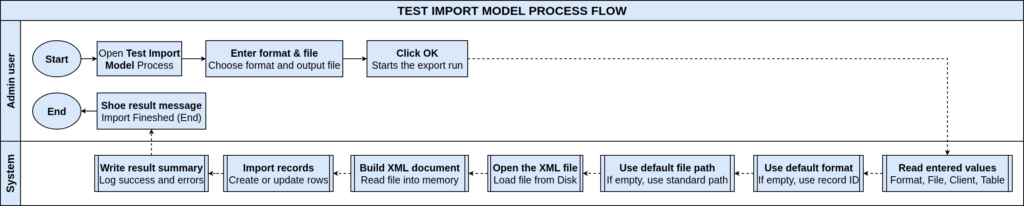
The Test Import Model window in iDempiere lets business users load data into the system from an XML file, using a saved Export Format to match each piece of data to the right place.
It is used whenever a business needs to bring in bulk data, such as testing a new data feed or re-loading records after a setup change, without entering them one by one.
A completed import creates or updates records directly in the target area, which then feeds into everyday transactions, reports, and other business processes.
Process Flow
Business Rules
- Only active Export Formats are available for selection.
- The File Name must point to a valid XML file that the system can reach.
- The XML file content must match the fields defined in the chosen Export Format.
- Turning on Run as Job sends the import to run in the background instead of immediately.
- A completed import creates new records or updates existing ones in the linked area.
- The system keeps a log of what happened during each import for review.
- Records brought in through import follow the same rules as records entered manually.
Prerequisites
- An Export Format already set up and linked to the correct business area.
- An XML file prepared with data that matches the Export Format layout.
- The XML file saved in a location the system can access.
- User access rights to run the Test Import Model process.
Navigation
Menu → System Admin → Data → Replication Data → Test Import Model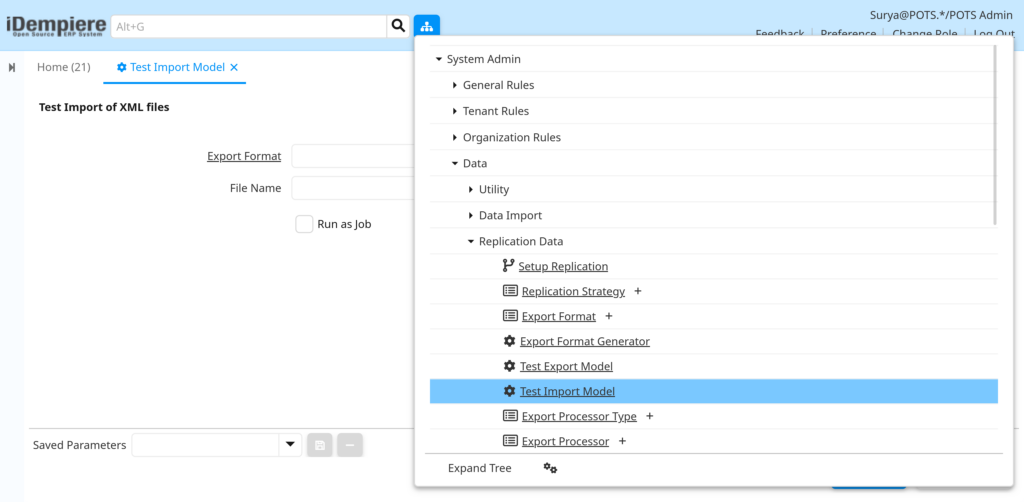
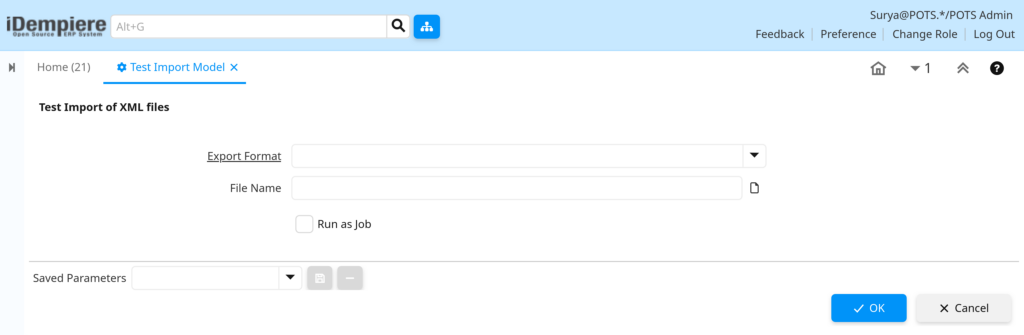
Opening this window shows the Test Import of XML Files screen, with fields for Export Format and File Name, plus a Run as Job option and OK/Cancel buttons to start or exit the import.
Configuration Steps
Step 1: Select the Export Format
This tells the system how to read the XML file and where each value belongs, so the data lands in the correct fields.
Instructions
Open the Export Format field, search for the format that matches your XML file, and select it before continuing.
| Field | Sample Value | Description |
| Export Format | Sales Order Import | Sets the layout used to read and place the incoming XML data. |
Step 2: Specify the File Name
This points the system to the exact XML file that holds the data to be imported.
Instructions
Click the file icon next to File Name, browse to the XML file, select it, and confirm the path shown is correct.
| Field | Sample Value | Description |
| File Name | /data/import/orders.xml | Identifies the XML file the system will read during the import. |
Step 3: Choose the Run Mode
This decides whether the import runs right away or in the background, which matters for larger files.
Instructions
Leave Run as Job unchecked for small, quick imports. Check it for large files so the import runs in the background.
| Field | Sample Value | Description |
| Run as Job | Unchecked | Runs the import immediately; the window stays open until it finishes. |
| Run as Job | Checked | Queues the import to run in the background, freeing the screen for other work. |
Step 4: Run the Import
This starts the actual process of reading the file and creating or updating records.
Instructions
Click OK to start the import and review the result once it finishes. Click Cancel to close the window without importing.
Common Issues and Resolutions
| Issue | Cause | Resolution |
| Import fails right away | File Name path is wrong or the file is missing | Confirm the file exists and re-select it from the correct location. |
| No records are created | XML file layout does not match the Export Format | Check that the Export Format fields line up with the XML file content. |
| Export Format list is empty | No Export Format is set up for this area yet | Set up and activate an Export Format before running the import again. |
| Duplicate records appear | The same file was imported more than once | Check existing records before re-running an import on the same file. |
| Process stays In Process for a long time | A large file was run without Run as Job | Turn on Run as Job for large files, or allow more time to finish. |
| Only some records come through | A few records in the file fail validation | Review the process log and correct the flagged records in the file. |
| Access denied when selecting the file | User does not have rights to that file location | Save the file in a shared, accessible location and try again. |
| Values land in the wrong fields | The Export Format mapping is outdated | Update the Export Format so it matches the current file layout. |
Next Steps
- Review and maintain the Export Format used for this import.
- Check the target window (for example, Sales Order or Business Partner) to confirm the imported records.
- Set up a recurring schedule if this import will run regularly.
- Use the Import Tables area to monitor and correct import results.