How Does Work Context Help Window in iDempiere
The Context Help window in iDempiere lets administrators create on-screen guidance messages shown in the Web UI help pane, without leaving the current screen.
Administrators use it during implementation to document field guidance, form instructions, and process notes. The Translation tab supports multiple languages for organizations running iDempiere across regions.
Business Rules
- Each Context Help record needs a unique Name and a Context Type before it can be used.
- The Context Type field determines where the message displays (Tab, Form, Process, Home, etc.).
- Only Active Context Help records are shown to users in the help pane.
- A single Context Help record can hold one or more messages via the Message tab.
- Translation records apply only when the session language matches the configured Language.
- Organization is typically set to “*” so help is available across the whole tenant.
- Deactivating a record hides it from users without deleting the underlying help content.
- Context Help is rendered in the Web UI (zk) client only, not the Swing client.
- Context Type only classifies the help; a Tab or Process record must still be linked separately.
- A Context Help record can be reused by linking it to more than one Tab or Process.
Prerequisites
- Access to the iDempiere Web UI (zk client), since Context Help messages display only in the Web UI help pane.
- A user role with access to the System Admin menu and General Rules > System Rules windows.
- For Tab, Form, Process, or Workflow context types, the related Application Dictionary element must already exist.
- For translated messages, the target language must be enabled first under System Rules > Language Setup.
- A System Administrator login (or a role with Application Dictionary access) is needed to link help to a Tab or Process.
Navigation
Menu → System Admin → General Rules → System Rules → Context Help
Opening the window displays a list of existing Context Help records with their Name, Description, Context Type, and Active status, along with Message and Translation tabs for the selected record.
Menu → System Admin → General Rules → Application Dictionary → Window, Tab & Field
Used to attach a Tab-type Context Help record to the specific window tab that should display it.
Menu → System Admin → General Rules → Application Dictionary → Process
Used to attach a Process-type Context Help record to the specific process or report that should display it.
Configuration Steps
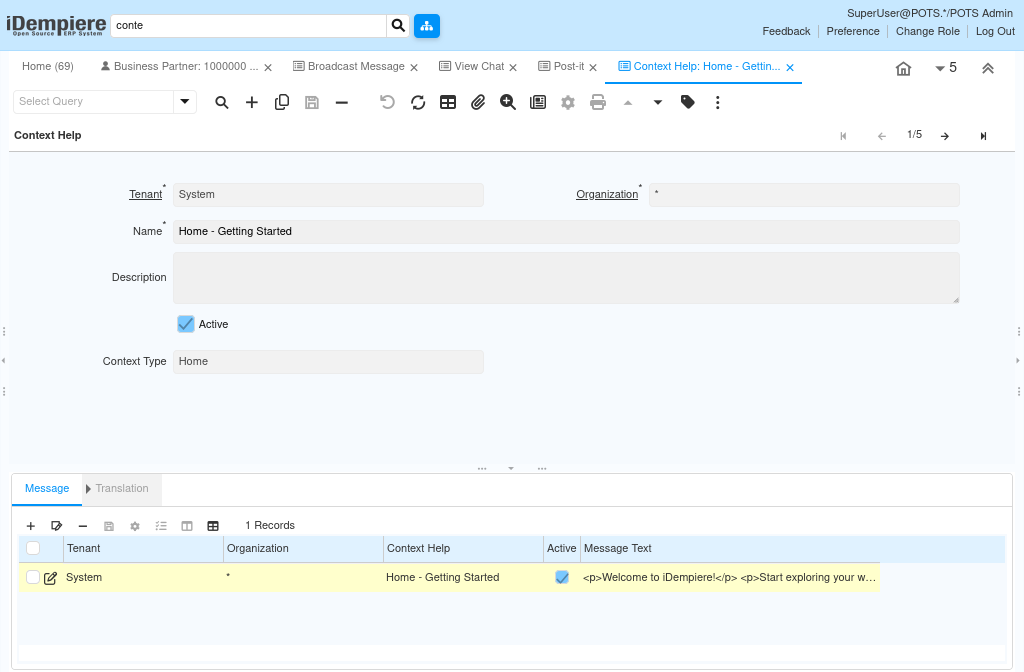
Step 1: Create the Context Help Record
This step establishes the base record that identifies the help topic and where in the application it will appear.
Create a new record on the Header tab, enter a Name and Description, select the Context Type, keep Active checked, and save.
| Field | Sample Value | Description |
| Name | Purchase Order Help | Unique identifier for the help entry |
| Description | Instructions for creating Purchase Orders | Short summary of the help topic |
| Context Type | Form | Defines where the message displays (All, Form, Home, Info, Node, Process, Tab, Task, Workflow) |
| Organization | * | Controls whether help is tenant-wide or limited to one organization |
| Active | Yes | Makes the record available for use in the help pane |
Step 2: Add the Help Message
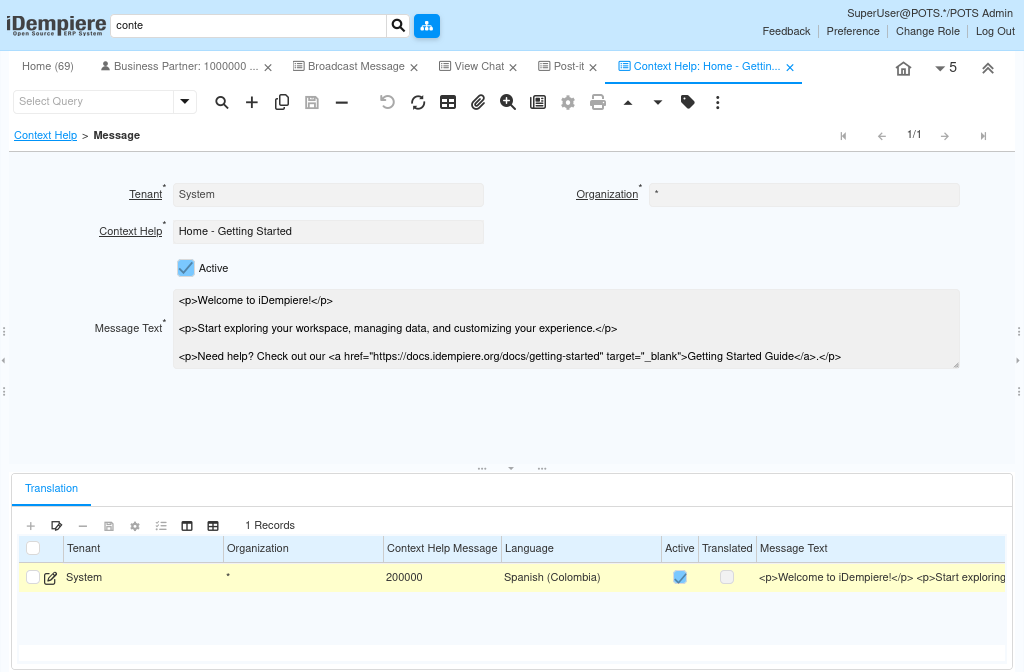
The header record only defines the topic; the Message tab holds the text that users actually see in the help pane.
Switch to the Message tab, create a new record, confirm the link to the Context Help record, enter the Message Text, and save.
| Field | Sample Value | Description |
| Context Help | Purchase Order Help | Parent Context Help record this message belongs to |
| Message Text | Welcome to POTS Retail ERP. Check today’s notifications and review pending approvals. | The instructional text displayed in the help pane |
| Active | Yes | Controls whether this message is shown to users |
Step 3: Add Translations (Optional)
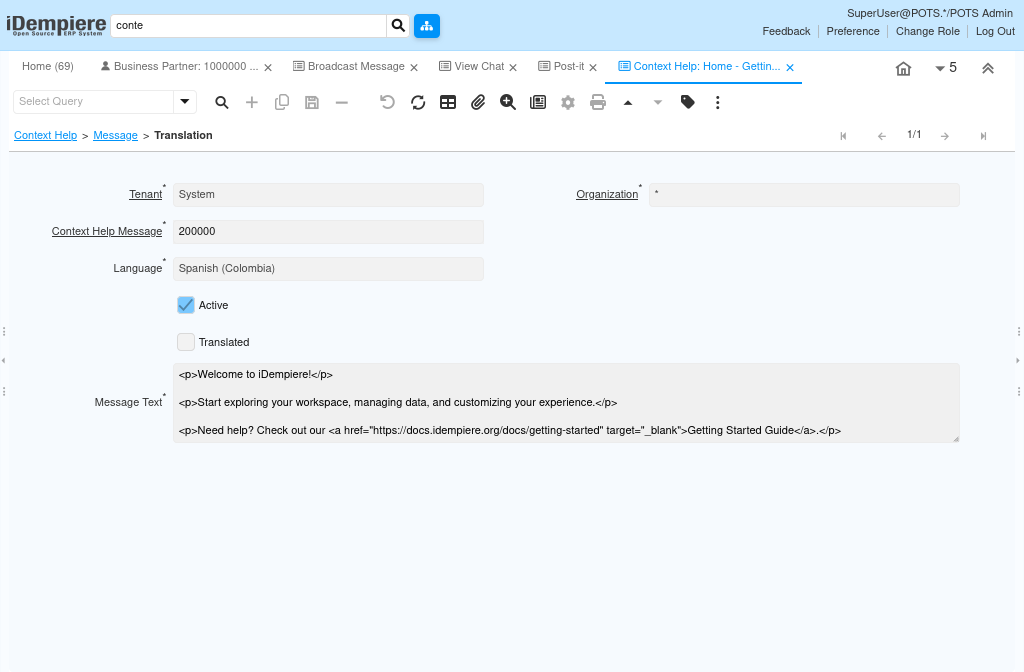
Translations let the same help topic display in a user’s own language, useful for organizations running iDempiere across regions.
Switch to the Translation tab, select the target Language, enter the translated Message Text, mark it Translated, and save.
| Field | Sample Value | Description |
| Language | French (fr_FR) | Target language for the translated message |
| Message Text | Bienvenue dans POTS Retail ERP. | Translated version of the help text |
| Translated | Yes | Confirms the translation is complete and reviewed |
| Active | Yes | Enables this translation for display |
Step 4: Link the Context Help to a Window Tab
Creating a Context Help record does not display it anywhere by itself. For the Tab context type, the record must be attached to the specific Tab that should show it.
Log in as System Administrator, open Window, Tab & Field, query the target window, open the relevant Tab record, set its Context Help field to the record created earlier, and save.
| Field | Sample Value | Description |
| Window | Target Window Name | The window that contains the tab to be linked |
| Tab | Target Tab Name | The specific tab that will display the help pane content |
| Context Help | Linked Context Help Record | The Context Help record attached to this tab |
Step 5: Link the Context Help to a Process or Report
For the Process context type, the same principle applies: the Context Help record must be attached to the specific Process or Report so it appears when that process dialog is opened.
Open the Process window, query the target Process or Report, set its Context Help field to the record created earlier, and save.
| Field | Sample Value | Description |
| Process | Target Process or Report Name | The Process or Report that will display the help |
| Context Help | Linked Context Help Record | The Context Help record attached to this process |
After completing the configuration, the window is ready for use in standard iDempiere transactions.
Common Issues and Resolutions
| Issue | Cause | Resolution |
| Help pane shows no message | Context Type does not match the window, tab, or form where help was expected | Verify the Context Type on the Header tab matches the intended display location |
| New help text is not visible | Header or Message record is inactive | Set Active to Yes on both the Header tab and Message tab records |
| Translation not displayed | Session language differs from the configured Language, or Translated is unchecked | Confirm the Language code and mark Translated as Yes |
| Help pane stays empty despite an active record | No Message tab record is linked to the Header record | Add at least one Message record under the Context Help |
| Duplicate help entries confuse users | Multiple active records share the same Context Type | Deactivate or rename duplicate records to keep help unique |
Next Steps
- Language Setup (System Admin > General Rules > System Rules) – enable additional languages before creating translations.
- Menu window – review Node-type help sources linked to navigation menu items.
- Window, Tab and Field window – reference when creating Tab-type context help for a specific tab.
- Role window – confirm which roles can access System Admin windows to manage Context Help.
- Window, Tab & Field – link Tab-type Context Help to any window’s tab.
- Process – link Process-type Context Help to any process or report dialog.