How to use Record Navigation and Information Buttons in iDempiere
Overview
The iDempiere Record Navigation and Information features help users navigate between related records, manage record information, communicate with users, control record access, review workflows, and access processes.The following sections describe the 13 Core Navigation & Control toolbar buttons and features covered in this documentation.
1. Parent Record Button

Description: Navigates from the current child record to its associated parent record. It can be used repeatedly to move upward through the related record hierarchy.
| Keyboard Shortcut | Alt + Up |
2. Detail Button

Description: Navigates from the current parent record to its associated child or detail record. It can be used repeatedly to move downward through related records.
| Keyboard Shortcut | Alt + Down |
3. Zoom Across Button

Description: Shows related records that reference the current record and allows users to navigate directly to a selected referenced record.
| Keyboard Shortcut | No keyboard shortcut |
4. Attachment Button

Description: Stores documents and other supported files associated with the current record. Attachments can be uploaded, viewed, and deleted.
| Keyboard Shortcut | No keyboard shortcut |
5. Post-It
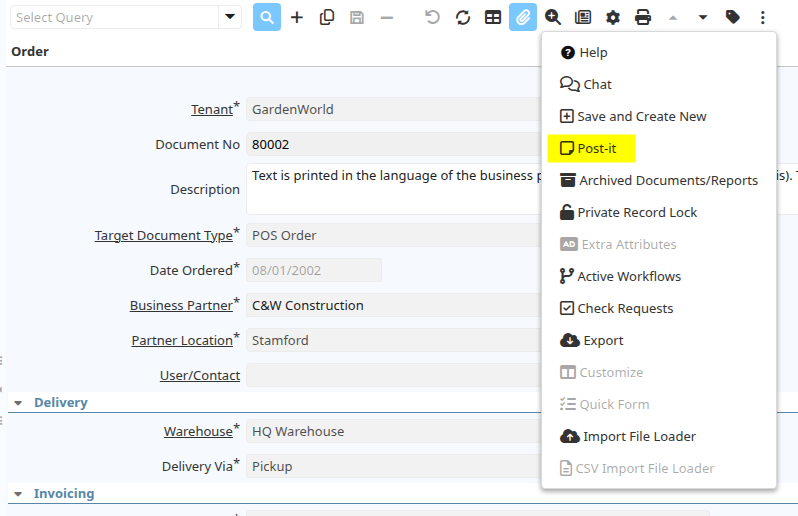
Description: Adds an important note or comment related to the current record or its activities. Existing notes can be viewed, edited, or additional lines can be added.
| Keyboard Shortcut | No keyboard shortcut |
| Access / Location | Three-dot menu in the toolbar |
6. Chat

Description: Allows users to communicate with other users about the current record or its related activities. Previous messages can be viewed and new messages can be added.
| Keyboard Shortcut | No keyboard shortcut |
| Access / Location | Three-dot menu in the toolbar |
7. Request
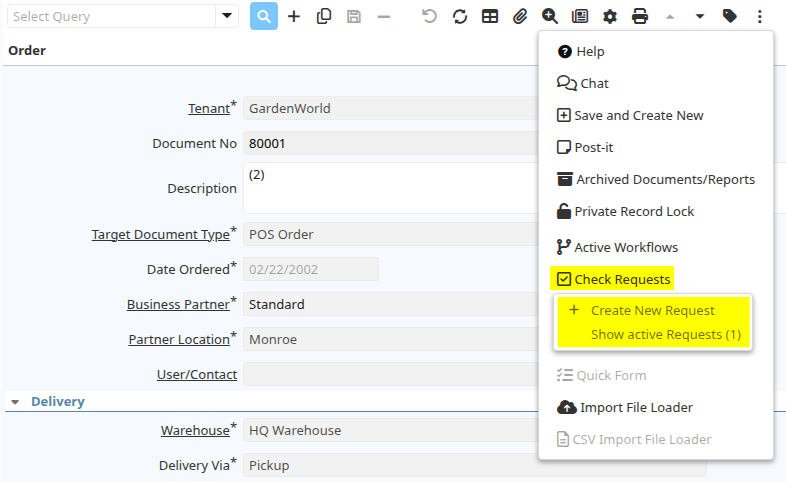
Description: Allows users to view existing requests or create a new request related to the current record.
| Keyboard Shortcut | No keyboard shortcut |
| Access / Location | Three-dot menu in the toolbar |
8. Copy Button

Description: Copies information from an existing record and creates a new record with the copied information. The new record can then be reviewed and saved.
| Keyboard Shortcut | Alt + C |
9. Archive
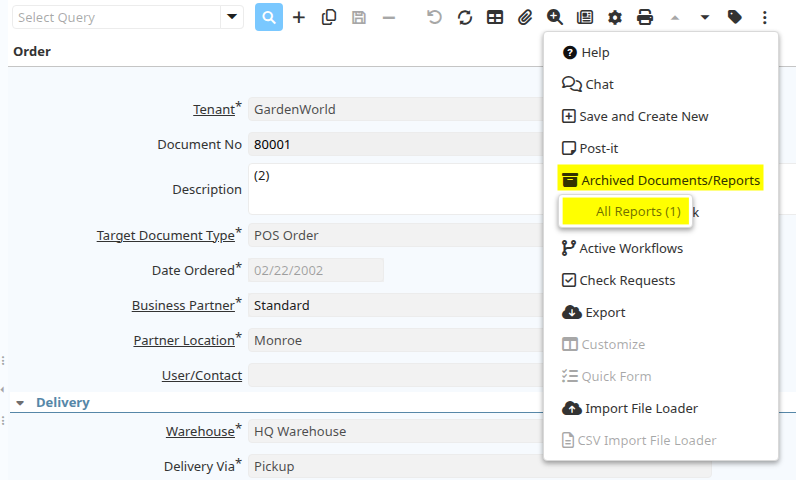
Description: Archives documents or reports related to the current record. Archived documents can be viewed through the Archived Documents/Reports option.
| Keyboard Shortcut | No keyboard shortcut |
| Access / Location | Three-dot menu in the toolbar |
10. Lock
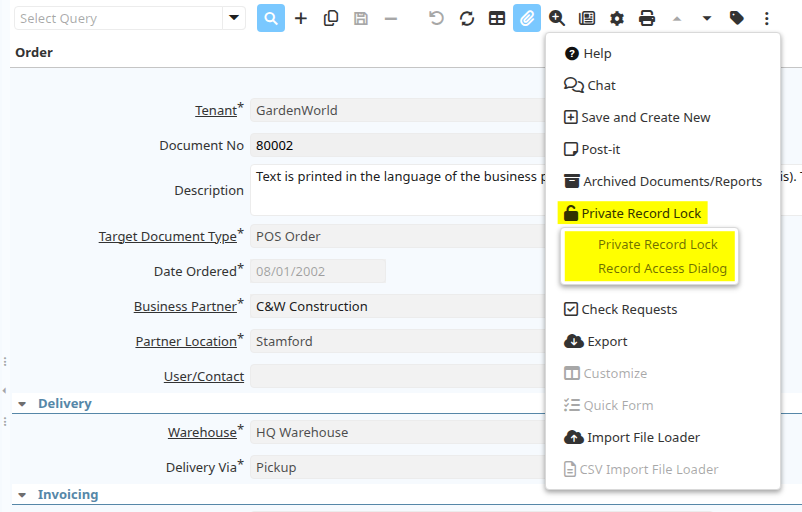
Description: Restricts access to a particular record based on configured access options. Available options include Private Record Lock and Role Access.
| Keyboard Shortcut | No keyboard shortcut |
| Access / Location | Three-dot menu in the toolbar |
11. Workflow / Active Workflows
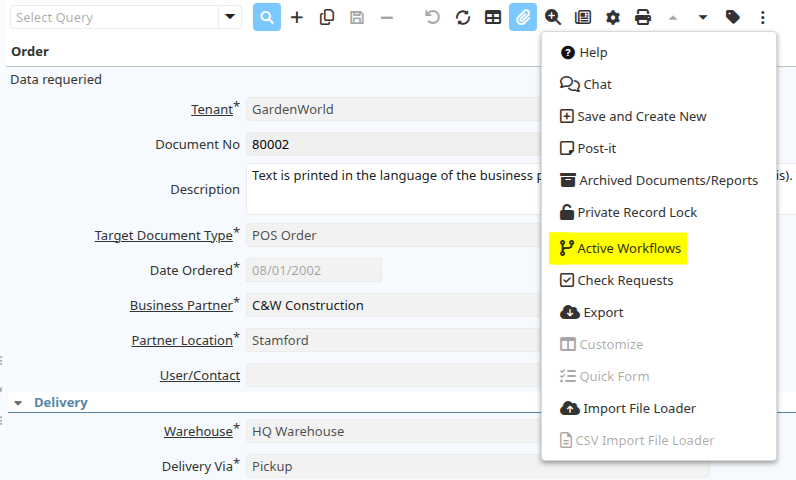
Description: Displays the workflow associated with the current document, including its current stage, approval status, and workflow activities.
| Keyboard Shortcut | No keyboard shortcut |
| Access / Location | Three-dot menu in the toolbar |
12. Process

Description: Provides access to processes and document actions available for the current record. Selecting a process opens the available actions for that record.
| Keyboard Shortcut | Alt + O |
13. Quick Form
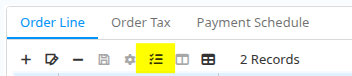
Description: Some tabs (for example Sales Order Lines) allows to enter information in a grid mode using just the keyboard (no need for mouse). This button opens such quick form.
| Keyboard Shortcut | Shift + Alt + F |
Quick Reference
| Feature | Purpose | Shortcut |
| Parent Record | Navigate to an associated parent record | Alt + Up |
| Detail | Navigate to an associated child/detail record | Alt + Down |
| Zoom Across | Navigate to records referencing the current record | — |
| Attachment | Add and manage files for a record | — |
| Post-It | Add notes or comments to a record | — |
| Chat | Communicate with users about a record | — |
| Request | View or create requests for a record | — |
| Copy | Create a new record using existing record information | Alt + C |
| Archive | Archive and view documents/reports | — |
| Lock | Restrict access to a record | — |
| Workflow / Active Workflows | View workflow information and activities | — |
| Process | Access processes and document actions | Alt + O |
| Quick Form | Provides access to a grid layout optimized for fast, mouse-free data entry entirely via the keyboard. | Shift + Alt + F |