How to Create AP Invoices for Expenses in iDempiere
The Create AP Expense Invoices window is an iDempiere process that converts approved employee expense reports into Accounts Payable invoices. Retail businesses use it to reimburse store staff for travel, fuel, and client-related expenses without manual invoice entry. Running the process groups eligible expense lines by Business Partner, creates one AP Invoice per employee, and prepares it for approval, keeping reimbursement records accurate and audit-ready.
Process Flow

Business Rules
- Only expense reports with status Processed are picked up by the process.
- Expense lines already linked to an invoice line are skipped automatically.
- Lines with a zero reimbursable amount are excluded from invoicing.
- Multiple expense reports for one employee are consolidated into a single AP Invoice.
- Tax is calculated automatically using the Business Partner, Product, and Price List.
- Every AP Invoice requires a valid Business Partner Location before it can be created.
- Invoices are left in InProgress status, ready for review before completion.
Prerequisites
- Employee configured as a Business Partner with the Vendor checkbox enabled.
- Business Partner Location defined for the employee or vendor.
- Expense Report (Time and Expense) submitted and set to Processed.
- Price List and Tax Category configured for the expense products used.
- AP Invoice Document Type configured for the organization.
Navigation
Menu → Partner Relation → Service → Create AP Expense Invoices
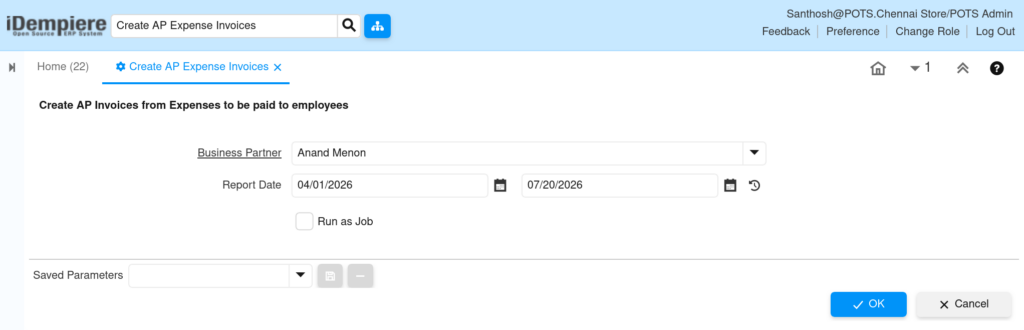
Opening the window displays a parameter panel with Business Partner, Report Date From/To, and Run as Job fields. After execution, a result grid shows the invoice date, amount, and a link to each created invoice.
Configuration Steps
Step 1: Open the Create AP Expense Invoices Process
Type “Create AP Expense Invoices” in the top search bar and select the process. The parameter window opens, ready for filter entry.
Step 2: Set Process Parameters
Optionally select a Business Partner, enter the Report Date From and To range, and check Run as Job for background execution on large batches. Click OK.
| Field | Sample Value | Description |
| Business Partner | Anand Menon | Restricts the run to one employee or vendor |
| Report Date (From) | 04/01/2026 | Start of the expense period to include |
| Report Date (To) | 07/20/2026 | End of the expense period to include |
| Run as Job | Unchecked | Runs the process in the background when checked |
Step 3: Execute and Review Results
After clicking OK, review the Created count message and the result grid listing invoice date, amount, and document link for each invoice generated.
| Field | Sample | Purpose |
| Date | 07/20/2026 | Invoice date assigned to the created AP Invoice |
| Amount | 1770.00 | Total reimbursable amount on the invoice |
| Document No | 1000000 | Link to open the newly created invoice |

Common Issues and Resolutions
| Issue | Cause | Resolution |
| No invoices created (Created=0) | No expense reports matched Processed status or date range | Verify expense report status and adjust Report Date From/To |
| Process error: No BP Location | Employee Business Partner is missing a location | Add a Business Partner Location, then rerun the process |
| Reprocessed report does not add invoice lines | Expense lines are already linked to an invoice line | Expected behavior; linked lines are skipped to prevent duplicates |
| Incorrect tax on invoice line | Tax Category or Price List misconfigured for the product | Correct the product tax category and price list tax settings |
| Unrelated employees merged into one invoice | Expense reports were not sorted or saved with the correct Business Partner | Confirm each expense report has the correct Business Partner before running |
| Invoice remains in Prepared status | The process only prepares, it does not complete, the invoice | Manually complete or route the invoice through the approval workflow |
| Expense lines missing from the invoice | Qty Reimbursed or Price Reimbursed equals zero on the line | Update the reimbursable amount on the expense line, then reprocess |
Next Steps
- Complete the generated AP Invoice.
- Route the invoice through Payment Selection or the payment process.
- Reconcile the Business Partner (employee) balance.
- Review upcoming Expense Reports for accuracy before the next cycle.