How to Configure Workflow Responsible in iDempiere
Workflow Responsible is a setup window in iDempiere that defines who resolves a step in a workflow, such as a Service Request approval or escalation.
It is used wherever a workflow is built, including Service Request routing, document approvals, and other automated business processes.
The responsible party assigned here decides which user, role, or organization receives the pending task, directly affecting how quickly transactions move forward.
Process Flow

Business Rules
- Each Workflow Responsible record represents one way of resolving a workflow step.
- Responsible Type decides who acts on the step: Human, Manual, Organization, or Role.
- Human type requires a specific User or Contact to be selected for the task.
- Manual type requires a person to open and action the step; no fixed user is assigned.
- Organization type sends the task to the supervisor of the transaction’s organization.
- Role type sends the task to every user holding the selected role.
- Overridden WF Responsible replaces the default responsible record when set.
- Inactive records cannot be selected when building or running a workflow.
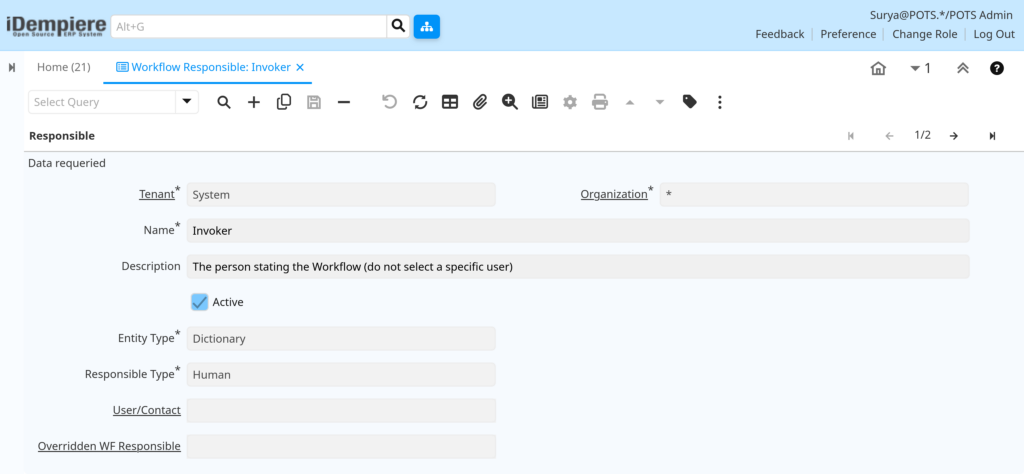
- Invoker and Organization are ready-made system records and should not be edited.
Prerequisites
- Organization structure set up, for Organization type routing.
- Roles created, for Role type assignment.
- Users or Business Partner contacts set up, for Human type assignment.
- A workflow, such as the Service Request workflow, ready for a responsible node.
Navigation
Menu → System Admin → General Rules → Workflow → Workflow Responsible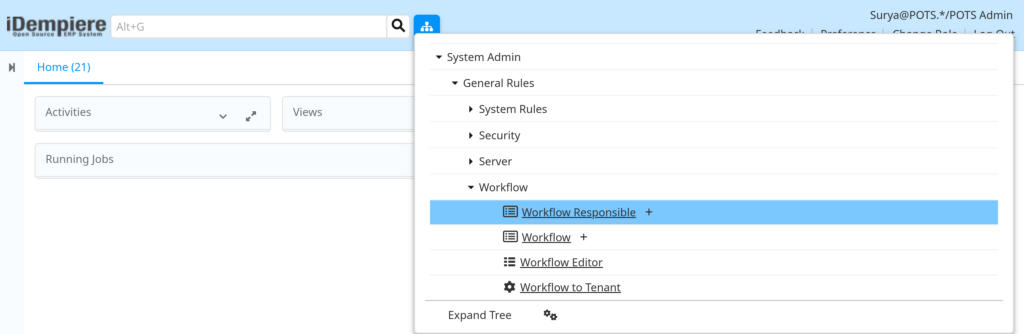
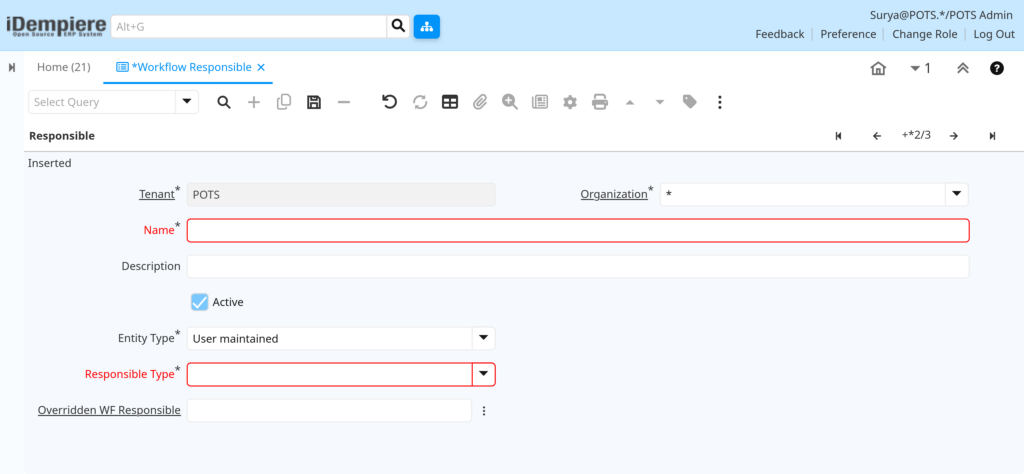
Opening the window shows the list of existing responsible records, including the ready-made Invoker and Organization records, along with the toolbar to add a new record.
Configuration Steps
Step 1: Create a New Responsible Record
A new record is needed whenever a workflow, such as a Service Request approval, needs a dedicated person or group to act on it.
Instructions
Click New, enter a Name and Description, keep Active checked, and confirm Entity Type shows “User maintained”.
| Field | Sample Value | Description |
| Name | Service Desk Supervisor | Identifies the responsible record |
| Description | Handles Service Request escalations | Explains when the record is used |
| Active | Checked | Makes the record available for selection |
| Entity Type | User maintained | Marks the record as customer-created |
Step 2: Select the Responsible Type
The Responsible Type decides how iDempiere finds the actual person or group when the workflow step runs.
Instructions
Open the Responsible Type field and choose Human, Manual, Organization, or Role based on who should handle the step.
| Field | Sample Value | Purpose |
| Responsible Type | Human | Assigns the step to one named user or contact |
| Responsible Type | Manual | Waits for any authorized person to action it |
| Responsible Type | Organization | Assigns the step to the organization supervisor |
| Responsible Type | Role | Assigns the step to everyone holding the role |
Step 3: Assign the User, Role, or Organization
Human and Role based steps need an actual person or group behind them so the task lands in the right inbox.
Instructions
For Human type, select the User/Contact field. Role type routes automatically to role holders. Organization type uses the transaction’s organization supervisor. Manual type needs no further assignment.
| Field | Sample Value | Purpose |
| User/Contact | Priya Menon | Names the person responsible when type is Human |
Step 4: Set Overridden WF Responsible (Optional)
This lets a supervisor redirect a step to a different responsible record without changing the workflow definition itself.
Instructions
Select an existing Workflow Responsible record in the Overridden WF Responsible field to replace the default routing for that record.
| Field | Sample Value | Purpose |
| Overridden WF Responsible | Service Desk Manager | Redirects the task to another responsible record |
Common Issues and Resolutions
| Issue | Cause | Resolution |
| Workflow step not appearing in the inbox | Responsible Type is Human but no User/Contact is selected | Assign a valid user or contact to the record |
| Task assigned to the wrong person | Organization type record used with the wrong Organization | Confirm the transaction Organization matches the intended routing |
| New responsible record missing from the workflow editor | Record saved as Inactive | Activate the record by checking the Active box |
| Role-based task never received | User is not assigned to the selected Role | Add the user to the Role in the Role window |
| Manual step stays pending indefinitely | No one has opened and actioned the step | Ask the approver to open and complete the pending item |
| Overridden responsible not taking effect | Overridden WF Responsible field left blank | Select a valid responsible record to override the default |
| Confusion between similar responsible records | Multiple records created with similar names | Standardize naming and deactivate duplicate records |
| Ready-made records behaving unexpectedly | Invoker or Organization record was edited by mistake | Restrict changes to Dictionary records; create new records instead |
Next Steps
- Workflow window – build the workflow and link each node to a Workflow Responsible record.
- Role window – create or update roles used for Role type routing.
- User/Contact setup – add application users or Business Partner contacts for Human type routing.
- Document Type window – confirm the document type that triggers the workflow, such as Service Request.