How to Setup Recurring In iDempiere
The Recurring window allows organizations to define business tansactions that repeat at fixed intervals. Instead of manually creating the same invoice, payment, order, or journal every cycle, users configure a recurring definition once and allow iDempiere to generate future transactions automatically.
In retail environments, recurring transactions are commonly used for monthly customer invoices, rental charges, payroll postings, subscription billing, maintenance contracts, and recurring supplier invoices. This improves consistency, minimizes manual work, and ensures scheduled transactions are processed on time.
Each recurring record stores the execution schedule, next run date, maximum runs, remaining runs, and the business document to be generated.
Process Flow
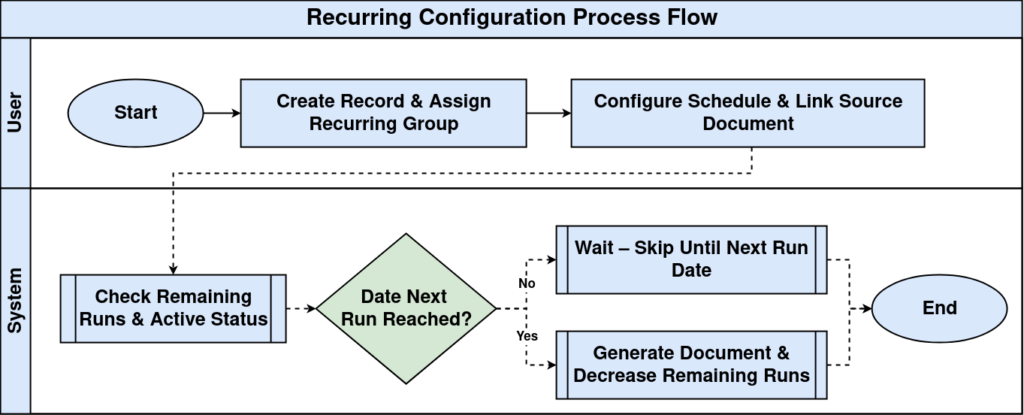
Business Rules
- Only active recurring records are eligible for execution.
- Each recurring record belongs to a single organization.
- Recurring Group helps organize similar recurring transactions.
- Frequency Type and Frequency determine execution intervals.
- Date Next Run identifies the next scheduled execution date.
- Maximum Runs limits the number of executions.
- Remaining Runs decreases after every successful execution.
- Recurring Type determines the type of document created.
- Users can manually execute a recurring transaction using Start Process.
- Inactive records are skipped during processing.
Prerequisites
- Organization configured.
- Recurring Group created.
- Required business document available.
- Recurring Type configured.
- Required master data completed.
- User has process access.
Navigation
Menu → System Admin → General Rules → Recurring
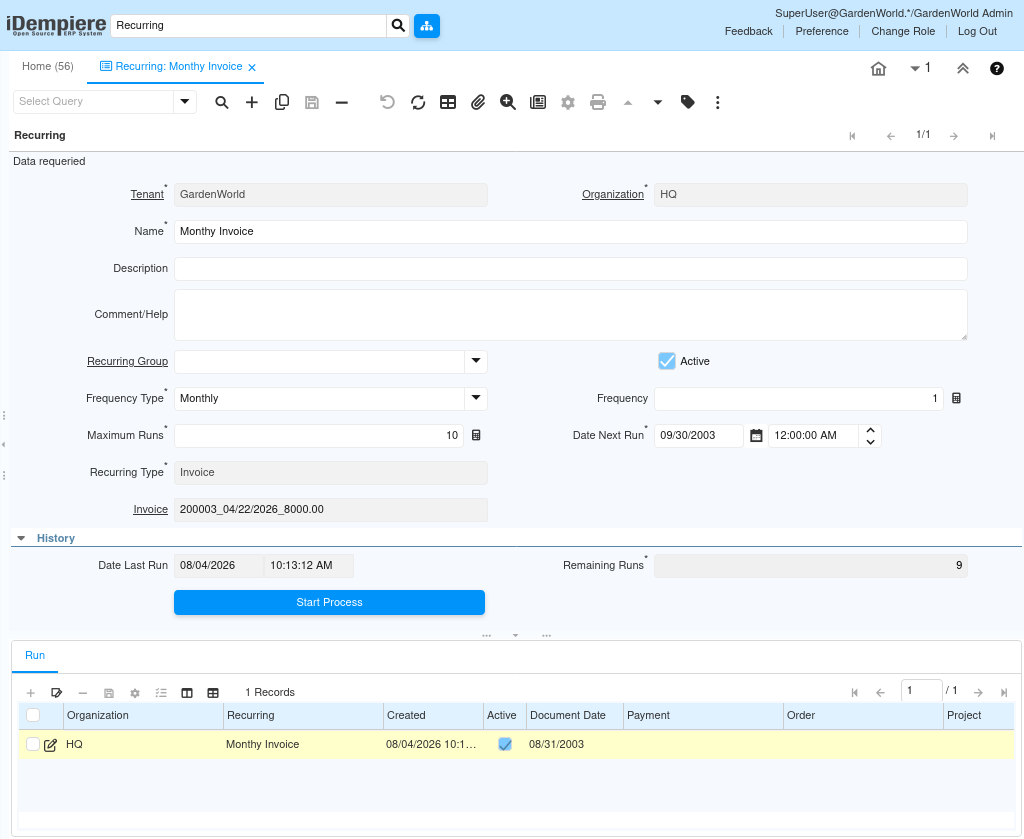
Configuration Steps
Step 1: Create the recurring record
Create a new recurring definition and enter the basic information.
Step 2: Assign Recurring Group
Select the appropriate recurring group.
Step 3: Configure execution schedule
Set Frequency Type, Frequency, Date Next Run, and Maximum Runs.
Step 4: Link source document
Select the Recurring Type and related Invoice or business document.
Step 5: Execute recurring process
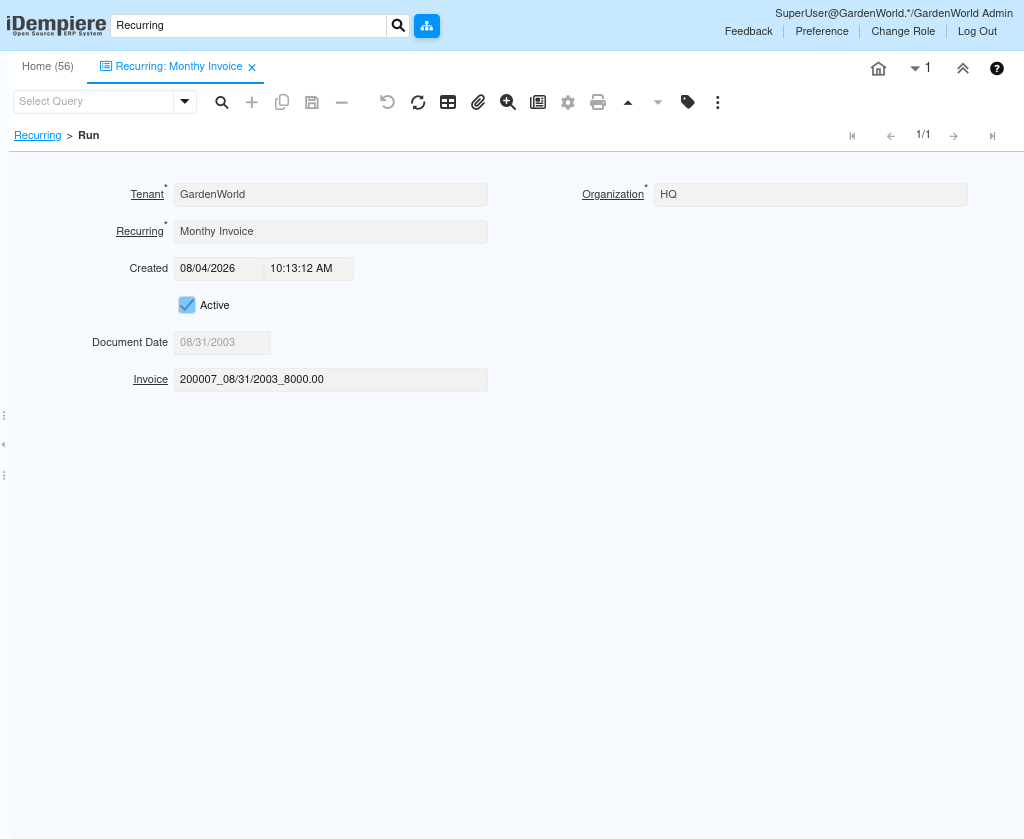
Click Start Process or execute through the Recurring Run process.
Common Issues and Resolutions
| Issue | Cause | Resolution |
| Recurring not executed | Inactive record | Activate the record |
| No document generated | Missing source document | Verify linked transaction |
| Wrong schedule | Incorrect Next Run date | Update schedule |
| Run limit reached | Remaining Runs is zero | Increase runs or recreate |
| Permission error | Insufficient access | Grant security permission |
| Incorrect document | Wrong recurring type | Review recurring configuration |
Next Steps
- Execute the Recurring Run process.
- Review generated documents.
- Verify Date Last Run and Remaining Runs.
- Monitor recurring schedules regularly.