How Does Work Context Suggestion Help in iDempiere
The Context Help Suggestion window is used to review help-text suggestions submitted by users. Suggestions are created automatically when users submit changes through the Help panel.
The System Administrator reviews each suggestion and decides whether to accept or reject it.
Business Rules
- Records are created automatically when a user submits a suggestion; manual entry is not permitted.
- Each suggestion is linked to a specific Context Help record, Tenant, Organization, and submitting user.
- The Language field records the language used when the suggestion was submitted.
- Administrators must compare the existing help text with the suggested text before making a decision.
- Accepting a suggestion updates the official Context Help record with the submitted text.
- Rejecting a suggestion leaves the official Context Help record unchanged.
- The Approved flag shows whether a suggestion was accepted; the Processed flag shows whether it was reviewed.
- Only users with System Administrator access can accept or reject suggestions.
Prerequisites
- Context Help records must already exist for the windows or fields users can comment on.
- End users must have standard access to open windows and use the Help panel.
- The System Administrator role must have access to the Context Help Suggestion window.
- Standard iDempiere role and window access rules must be configured for the reviewing user.
Navigation
Menu → System Admin → General Rules → System Rules → Context Help Suggestion
After opening the window, the administrator sees a list of submitted suggestions with Tenant, Organization, Context Help reference, submitting user, and processing status.
Configuration Steps
Step 1: Submit a Context Help Suggestion
This step is required because suggestion records are never created manually; they originate only from user submissions in the application.
Open any application window, right-click inside the help content, select ‘Edit Context Help’, modify the text, and click OK.
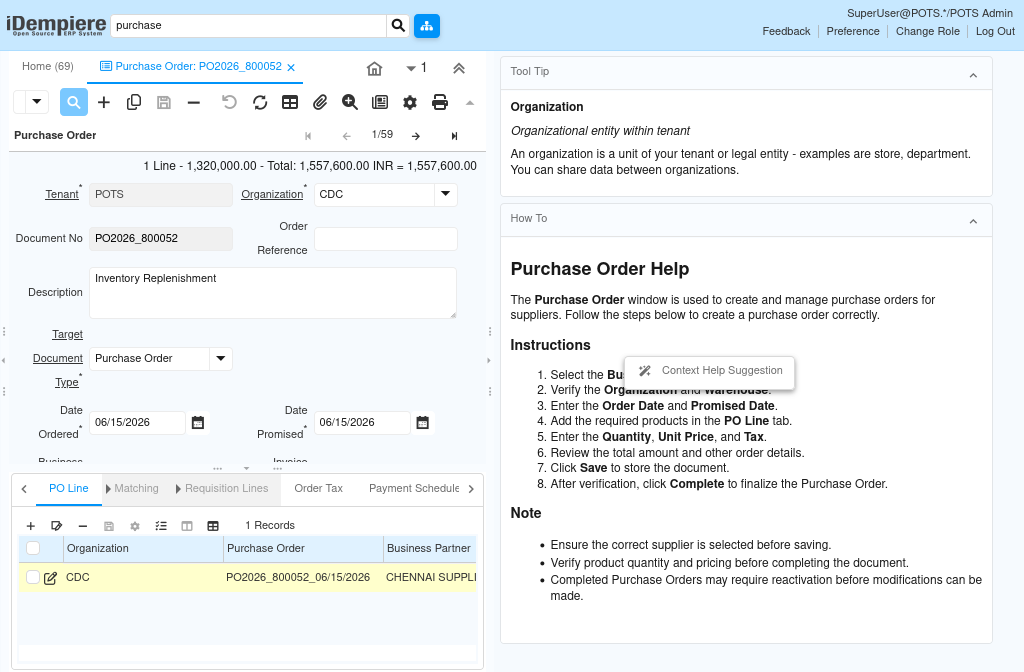
Step 2: Access the Context Help Suggestion Window
The administrator must open this window to view all pending suggestions submitted across the system.
Log in with a System Administrator role, navigate to the Context Help Suggestion window, and select a record from the list to review its details.
Step 3: Compare Existing and Suggested Help Text
Comparing both versions of the text ensures the administrator makes an informed decision before updating official help content.
With the suggestion record open, click ‘Compare Context Help Suggestion’ to view the existing Context Help text next to the submitted Message Text.
Step 4: Accept or Reject the Suggestion
This decision step finalizes the review and determines whether the official Context Help content is updated.
Click ‘Accept Context Help Suggestion’ to apply the suggested text, or click ‘Reject Context Help Suggestion’ to keep the existing help text unchanged.

Step 5: Verify the Updated Context Help
Verification confirms the change was applied correctly and is now visible to end users through the Help panel.
Open the related window’s Help panel again and confirm the displayed help text matches the accepted suggestion.
Field Reference
The table below consolidates every field visible across the Context Help Suggestion window and its related submission dialog.
| Field | Sample Value | Description |
| Window | Purchase Order | Window where the user is requesting a help improvement. |
| Tenant | GardenWorld | Tenant where the suggestion was submitted. |
| Organization | HQ | Organization associated with the suggestion. |
| Context Help | C_Order.DocumentNo | Context Help record the suggestion relates to. |
| User/Contact | GardenAdmin | User who submitted the suggestion. |
| Language | en_US | Language used when the suggestion was submitted. |
| Message Text | Enter the vendor’s invoice reference here. | Suggested help text submitted by the user. |
| Approved | Y | Indicates the suggestion was accepted. |
| Processed | Y | Indicates the suggestion has been reviewed. |
Common Issues and Resolutions
| Issue | Cause | Resolution |
| Suggestion not visible in the window | User did not submit the suggestion through Help > Edit Context Help | Confirm the user submitted the suggestion using the standard Help panel process. |
| Compare view shows no difference | Submitted text is identical to the existing Context Help | Ask the user to resubmit with the intended wording changes. |
| Cannot accept or reject a suggestion | Logged-in user lacks System Administrator access | Log in with a role that has access to the Context Help Suggestion window. |
| Accepted text not shown in Help panel | Application cache not refreshed after acceptance | Refresh the window or restart the client session. |
| Multiple suggestions exist for the same field | Different users submitted separate suggestions for one Context Help record | Review and process each suggestion record independently. |
Next Steps
- Context Help window – review the official, approved help text for windows and fields.
- Window, Tab, and Field windows (Application Dictionary) – maintain the underlying window structure.
- Role window – manage which users can access the Context Help Suggestion window.