How to Configure CSS Style in iDempiere
Configure reusable CSS Style records in iDempiere using ordered Style Lines, themes, and display logic to control the presentation of supported application elements.
Introduction
The CSS Style window in iDempiere defines reusable styling configurations. A CSS Style acts as the parent record, while the actual CSS definitions are maintained on one or more Style Line child records.
Each Style Line can carry CSS properties together with optional conditions, such as Display Logic and Theme, that determine whether the line contributes to the generated style at runtime.
This is a system-configuration feature used across implementations that need conditional or theme-based presentation, such as styling business priority labels or other supported UI elements.
Process Flow

Business Rules
- A CSS Style can contain one or more Style Line records.
- Only active Style Lines are retrieved when iDempiere builds the CSS Style.
- A Style Line must contain a non-null Inline Style to be retrieved for style generation.
- Style Lines are processed in ascending order of Line No.
- When Theme is specified on a Style Line, the line is included only if its Theme matches the default theme supplied during style generation.
- When Display Logic is specified, the Style Line is included only when the expression evaluates to true.
- iDempiere distinguishes inline CSS from CSS/class definitions based on the style text; block syntax using {…} is excluded from inline processing.
- When multiple applicable inline Style Lines are found, their definitions are combined, with a semicolon separator inserted when required.
- CSS Style records are cached by AD_Style_ID.
- A CSS Style record supports Name, Description, Entity Type, Wrap With Span, and Active fields.
- The runtime processing of Wrap With Span is not confirmed by the supplied MStyle class.
Prerequisites
- An active Tenant and Organization must exist for the record.
- The Entity Type applicable to the implementation must be known before creating the record.
- The target Theme code, if a theme restriction is required, must be identified in advance.
- User must have access rights to the CSS Style window.
Configuration Steps
Step 1: Create CSS Style
This step creates the parent CSS Style record that groups one or more styling definitions.
Navigate to the CSS Style window and create a new record. Enter the Name, Description, and Entity Type, set Wrap With Span if required, and save.
| Field | Sample Value | Description |
| Tenant | POTS | Tenant owning the CSS Style record |
| Organization | * | Organization context of the record |
| Name | Priority Label Style | Identifies the CSS Style |
| Entity Type | User maintained | Identifies the ownership/type of dictionary record |
| Description | Standard visual style for business priority labels. | Describes the purpose of the style |
| Wrap With Span | Yes | Configuration option on the CSS Style record; runtime processing not confirmed by the supplied code |
| Active | Yes | Controls whether the CSS Style record is active |
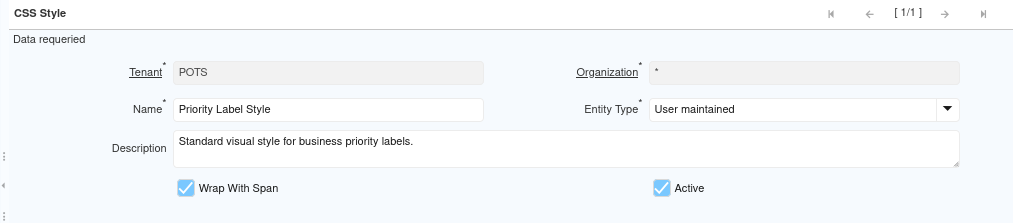
The Priority Label Style parent record is saved and the Style Line tab becomes available to maintain its CSS definitions.
Step 2: Create Style Line
This step defines the actual CSS properties belonging to the parent CSS Style.
Open the Style Line tab under CSS Style, enter the Line No and Inline Style, optionally set Display Logic and Theme, then save.
| Field | Sample Value | Description |
| Style | Priority Label Style | Parent CSS Style |
| Line No | 10 | Determines the processing order of Style Lines |
| Inline Style | font-weight: bold; | Contains the CSS definition |
| Display Logic | Blank | Optional condition controlling whether the Style Line is applied |
| Theme | iceblue_c | Optional theme restriction |
| Active | Yes | Determines whether the Style Line can be retrieved for style generation |
| Entity Type | User maintained | Entity type of the Style Line |
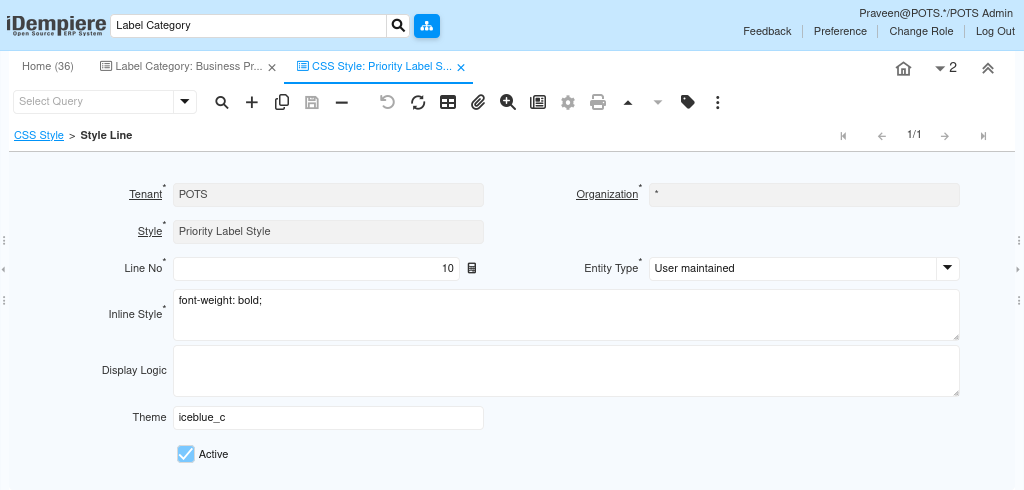
The Style Line is saved under Priority Label Style. Active Style Lines with a non-null Inline Style are retrieved and ordered by Line No when the style is built.
Step 3: Evaluate Style Line Conditions
This step determines whether each configured Style Line should contribute to the generated style.
For each retrieved Style Line, iDempiere checks the style type, then evaluates Theme and Display Logic in sequence before including the line in the generated CSS.
| Field | Sample Value | Description |
| Theme | iceblue_c | When populated, is compared with the default theme supplied during style generation; the line is skipped if they do not match |
| Display Logic | Blank | When populated, the expression is evaluated; the line is skipped if it evaluates to false |
Because the tested Style Line has Display Logic blank, no Display Logic condition needs to be satisfied for this record. The Theme condition is evaluated when the style is generated for a matching theme context.
Step 4: Build the CSS Style
This step combines all applicable Style Lines into the resulting CSS text for use by a supported configuration.
iDempiere retrieves applicable active Style Lines, reads the Inline Style, checks whether it is appropriate for inline processing, applies Theme and Display Logic checks, and adds qualifying style text to the result, separating multiple entries with a semicolon.
| Field | Sample Value | Description |
| Resulting CSS | font-weight: bold; | Combined output when the Style Line passes all applicable conditions |
When the Style Line passes the applicable conditions and the CSS Style is used by a supported UI configuration, the generated style includes the combined CSS text from all qualifying Style Lines.
Common Issues and Resolutions
| Issue | Cause | Resolution |
| Style Line is not applied | The Style Line is not active | Verify the Style Line is Active; only active Style Lines are retrieved. |
| Style Line is ignored | Inline Style is null or blank | Enter a value in Inline Style; lines with a null Inline Style are excluded. |
| Style works with one theme but not another | Theme does not match the default theme | Check Theme; a populated Theme must match the default theme supplied during style generation. |
| Conditional style is not applied | Display Logic expression evaluates to false | Check Display Logic; the expression must evaluate to true for the line to be included. |
| Multiple styles applied in an unexpected sequence | Line No values are not ordered as expected | Check Line No; Style Lines are processed in ascending Line No order. |
| Inline CSS block is ignored | Style text uses {…} block syntax | For inline processing, use property-style CSS rather than a full CSS block. |
| Style does not appear to update after a change | CSS Style records are cached by AD_Style_ID | Allow for cache behavior; changes may require a cache reset to take effect. |
Next Steps
The tested Priority Label Style is now available for reference by supported configurations, such as the Business Priority Label Category. The logical next step in the configuration sequence is to define a Label Category that references this CSS Style, followed by Label and Label Assignment setup, and to verify the resulting label presentation.
Until the consuming configuration is tested, the visual effect of this CSS Style cannot be confirmed beyond the generated CSS text documented here. The next HIW document in this sequence should cover the Label Category window, using the tested Business Priority → Priority Label Style configuration as its evidence-based example.