How to Configure Create Foreign Key in iDempiere
The Create Foreign Key window is a System Administration process in iDempiere that generates and synchronizes database-level foreign key constraints based on the Reference Table settings defined on AD_Column.
Running this process protects referential integrity across sales, inventory, and customer data, preventing orphaned records as store-specific customizations grow.
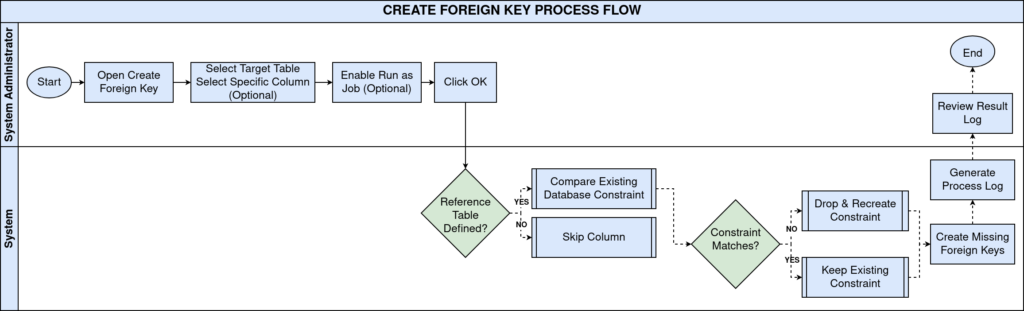
Process Flow
Business Rules
- Only columns with a Reference Table set on AD_Column are eligible for foreign key creation.
- Key columns and UUID columns are excluded from foreign key generation automatically.
- AD_Client_ID, AD_Org_ID, CreatedBy and UpdatedBy columns are skipped by default.
- Existing database constraints are compared against AD_Column settings before any change.
- Mismatched constraints are dropped and recreated to match the FK Constraint Type on the column.
- Running at table or database level processes every eligible column found in that scope.
- The process can be scheduled as a background job for large retail table syncs.
Prerequisites
- Custom table registered in Application Dictionary (Table and Column window).
- Column created with the correct Reference Table pointing to the parent table.
- FK Constraint Type set on the column, if non-default behavior is required.
- Database user has ALTER TABLE privileges on the target schema.
- Table synchronized with the physical database (Sync This Column / Table completed).
| Note: Leaving Table blank scans every registered table in the database and may take significant time on production retail environments. |
Navigation
Menu → System Admin → General Rules → Database → Create Foreign Key
Configuration Steps
Step 1: Open the Create Foreign Key Process
Use the search bar and type “creat” to filter, then select Create Foreign Key from the process list to open the parameter window.

Step 2: Select the Target Table
Choose the table from the Table dropdown, for example C_InvoiceLine. Leave Column blank to process all eligible columns on the table.
Step 3: Select a Specific Column (Optional)
Select the column from the Column dropdown, for example QtyInvoiced. Leave it blank to process the entire table instead.
Field Reference Table
| Field | Sample Value | Description |
| Table | C_InvoiceLine_Invoice Line | Table whose columns are scanned for foreign key sync |
| Column | QtyInvoiced_Quantity Invoiced | Specific column to process; optional |
| Run as Job | Unchecked | Runs the process in the background scheduler queue |
Step 4: Choose Run as Job for Large Syncs
Check Run as Job before clicking OK when syncing high-volume transaction tables during off-peak hours.
Step 5: Execute and Review the Result Log
Click OK to run. Review the result message showing table count, foreign keys created, and error count in the process log.
Common Issues and Resolutions
| Issue | Cause | Resolution |
| No foreign key created | Column has no Reference Table set | Set Reference Table on the column in Table and Column window |
| Constraint already exists error | A manually created DB constraint uses a different name | Let the process detect and reuse the existing constraint name |
| Column skipped silently | Column is AD_Client_ID, AD_Org_ID, CreatedBy or UpdatedBy | Set FK Constraint Type explicitly if a constraint is really needed |
| Process runs slowly on large tables | Full database or table-level sync scans many columns | Enable Run as Job and schedule during low-traffic hours |
| Constraint dropped unexpectedly | FK Constraint Type set to Do Not Create – Ignore | Change FK Constraint Type on the column before rerunning |
| Error count greater than zero | Data violates referential integrity (orphan records) | Clean up orphan child records before recreating the constraint |
| Key or UUID column not processed | Key and UUID columns are excluded by design | Expected behavior; no action needed |
Next Steps
- Table and Column window – define Reference Table and FK Constraint Type.
- Sync This Column / Sync Database process – align dictionary with DB schema.
- Reference and Reference List windows – set up lookup values for new columns.