How to Configure Sales Invoice and Credit/Debit Note in iDempiere
The Sales Invoice and Credit/Debit Note window in iDempiere is the core accounts receivable document used to bill customers, apply tax, and issue credit or debit notes.
Every completed invoice drives receivables balances, tax reporting, and sales revenue accounting, making correct configuration essential for accurate retail financial close.
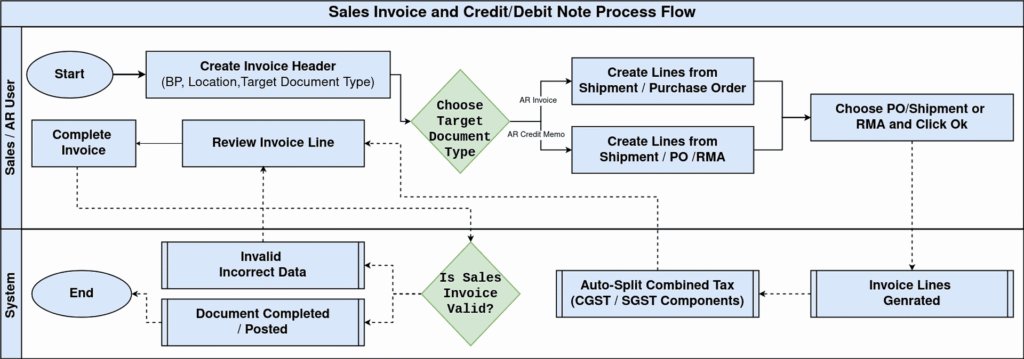
Process Flow
Business Rules
- Only active tax rates are available for selection on invoice lines.
- Target Document Type decides whether the record posts as an Invoice or Credit Memo.
- Invoice lines can be generated automatically from a linked Shipment or Purchase Order of the business partner.
- Combined tax rates split automatically into components on the Invoice Tax tab.
- Price List determines the default Unit Price and List Price on new invoice lines.
- Grand Total recalculates automatically whenever lines or taxes change.
- Document Status must move from Drafted to Completed before the invoice posts to accounting.
- Price includes Tax controls whether entered prices are treated as tax-inclusive.
- Payment Rule and Payment Term determine the due date used for receivables ageing.
Prerequisites
- Business Partner and Partner Location configured.
- Organization (store or branch) configured.
- Document Type configured for AR Invoice and AR Credit Memo.
- Price List configured with product pricing.
- Tax Category and Tax Rate configured.
- Shipment or Purchase Order completed, if invoice lines will be generated from delivery.
- Sales Representative and User/Contact linked to the Business Partner.
Configuration Steps
Step 1: Set Up the Invoice Header
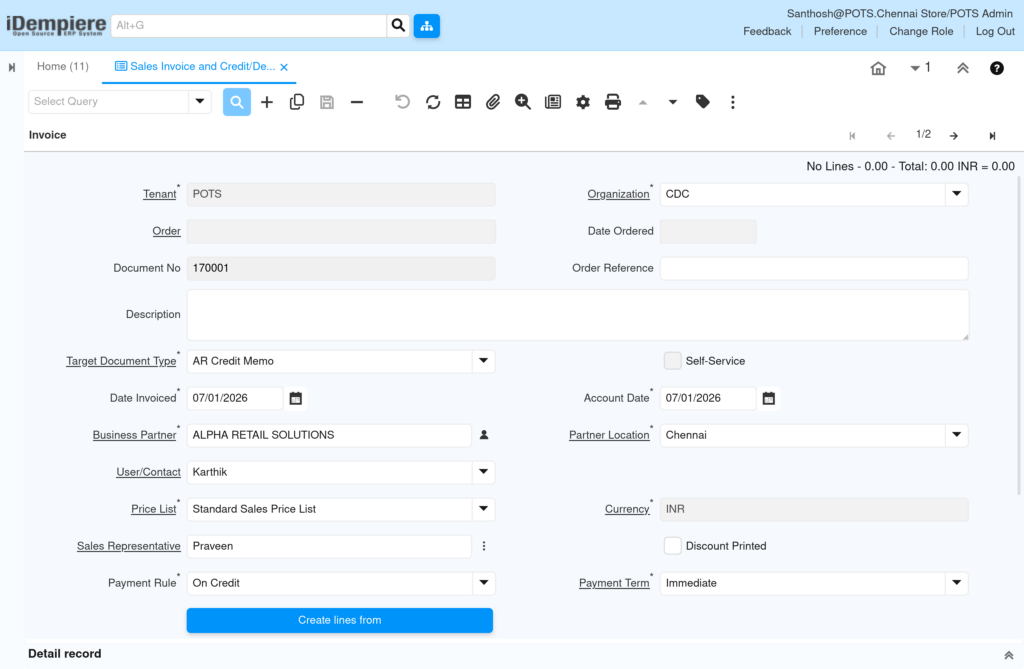
Create a new record, select the Business Partner and Partner Location, set the Target Document Type, and confirm Price List, Currency, Payment Rule, and Payment Term.
| Field | Sample Value | Description |
|---|---|---|
| Target Document Type | AR Invoice | Sets the document as a credit note instead of a standard invoice |
| Business Partner | ALPHA RETAIL SOLUTIONS | Customer being billed or credited |
| Partner Location | Chennai | Ship-to/bill-to location of the customer |
| User/Contact | Karthik | Customer contact linked to the transaction |
| Price List | Standard Sales Price List | Determines default product pricing |
| Currency | INR | Transaction currency |
| Sales Representative | Praveen | Store staff responsible for the sale |
| Payment Rule | On Credit | Defines how the invoice will be settled |
| Payment Term | Immediate | Sets the due date for the receivable |
| Date Invoiced | 07/01/2026 | Transaction date used for invoicing |
| Account Date | 07/01/2026 | Date used for accounting postings |
Step 2: Generate Invoice Lines from a Shipment or Receipt
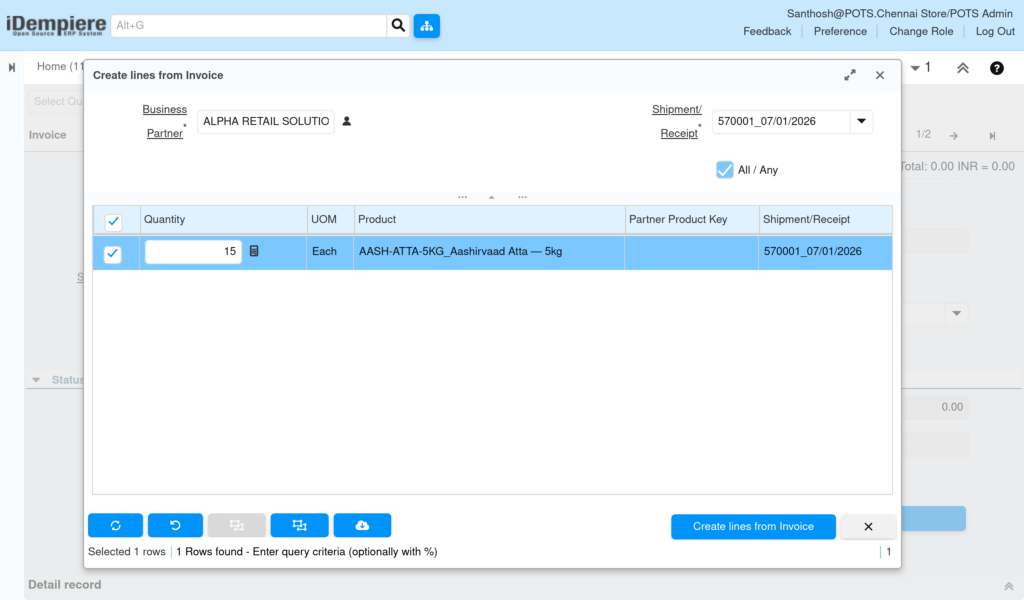
Click Create lines from, select the matching Shipment/Purchase order, confirm the quantity to invoice, and click Create lines from Invoice to load the lines.
| Field | Sample Value | Description |
| Business Partner | ALPHA RETAIL SOLUTIONS | Filters shipments for the selected customer |
| Shipment/Receipt | 570001_07/01/2026 | Source delivery document for the invoice lines |
| Quantity | 15 | Delivered quantity available to invoice |
| UOM | Each | Unit of measure for the product |
| Product | AASH-ATTA-5KG_Aashirvaad Atta — 5kg | Product being invoiced |
Step 3: Review and Adjust Invoice Line Details
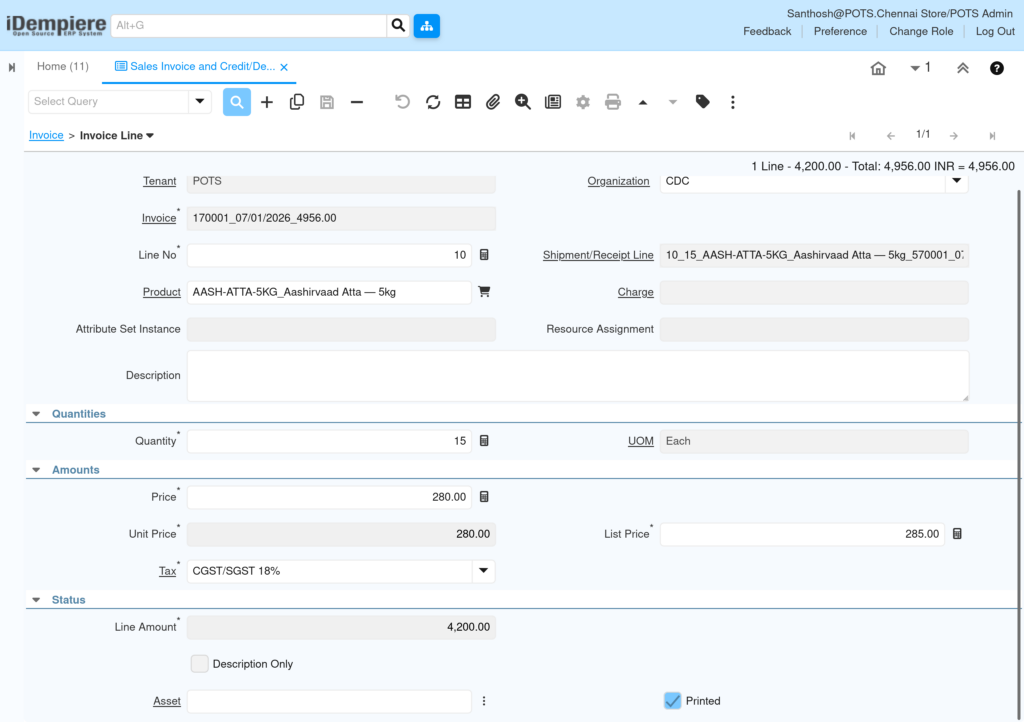
Open each Invoice Line, confirm Product, Quantity, Price, and Tax, and verify the Line Amount matches quantity multiplied by unit price.
| Field | Sample Value | Description |
| Line No | 10 | Sequence of the line on the invoice |
| Shipment/Receipt Line | 10_15_AASH-ATTA-5KG… | Source shipment line the invoice line was created from |
| Product | AASH-ATTA-5KG_Aashirvaad Atta — 5kg | Item being billed |
| Quantity | 15 | Billed quantity |
| UOM | Each | Unit of measure |
| Price | 280.00 | Net price used for the line |
| Unit Price | 280.00 | Price per unit before tax |
| List Price | 285.00 | Reference list price from the price list |
| Tax | CGST/SGST 18% | Combined tax rate applied to the line |
| Line Amount | 4,200.00 | Quantity multiplied by unit price |
| Printed | Checked | Controls whether the line appears on the printed invoice |
Step 4: Verify the Tax Breakup
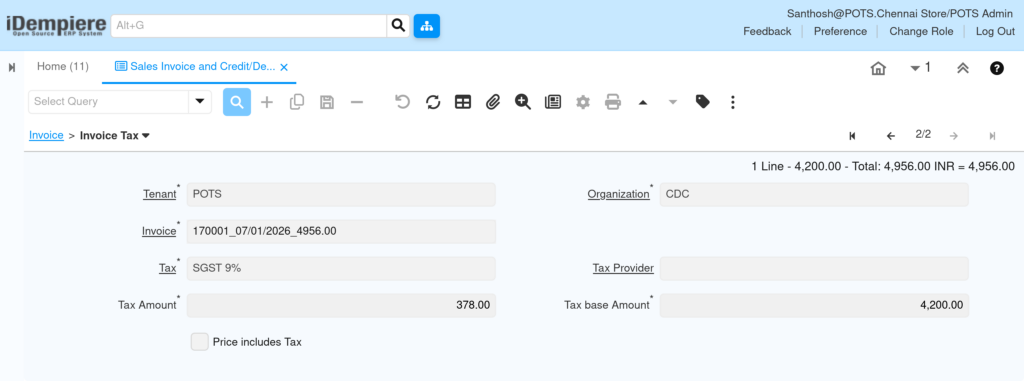
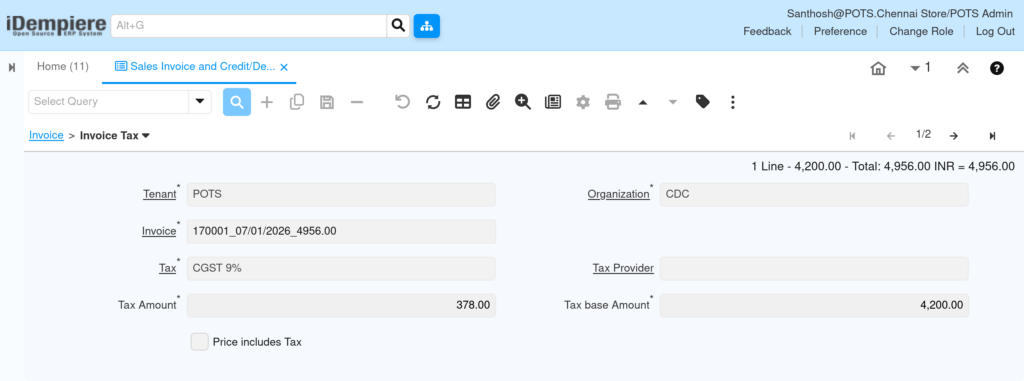
Open the Invoice Tax tab and confirm the Tax base Amount
| Field | Sample Value | Description |
| Tax | CGST 9% | Central GST component of the combined rate |
| Tax | SGST 9% | State GST component of the combined rate |
| Tax base Amount | 4,200.00 | Line amount used to calculate tax |
| Tax Amount | 378.00 | Calculated tax value per component |
| Price includes Tax | Unchecked | Confirms the entered price excludes tax |
Step 5: Complete and Post the Invoice
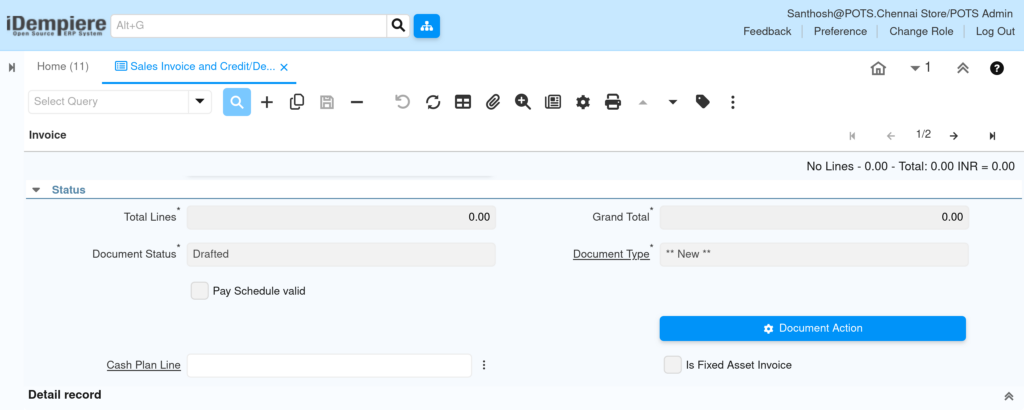
Review Total Lines and Grand Total on the Status section, then run Document Action and select Complete to post the invoice or credit memo.
| Field | Sample Value | Description |
| Total Lines | 4,200.00 | Sum of all invoice line amounts before tax |
| Grand Total | 4,956.00 | Total invoice amount including tax |
| Document Status | Drafted | Current workflow state of the document |
| Document Type | AR Invoice | Confirms the posting type before completion |
| Document Action | Complete | Action used to finalize and post the document |
| Note: Once a document status changes to Completed, header and line fields become read-only. Use a Credit Memo or Reversal for corrections instead of editing a posted invoice. |
Common Issues and Resolutions
| Issue | Cause | Resolution |
| Create lines from Invoice returns no records | Shipment/ Purchase order not completed or already fully invoiced | Complete the shipment first and confirm remaining quantity |
| Invoice posts as Invoice instead of Credit Memo | Target Document Type left as AR Invoice | Set Target Document Type to AR Credit Memo before completing |
| Grand Total does not match expected amount | Price includes Tax checkbox set incorrectly | Verify Price includes Tax matches the store’s pricing policy |
| Document cannot be completed | Mandatory header fields missing, such as Price List | Fill all mandatory fields before running Document Action |
| Duplicate Tax lines appear | Multiple tax rates mapped to the same tax category | Review Tax Category setup and remove duplicate rates |
| Line price differs from Price List | Unit Price manually overridden during entry | Recalculate the price using the Price List reference |
Next Steps
- Configure Payment Allocation to settle the invoice against customer receipts.
- Configure Document Type sequencing for AR Invoice and AR Credit Memo numbering.