How to Configure the Interest Area Window in iDempiere
Configure the Interest Area window in iDempiere to group retail marketing preferences and manage customer subscription targeting.
Introduction
The Interest Area window in iDempiere defines marketing preference categories, such as Grocery Offers or Festive Deals, that retail customers can be linked to.
It directly shapes campaign targeting, customer communication accuracy, and marketing reporting by keeping subscription data structured and centralized.
Process Flow

Business Rules
- Only Active Interest Area records are available for contact subscriptions.
- Self-Service records can be selected by customers without staff assistance.
- Search Key must be unique for each Interest Area record.
- Subscriptions are recorded per Business Partner Contact, not per company.
- Opt-out Date deactivates a subscription while preserving its history.
- Organization set to * makes the Interest Area available across all stores.
Prerequisites
- Tenant (Client) configured.
- Organization configured.
- Business Partner configured.
- Business Partner Contact (User) created under the Business Partner.
Navigation
Menu → Business Partner → Interest Area
Configuration Steps
Step 1: Create the Interest Area Record
This defines the marketing category customers can subscribe to.
| Field | Sample Value | Description |
| Search Key | GROCERY | Unique code identifying the interest area. |
| Name | Grocery Offers | Display name shown to staff and customers. |
| Description | Receive grocery and supermarket promotions. | Explains what the customer is opting into. |
| Active | Checked | Makes the record available for subscriptions. |

Step 2: Enable Self-Service Where Applicable
Self-Service controls whether customers can opt in themselves through a portal or storefront.
Step 3: Review the Subscriptions Tab
The Subscriptions detail tab lists contacts already linked to this interest area for reference.
The Subscriptions tab inside Interest Area is a reference view. New subscriptions should be added from the Business Partner window instead.
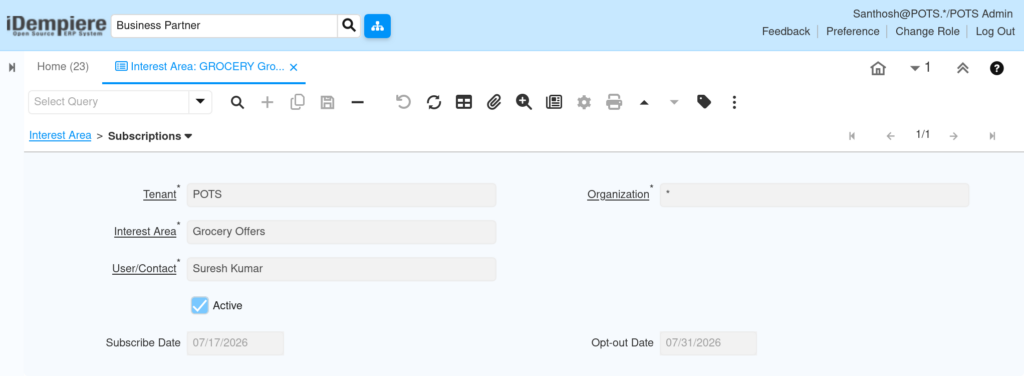
Step 4: Add the Subscription from the Business Partner Window
Subscriptions are created against a specific customer contact, so they are entered from the Business Partner record.
| Field | Sample Value | Description |
| Interest Area | Grocery Offers | The marketing category being subscribed to. |
| User/Contact | Suresh Kumar | The contact person receiving the offers. |
| Active | Checked | Marks the subscription as currently valid. |
| Subscribe Date | 07/17/2026 | Date the contact opted in. |
| Opt-out Date | 07/31/2026 | Date the contact stops receiving offers. |
Common Issues and Resolutions
| Issue | Cause | Resolution |
| Subscription not visible on contact | Added directly in Interest Area window instead of the Contact tab | Add subscriptions from Business Partner → Contact → Interest Area. |
| Interest area missing from selection list | Active checkbox is unchecked | Check Active on the Interest Area record. |
| Customer cannot self-subscribe on portal | Self-Service checkbox unchecked | Enable Self-Service on the Interest Area record. |
| Duplicate interest area records created | Search Key was not kept unique | Standardize Search Key naming before creating new records. |
| Customer keeps receiving offers after opting out | Opt-out Date left blank | Set the Opt-out Date on the contact’s subscription. |
| Interest area not available in another store | Organization restricted to a single store | Set Organization to * for company-wide availability. |
| Subscription cannot be saved | Contact not yet created under the Business Partner | Create the Contact record before adding the subscription. |
Next Steps
- Configure Business Partner Contacts for all customers who should be targeted.
- Set up Marketing Campaign or Newsletter windows to use Interest Area segments.
- Review Opt-out handling as part of customer communication compliance.