How to Configure Role Access Update in iDempiere
The Role Access Update window in iDempiere rebuilds access records that control which windows, forms, processes and reports a role can open. Running it correctly prevents staff from seeing broken menus or missing functions during store operations.
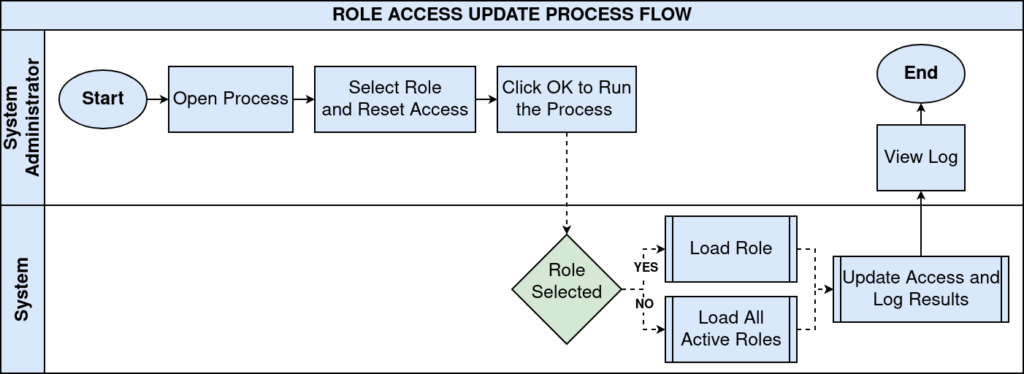
Process Flow
Business Rules
- Roles marked as Manual access are skipped entirely; the process makes no changes for them.
- Selecting a specific Role updates access records for that role only.
- Leaving Role blank updates every active role in the current tenant.
- Running from the System tenant with no Role selected updates all tenants.
- Reset Existing Access deletes and rebuilds all access records before inserting new ones.
- Leaving Reset Existing Access unchecked only inserts access records that are missing.
- Run as Job queues the update as a background process instead of running inline.
- Only active windows, processes, forms, workflows and info windows are eligible for access.
- The Role’s User Level (System, Client, Client+Organization or Organization) decides which access levels are granted.
- Organization-level roles never receive windows whose name contains “(all)”.
- Document Action access is rebuilt for every active document type regardless of the Role’s User Level.
| Note: The process rebuilds six access tables in a single run – AD_Window_Access, AD_Process_Access, AD_Form_Access, AD_WorkFlow_Access, AD_Document_Action_Access and AD_InfoWindow_Access |
Prerequisites
- Role window configured with the required window, process, form and report flags.
- Role’s User Level (System, Client, Client+Organization or Organization) set correctly.
- Users assigned to the Role that needs updated access.
- New windows, processes or reports already added to the application dictionary.
- Manual access flag on the Role reviewed if custom, hand-maintained access is required.
Navigation
Menu → General Rules → Security → Role Access Update
Configuration Steps
Step 1: Select the Role to Update
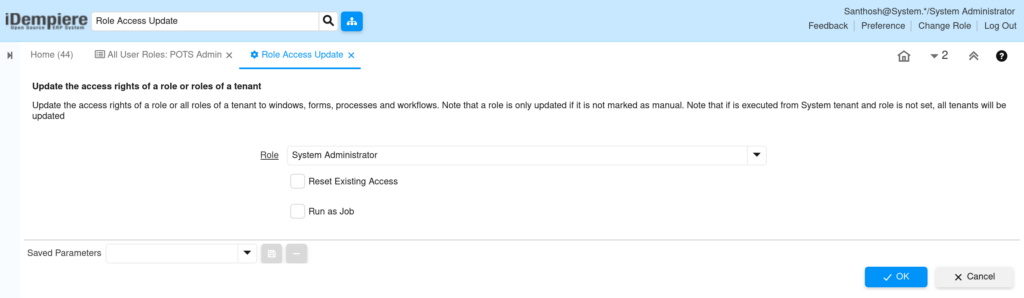
Open the Role field and pick the target role, for example POTS User. Leave it blank only when every active role in the tenant must be refreshed.
| Field | Sample Value | Description |
| Role | POTS User | Role whose access records will be rebuilt |
Step 2: Decide Between Reset and Incremental Update
Check Reset Existing Access to delete and recreate every access record for the role. Leave it unchecked to only add missing records and keep current permissions intact.
| Field | Sample Value | Description |
| Reset Existing Access | Unchecked | Adds missing access without removing current permissions |
Step 3: Choose Immediate or Scheduled Execution
Check Run as Job to execute the process in the background, or leave it unchecked for a small, single-role update that finishes immediately.
| Field | Sample Value | Description |
| Run as Job | Unchecked | Executes the process in the background as a scheduled job |
Step 4: Run the Process and Review the Log
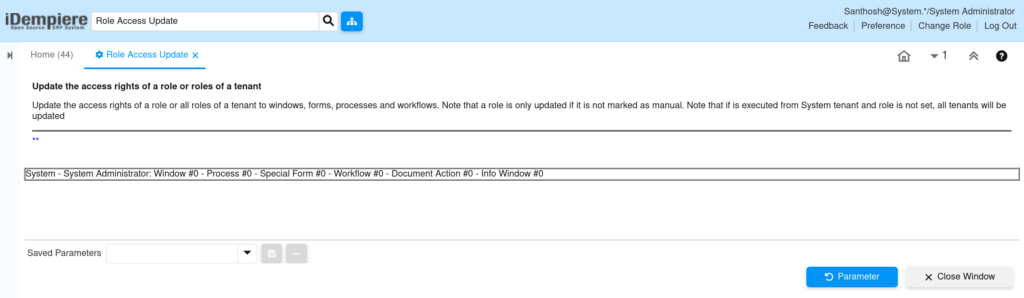
Click Start to execute. Review the process log for the count of windows, forms and reports added per role before closing the window.
Reference: Access Tables Rebuilt by This Process
Each run inserts only the access records that are missing for the Role, based on the access level derived from its User Level.
| Access Table | Controls | Access Level Rule Applied |
| AD_Window_Access | Windows available to the role | Matches role’s access level; excludes “(all)” windows for Organization level |
| AD_Process_Access | Processes and reports the role can run | Matches role’s access level |
| AD_Form_Access | Custom forms the role can open | Matches role’s access level |
| AD_WorkFlow_Access | Workflows the role can start | Matches role’s access level |
| AD_Document_Action_Access | Document actions per document type | Applied to every active document type, independent of access level |
| AD_InfoWindow_Access | Info windows the role can query | Matches role’s access level |
the records inserted is determined by the access level of the user
| User Level | Allowed Access Levels | Typical Purpose |
|---|---|---|
| System | 4, 6, 7 | Application dictionary and global system administration |
| Client | 2, 3, 6, 7 | Tenant-wide administration and business configuration |
| Client + Organization | 1, 2, 3, 6, 7 | Most business users and client administrators |
| Organization | 1, 3, 7 | Day-to-day operational users within one organization |
Common Issues and Resolutions
| Issue | Cause | Resolution |
| Process updates roles across every tenant | Role left blank while logged in as System Administrator | Select a specific Role or switch to the retail tenant first |
| Role permissions do not change after running | Role is marked as Manual access | Uncheck Manual on the Role or update access by hand |
| Duplicate or stale access records appear | Process run repeatedly without resetting | Run once with Reset Existing Access checked to clean up |
| Only the System role gets updated | Known behavior when run as System Administrator with no Role set | Expected result; select the correct tenant and role explicitly |
| Selected role gets no updates at all | Role is marked as Manual access, so the process exits immediately | Uncheck Manual on the Role if automatic access is required |
| Organization-level role is missing store-wide windows | Windows named with “(all)” are excluded for Organization-level roles by design | Use a Client or Client+Organization level role for store-wide windows |
Next Steps
- Configure the Role window with the required window, process and report access.
- Assign updated Roles to Users in the User window.
- Review Organization Access and Login Preferences for affected users.