How to Use Import File Loader in iDempiere
The Import File Loader in iDempiere is a standard utility that reads an external CSV file and loads its contents into an import staging table, ready for validation and processing.
It is used within standard data migration and periodic data-load processes, such as bringing in invoices, business partners or other master and transaction data from external systems.
Process Flow

Business Rules
- Data loaded through the Import File Loader is placed in a staging table, not directly in business tables.
- The selected Import Format determines how CSV columns map to staging table fields.
- The CSV file encoding must match the selected Charset for the load to read data correctly.
- Loaded records must be reviewed in the corresponding Import window before running the import process.
- Only after the Import Process runs successfully are records created in the actual business tables.
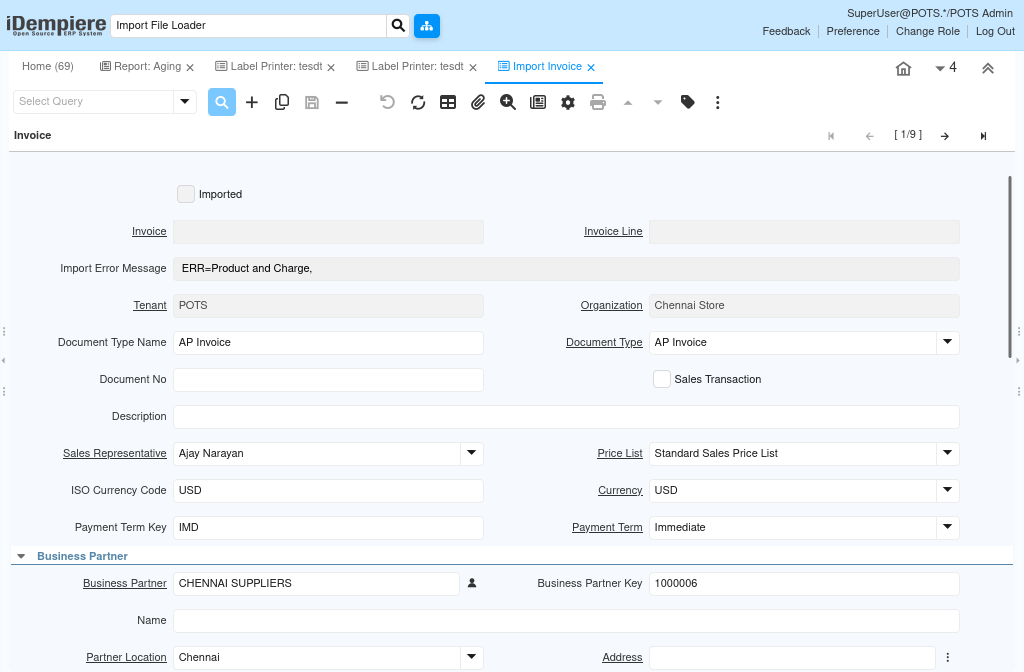
- Successfully imported records are marked with the Imported flag set to Yes.
Prerequisites
- A CSV file prepared with columns matching the target Import Format.
- An Import Format record already configured in the Application Dictionary (e.g., Import Invoice).
- User role with access to the Import File Loader and the related Import window.
Navigation
Menu → General Admin → Import → Import File Loader
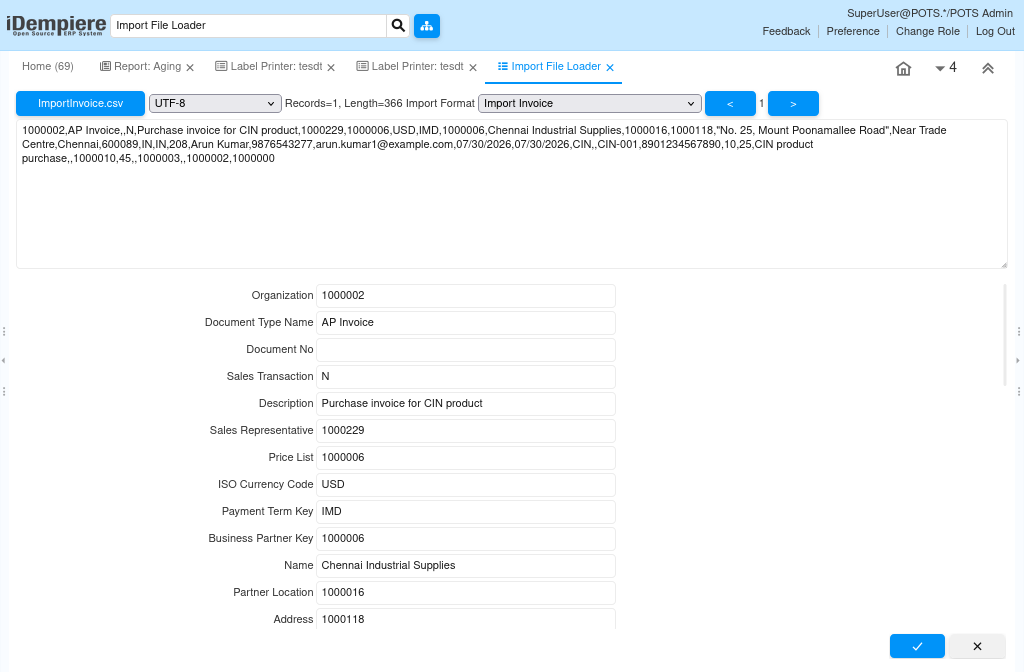
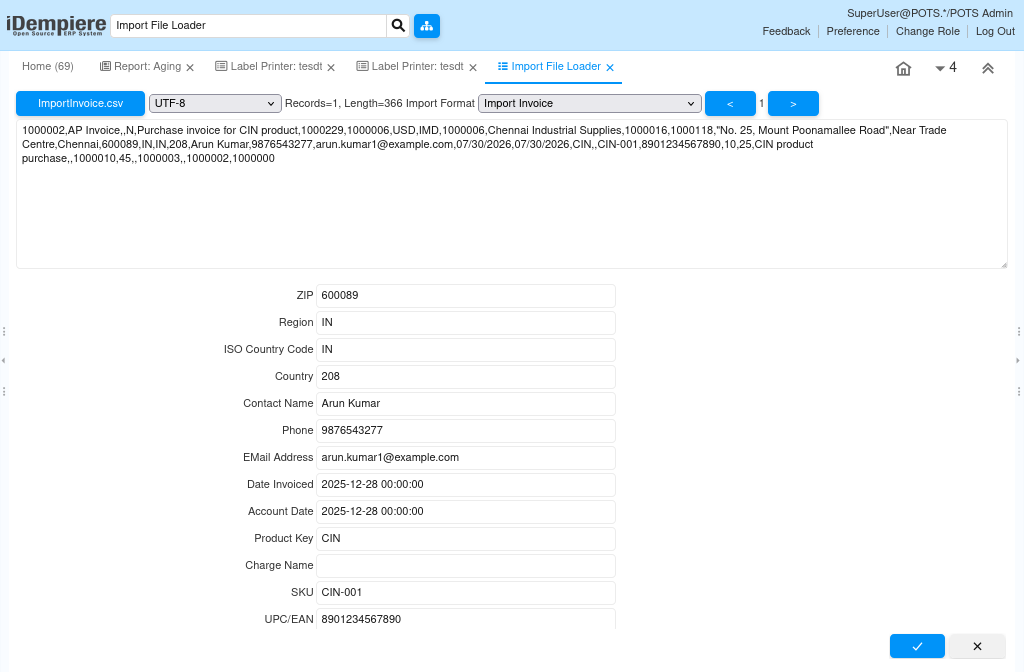
Users see a form to select a CSV file, choose the file encoding, select an Import Format, and trigger the load.
Configuration Steps
Step 1: Prepare the CSV File
The CSV file must contain columns that align with the target Import Format before it can be loaded successfully.
Prepare the CSV file with the required columns and data, matching the structure expected by the selected Import Format.
Step 2: Confirm the Import Format
The Import Format defines how each CSV column maps to a field in the staging table, so it must already be configured and available.
Verify that an appropriate Import Format record, such as Import Invoice, exists in the Application Dictionary before loading.
Step 3: Open Import File Loader and Select the File
Opening the window and selecting the file is required to point the loader at the correct data source.
Navigate to Import File Loader, then browse and select the prepared CSV file.
Step 4: Select Encoding and Import Format
Selecting the correct Charset and Import Format ensures the file is read accurately and mapped to the right staging table.
Select UTF-8 (or the applicable encoding) and choose the matching Import Format, such as Import Invoice, from the list.
Step 5: Load the File
Triggering the load is required to move the CSV data from the file into the staging table for review.
Click the Load control to upload the file. The system reads the CSV and inserts records into the related staging table, such as I_Invoice.
Step 6: Review and Run the Import Process
Reviewing staged records before running the import process helps catch data issues before they reach business tables.
Open the related Import window, such as Import Invoice, review the loaded records, then run the Import Process to create the final business records.


Field Reference
| Field | Sample Value | Description |
| File | invoices.csv | The CSV file selected for loading into the staging table. |
| Charset | UTF-8 | Character encoding used to read the CSV file. |
| Import Format | Import Invoice | Predefined format that maps CSV columns to staging table fields. |
| Load | (action button) | Triggers loading of the CSV file into the staging table. |
| Imported | Yes | Flag on the staging record confirming the import process created the business record. |
Common Issues and Resolutions
| Issue | Cause | Resolution |
| Load fails or file will not upload | Incorrect file path or unsupported file type selected | Re-select a valid CSV file and retry the load. |
| Data appears garbled after loading | Charset does not match the actual file encoding | Select the correct Charset, typically UTF-8, matching the file. |
| Records not loaded into staging table | Import Format not selected before clicking Load | Select the appropriate Import Format, then load the file again. |
| Columns map to the wrong fields | CSV column order does not match the Import Format | Align CSV columns with the Import Format definition and reload. |
| Staged records missing from Import window | Wrong Import window opened for the loaded data type | Open the Import window matching the Import Format used, e.g., Import Invoice. |
| Imported flag stays No after running the process | Import Process failed validation on one or more records | Review error logs on the staged records and correct the data. |
| Duplicate records created | Same CSV file loaded and processed more than once | Check staging data for duplicates before re-running the Import Process. |
Next Steps
- Import Format – configure or review how CSV columns map to staging fields.
- Import Invoice (or relevant Import window) – review staged records before processing.
- Import Process – run the process that converts staged records into business data.
- Business Partner / Product Import – apply the same load-and-import flow to other data types.